On this page
- Linked devices vs a shared inbox
- Step 1: connect the number
- Step 2: invite the team with roles
- Step 3: assignment rules
- Step 4: SLA targets and alerts
- Step 5: quick replies, stages and tags
- Step 6: mobile and notifications
- Step 7: automation in front of the inbox
- A two-week rollout
- Metrics that show it is working
- Handling the volume: filters, snooze and search
- Coexistence for the owner who cannot give up the phone
- Mistakes to avoid
- Agent habits that make the inbox work
- Security and privacy in a shared inbox
- What VGraple CRM does here
Too long? Read this
- The WhatsApp Business app links four devices to one number with no assignment, no notes and no reporting; a shared inbox on the API gives unlimited agents with ownership, SLAs and history
- Set up in an afternoon: connect the number (or coexistence), invite the team with roles, set assignment rules and SLA targets, add quick replies and stages, turn on the Android app
- Instagram DMs, Messenger and website chat land in the same inbox with the same rules
- A rollout plan for the first two weeks and the metrics that show the inbox is working
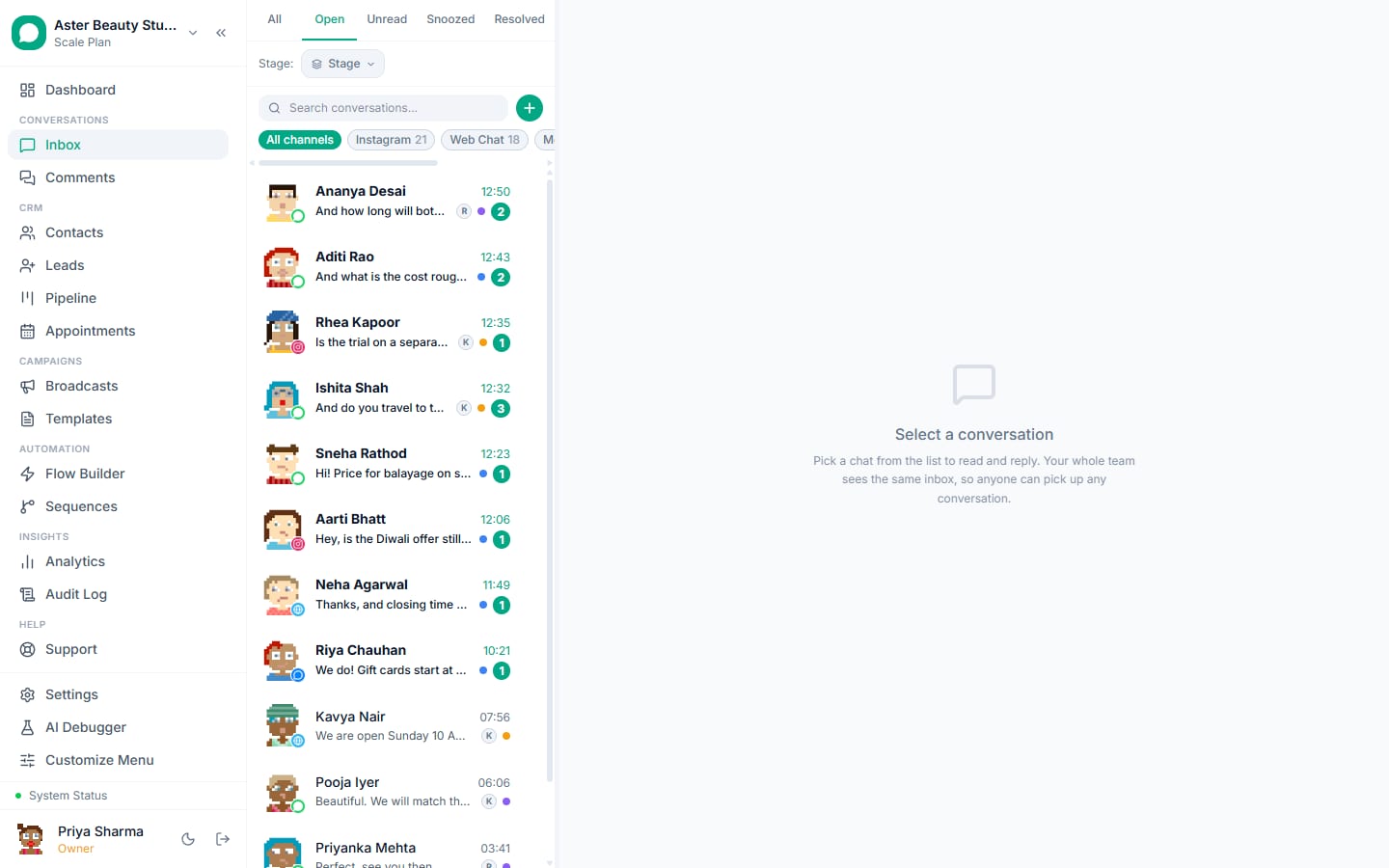
A WhatsApp shared inbox lets a team answer one business number from many screens with ownership: every conversation has an assignee, an SLA timer, notes, tags and a history, and nobody replies to the same customer twice. The WhatsApp Business app's linked devices give a team four phones and none of that. The shared inbox runs on the WhatsApp Business API and, in VGraple CRM, also carries Instagram DMs, Messenger and website chat under the same rules. This guide sets one up in an afternoon: number, team, assignment, SLAs, quick replies and stages, mobile, then a two-week rollout and the metrics that show it is working.
Linked devices vs a shared inbox
| WhatsApp Business app, linked devices | Shared inbox on the API | |
|---|---|---|
| Agents | 4 devices, one identity | Unlimited, each with their own login |
| Who owns a conversation | Nobody | An assignee, or a team queue |
| Two agents replying at once | Happens | Collision detection and assignment |
| Notes, tags, stages | Labels only | Notes, tags, stages, custom fields |
| Response-time targets | None | SLA per team with alerts |
| Channels | WhatsApp only | WhatsApp, Instagram, Messenger, web chat |
| History and reporting | On the phones | Per agent, per team, per channel |
| Automation | Greeting and away message | Rules, flows, AI with handoff |
| Keep the phone app | n/a | Yes, with coexistence |
Step 1: connect the number
Settings, Channels, WhatsApp, Connect via Embedded Signup (about 15 minutes), or Connect in coexistence mode to keep the WhatsApp Business app on the owner's phone. Instagram and Messenger connect from the same Channels page through the Facebook Page. Connect your number.
Step 2: invite the team with roles
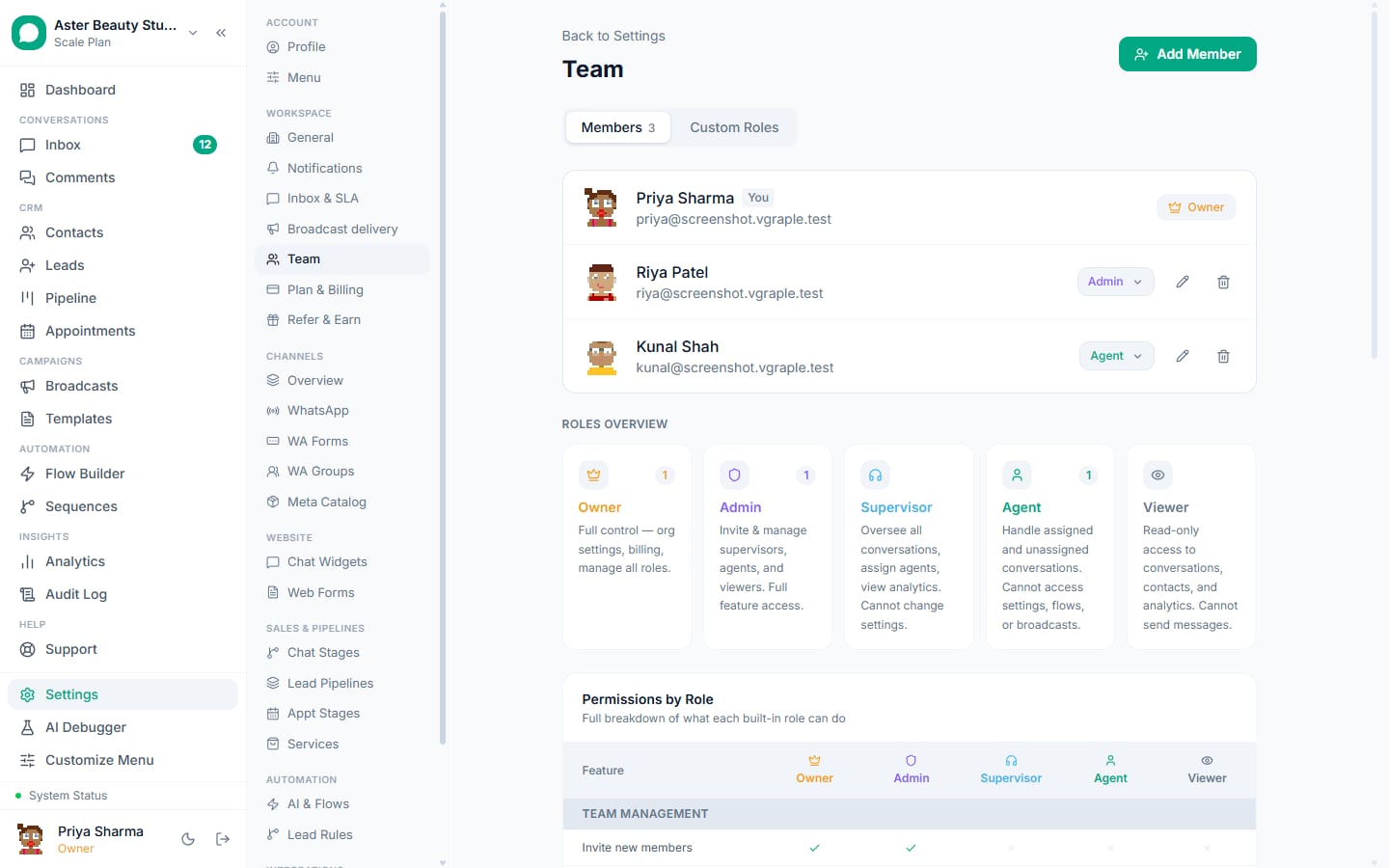
Settings, Team, Add Member: email, role (Owner, Admin, Agent, or a custom role), team. Agents see conversations and contacts; Admins manage templates, campaigns and settings; Owners see billing and sensitive settings. Custom roles restrict or extend specific permissions. Invite your team.
Step 3: assignment rules
Settings, Inbox and SLA, Auto assignment: round robin across online members of a team, or rules by keyword, channel, campaign or last agent. Unassigned conversations wait in the shared queue with a timer. A conversation can be reassigned from its header at any time; collision detection shows who else has it open. Assign conversations.
Step 4: SLA targets and alerts
Set a first-response target per team, in minutes, for business hours. Conversations approaching or breaching it are flagged in the inbox and can alert the owner by push or email. Start with 10 minutes for sales and 30 for support; tighten once the queue is under control. SLA targets.
Step 5: quick replies, stages and tags
Save the answers the team types all day as quick replies (insert with "/" in the composer). Define conversation stages that match how work moves (New, In progress, Waiting on customer, Resolved). Agree a short tag list (product, issue type, source). These three things are what make reporting meaningful later. Tags, notes and stages.
Step 6: mobile and notifications
Install the Android app for every agent; each signs in with their own account and sees their assignments with push notifications. Owners set notification rules (assignment, SLA breach, mention). Builders and settings stay on the web. Android app.
Step 7: automation in front of the inbox
A welcome flow answers the first questions and collects the enquiry before an agent joins; the AI chatbot handles open questions and escalates on rules; both pause the moment an agent replies. Templates handle replies outside the 24-hour window. Flow builder, AI chatbot.
A two-week rollout
Week 1. Connect, invite, one team, round-robin assignment, a 30-minute SLA, ten quick replies, four stages. Agents work the queue; the owner reviews unassigned and breached conversations daily.
Week 2. Add Instagram and Messenger; split into sales and support teams with their own SLAs; turn on the welcome flow; set tags; review the first agent report.
Metrics that show it is working
| Metric | Target | Where |
|---|---|---|
| First response time (median) | Under 10 minutes in business hours | Analytics, agents |
| SLA breaches per day | Falling week over week | Inbox, SLA view |
| Unassigned conversations at end of day | Zero | Inbox queue |
| Resolved per agent per day | Rising, then stable | Analytics, agents |
| Conversations with a stage set | Above 90 percent | Analytics |
| Revenue attributed per agent | Visible | Analytics, revenue |
Handling the volume: filters, snooze and search
An inbox with five agents and a few hundred conversations a day stays workable through four habits. Filters by assignee, team, channel, stage and unread keep each agent's view short. Snooze parks a conversation until a time you choose (the customer said "call me Monday") and brings it back unread. Resolve closes it without deleting anything; a new message reopens it. Search finds any message across channels and jumps to it in the thread. Owners review the "unassigned" and "SLA breached" views at a fixed time each day; that ten-minute habit is what keeps the queue honest.
Coexistence for the owner who cannot give up the phone
Many Indian businesses run the number from the owner's phone and cannot switch overnight. Connect in coexistence mode: the WhatsApp Business app keeps working on the phone, the inbox sees every message (including ones sent from the phone, as echoes), history for the last 180 days imports once, and the team answers from the inbox while the owner watches from the app. Turn off the app's greeting and away messages once the welcome flow is live so customers get one greeting, not two.
Mistakes to avoid
- Everyone as Admin; use Agent for people who work conversations.
- No stages, so nothing can be reported.
- SLAs without alerts, so breaches are discovered by customers.
- Turning on the AI without a handoff rule.
- Leaving the phone app answering the same number without coexistence; messages go missing from the inbox.
Agent habits that make the inbox work
Claim before replying, so the conversation has an owner. Leave a note when handing over, so the next agent does not ask the customer to repeat. Set the stage when the state changes, not at the end of the day. Use a quick reply, then personalise the first line. Resolve when done; do not leave threads open as reminders, snooze them instead. Five habits, each ten seconds, and the reports become true.
Security and privacy in a shared inbox
Every agent has their own login, so every action is attributable in the audit log; nobody shares a phone or a password. Roles keep agents out of billing, API keys and Meta secrets. Two-factor authentication can be required for the team. Customer names and numbers are encrypted at rest with searchable shadow fields, and exports are limited to roles that need them. When an agent leaves, deactivating the account removes access instantly while their history stays on the conversations. See security and roles.
What VGraple CRM does here
Shared inbox across WhatsApp, Instagram, Messenger and web chat; assignment rules, collision detection, SLA timers and alerts, notes, tags, stages, quick replies, search, roles with a permission matrix, the Android app, the flow builder and automation rules are on every plan including Free; AI reply suggestions and the AI chatbot are on Growth and above; analytics on Starter and above.