On this page
- What you get
- How it works
- What node types can a flow use?
- How does the Delay node handle scheduling?
- How does the flow builder protect the 24-hour messaging window?
- What can the AI Response node do that a scripted node can't?
- Can a flow call my own systems?
- How does per-node opt-out enforcement work?
- With VGraple CRM vs building a WhatsApp bot by hand
- Who uses it
- What Meta allows
- Plans and limits
- Recent improvements
In short
- Drag-and-drop canvas with 16 working node types: messages, templates, buttons, conditions, delays, AI replies, human handoff, API calls and more
- Triggers on a keyword, any inbound message, a tag, a segment, a form submission or an appointment event
- Every free-form send is guarded by WhatsApp's 24-hour service window automatically, so a flow never wastes a doomed API call
- No version history yet: a flow has draft, active, paused and archived states and a live run counter, not a rollback list
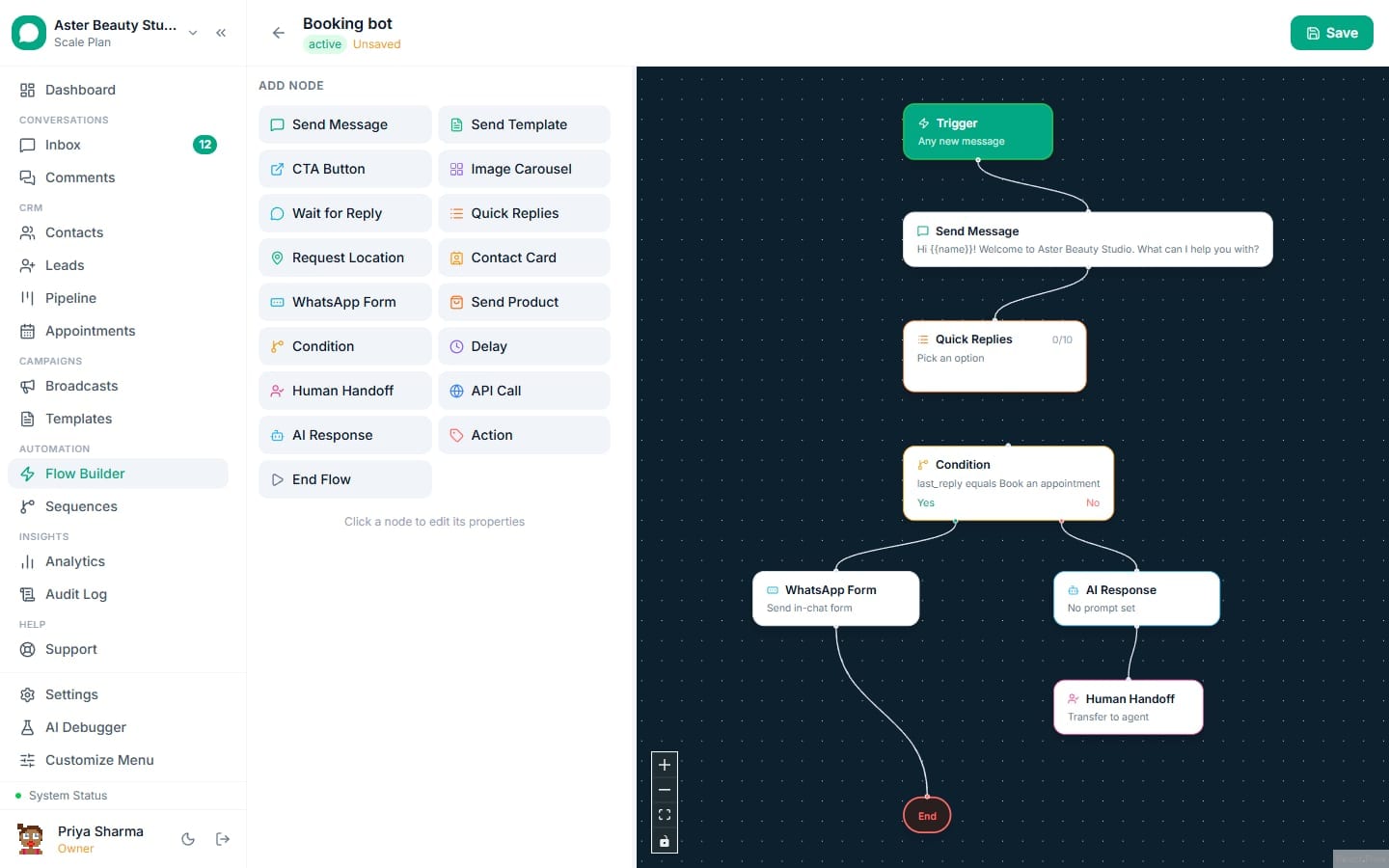
A WhatsApp chatbot flow is a conversation you build once on a visual canvas and it runs automatically for every customer who triggers it: someone types "price" and gets an instant answer with buttons, someone books an appointment and gets a reminder three days later, someone fills a lead form and gets qualified before a human ever sees the chat. VGraple CRM's flow builder gives you 16 working node types, six trigger types, branching logic and an AI response node, all connected on a drag-and-drop canvas with no code.
What you get
- A drag-and-drop canvas (built on the same graph engine as the mobile app's flow viewer) with connected nodes and named handles for true/false and timeout paths
- 16 working node types covering messages, templates, buttons, carousels, forms, catalog products, conditions, delays, API calls, AI replies and human handoff
- Six trigger types: keyword, any inbound message, tag added, segment entry, form submitted, and three appointment events
- Automatic 24-hour window protection on every free-form send, so a delayed step never fires a message Meta will reject
- Flow variables you set once and reuse anywhere with
{{variable_name}}interpolation, including API responses and quiz answers - Opt-out and block checks enforced on every node, not just at the start of a run, so a mid-flow STOP stops the flow immediately
How it works
- Create the flow and set a trigger. From the Flow Builder page, name your flow and open the canvas. The trigger node starts as Keyword / Inbound Message; switch it to Contact enters a Segment, Contact receives a Tag, Form Submitted, or one of the three appointment triggers from the dropdown grouped by category (Messaging, Tags, Appointments, Forms).
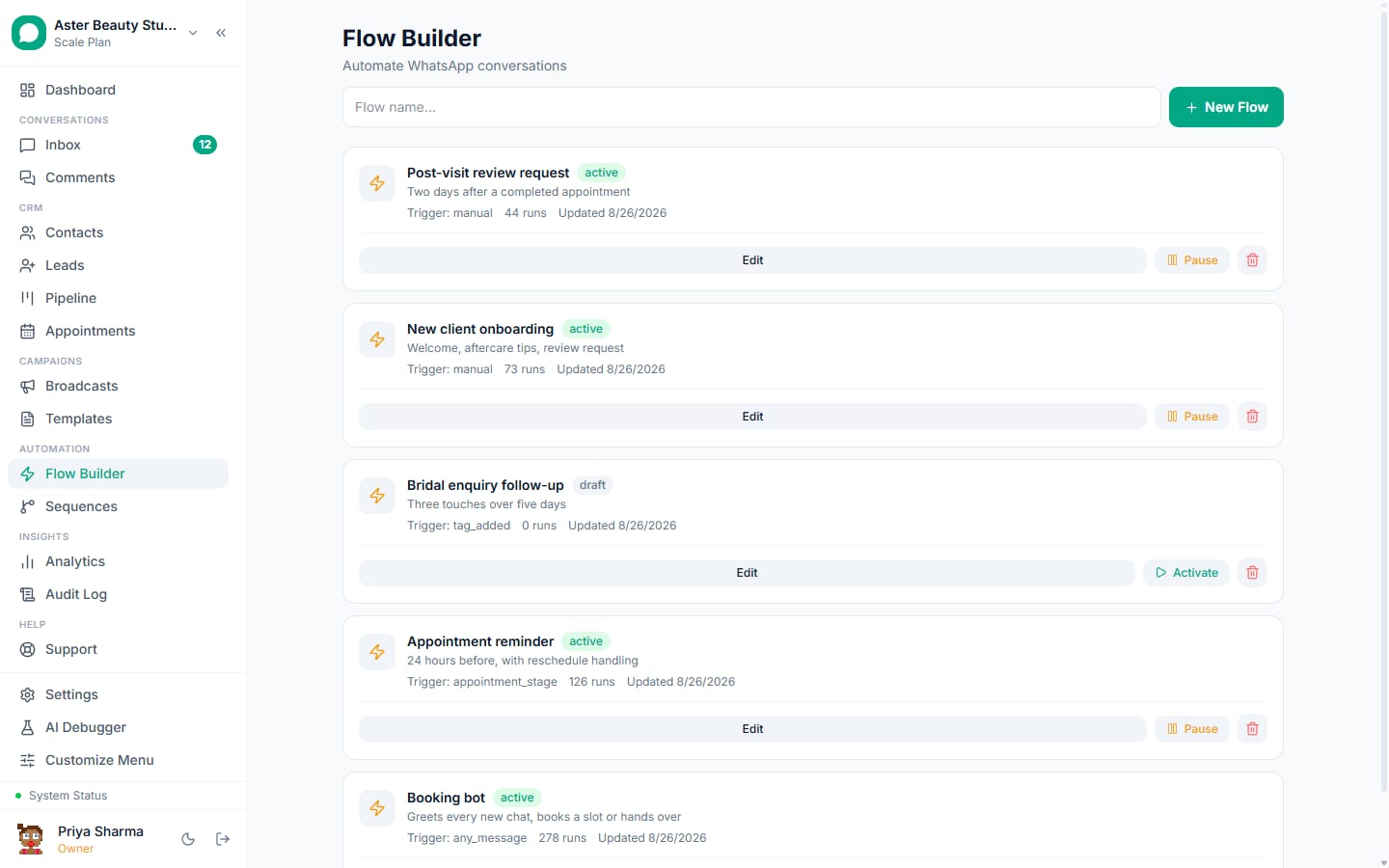
Add nodes from the palette. Drag Send Message, Send Template, Quick Replies, Condition, Delay, AI Response or any of the other 13 node types onto the canvas and connect them with edges. Buttons and list messages, template variables, and delay durations are all edited in the side panel that opens when you click a node.
Branch with conditions. A Condition node reads a flow variable (
var.reply,var.selected_option) or a contact field (contact.name,contact.phone), compares it with equals, contains, starts with, is empty or is not empty, and routes to a true or false path. Use this to send a different reply depending on which quick-reply button someone tapped.Add an AI Response or Human Handoff node where a script would break down. The AI Response node answers freely using your configured provider (OpenAI, Anthropic or the free Groq option), an optional system prompt, and an optional knowledge base. The Human Handoff node ends the automation and drops the conversation into the team inbox with a configurable handoff message.
Activate and test on your own number. Flip the flow from draft to active, then message your connected WhatsApp number with the trigger keyword. There is no separate sandbox for flows; you are testing the exact node graph a customer will run.
Watch it run and refine. Each flow shows its run count on the list page. Open the flow again to adjust wording, add a branch, or connect a new node; changes apply to every execution that starts after you save.
What node types can a flow use?
The palette has 16 working node types beyond the trigger and end nodes: Send Message, Send Template, CTA Button (send_cta_url), Image Carousel, Wait for Reply, Quick Replies, Request Location, Contact Card, WhatsApp Form (a Meta WhatsApp Flow), Send Product (from your Meta catalog), Condition, Delay, Human Handoff, API Call, AI Response, and Action. The Action node itself has four sub-types: Add Tag, Remove Tag, Mark Opted Out and Resolve Conversation. Quick Replies switches automatically from WhatsApp's native buttons (up to 3) to a list message (up to 10 options) once you add a fourth option, matching what the WhatsApp API actually supports.
Example
A coaching institute uses a Quick Replies node to ask "Which course are you interested in?" with four options; each option feeds a Condition node that routes to a course-specific brochure sent with Send Template.
How does the Delay node handle scheduling?
A Delay node can wait a fixed duration (hours and minutes) or wait relative to the contact's next scheduled appointment, before or after it, by a number of days and hours. The relative mode is built for reminder flows: set it to "1 day before appointment" and the flow pauses until that offset from whatever appointment the contact currently has booked. If the contact has no upcoming appointment when the node is reached, the delay is skipped rather than waiting forever.
Example
A clinic sets a Delay node to "1 day before, 0 hours" after an Appointment Booked trigger, followed by a Send Template node that sends the approved reminder template.
How does the flow builder protect the 24-hour messaging window?
Every node that sends free-form content, meaning anything that is not a pre-approved template, is checked against the conversation's 24-hour service window before it fires. If the window is closed, the flow does not attempt the send at all. Instead it writes a visible message into the conversation thread reading "[Not sent: send_message]" with the reason "24-hour service window closed", and moves to the next node. This matters most for Delay-heavy flows: a Send Message node scheduled to fire two days after a keyword trigger would otherwise hit Meta's error 131047 on every single attempt.
What can the AI Response node do that a scripted node can't?
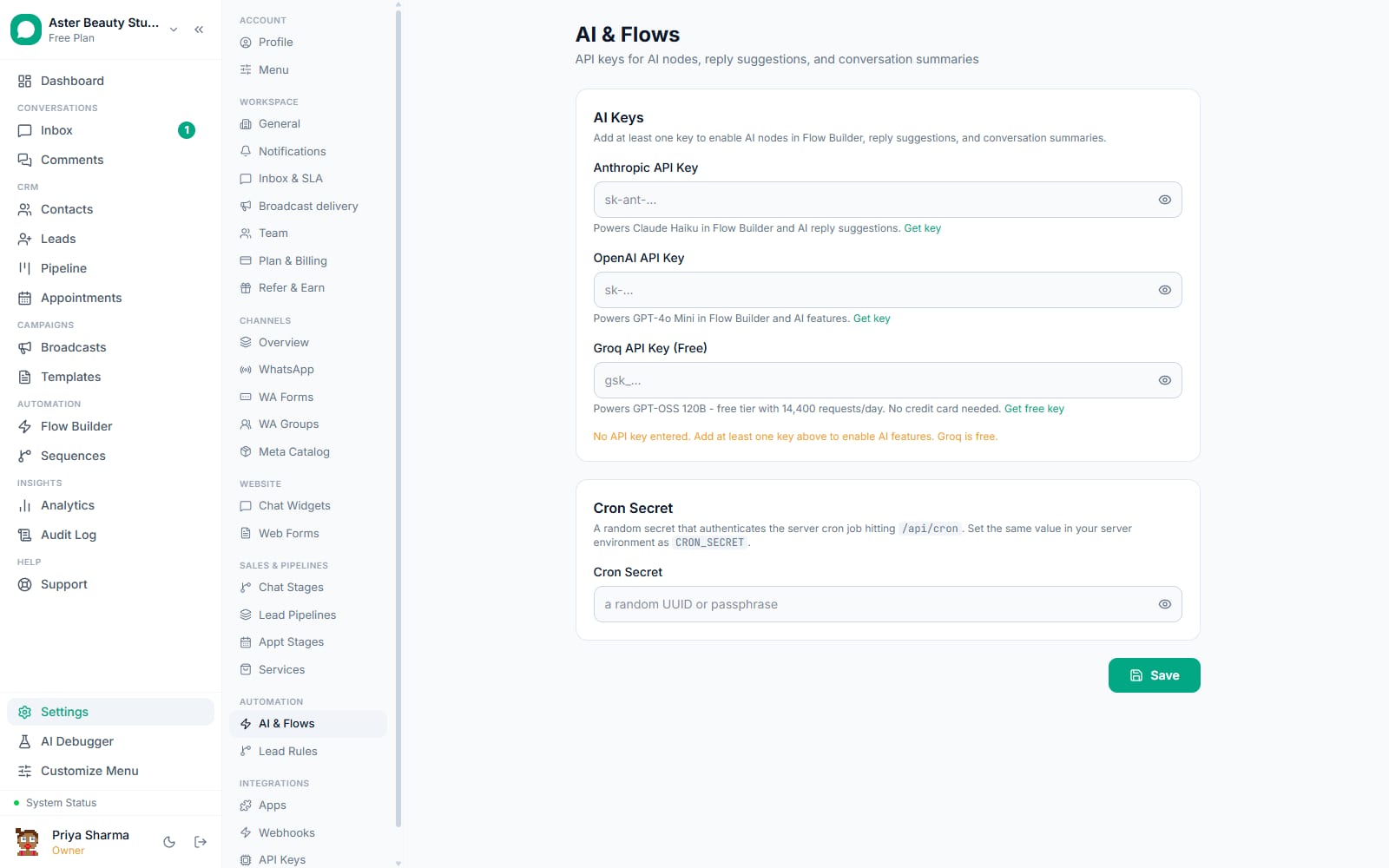
The AI Response node answers in natural language using whichever hosted model your org has a key for: OpenAI's GPT-4o Mini, Anthropic's Claude Haiku, or Groq, which ships free with no key purchase needed. You write a system prompt (or generate one with the built-in wizard), optionally turn on conversational mode for back-and-forth chat instead of a single reply, and optionally attach a knowledge base so answers stay grounded in your own content. This is the same underlying capability as the AI chatbot feature, exposed as one node inside a larger scripted flow rather than a whole conversation.
Example
A real-estate agency scripts the first three questions (budget, location, property type) with Quick Replies nodes for reliability, then hands off to an AI Response node for open-ended questions about a specific listing.
Can a flow call my own systems?
Yes, with the API Call node. It sends the flow's current variables as either a JSON POST body or a GET query string to a URL you provide, and the response is saved into a flow variable (api_response by default) you can reference in any later node with {{api_response}}. Your endpoint must return JSON or plain text; if it returns JSON, the whole object is stored as a string, so extract the specific field you need before returning it. This is how a flow can check real-time stock, look up an order status, or push a lead straight into an external system mid-conversation.
How does per-node opt-out enforcement work?
Most chatbot builders check consent once, when a flow starts. VGraple CRM's executor checks opted_out_at and is_blocked on the contact before running every single node in the loop, including on resume after a Wait for Reply or Delay step. A customer who sends STOP while a multi-day flow is sitting in a delay never receives the next scheduled message; the run is marked cancelled the moment the executor wakes up and sees the flag. The same loop also enforces a maximum of one visit per node per execution, so a badly wired flow (a condition that loops back on itself) breaks the loop instead of hammering the WhatsApp API forever.
With VGraple CRM vs building a WhatsApp bot by hand
| Building it yourself with the Cloud API | VGraple CRM flow builder | |
|---|---|---|
| Setting up a keyword reply | Write webhook handler code, deploy it, handle retries | Drag a Send Message node onto the trigger, save |
| Branching on a customer's answer | Build your own state machine and variable storage | Condition node with a dropdown of operators |
| Respecting the 24-hour window | Track window_opened_at yourself, check it before every send | Checked automatically on every free-form node |
| Handling STOP mid-conversation | Poll or webhook on opt-out events, cancel your own jobs | Checked before every node, including on resume |
| Calling an AI model | Wire up your own API client, prompt, and error handling | Drop in an AI Response node, pick a provider |
| Handing off to a person | Build your own inbox and assignment logic | Human Handoff node routes into the team inbox |
| Testing a change | Stage a test environment or risk breaking production | Message your own connected number directly |
Who uses it
Salons and clinics use flows for booking confirmations, pre-visit intake questions, and appointment reminders tied to the Delay node's relative-to-appointment mode. See WhatsApp automation for healthcare.
Coaching institutes run keyword-triggered flows that route a prospective student through a Quick Replies course picker into a course-specific brochure and a Human Handoff to a counselor. See WhatsApp automation for education and coaching.
D2C stores trigger a flow from Send Product nodes tied to their Meta catalog, letting a customer browse and order without leaving WhatsApp. See WhatsApp automation for ecommerce.
Real-estate agencies use AI Response nodes for open-ended listing questions after a scripted qualification sequence collects budget and location. See WhatsApp automation for real estate.
What Meta allows
The flow builder enforces both automatically: the 24-hour window guard blocks free-form sends and logs a visible failure instead of calling the API, and the opt-out check runs before every node executes, not only at flow start. Template-sending nodes (Send Template, WhatsApp Form) are unaffected by the window guard, because a template is exactly what Meta expects outside it.
Plans and limits
Flow Builder itself is available on every plan, including Free, with no cap on the number of flows or nodes you can build. What is plan-gated is volume: agent seats, total contacts, and conversations per month scale from the Free plan (1 agent, 5,000 contacts, unlimited conversations/month) up through Starter, Growth and unlimited on Scale. The AI Response node needs an AI key configured in Settings, Automation and AI; Groq's key is free to add, so AI Response works on every plan without a separate purchase.
Recent improvements
- 2026-08: Channel routing fixed on every send inside a flow execution, so a reply from a multi-number org always goes out on the WhatsApp number the conversation is actually on, not a default fallback.
- 2026-08: Wait for Reply timeouts are now enforced end to end, and the opt-out/block check runs before every node rather than only at flow start.
- 2026-07: Fixed a crash in the flow editor when opening flows that were created by the sequence builder and had no saved node position.
- 2026-07: Added the 24-hour service window guard on free-form send nodes, replacing silent Meta API failures with a visible logged message.
- 2026-06: Fixed an N+1 query pattern in the cron jobs that check segment-entry and appointment-based flow triggers, cutting the per-tick database load.
- 2026-06: Added the Send Product node, letting a flow send a single product from a connected Meta catalog with an optional message.