On this page
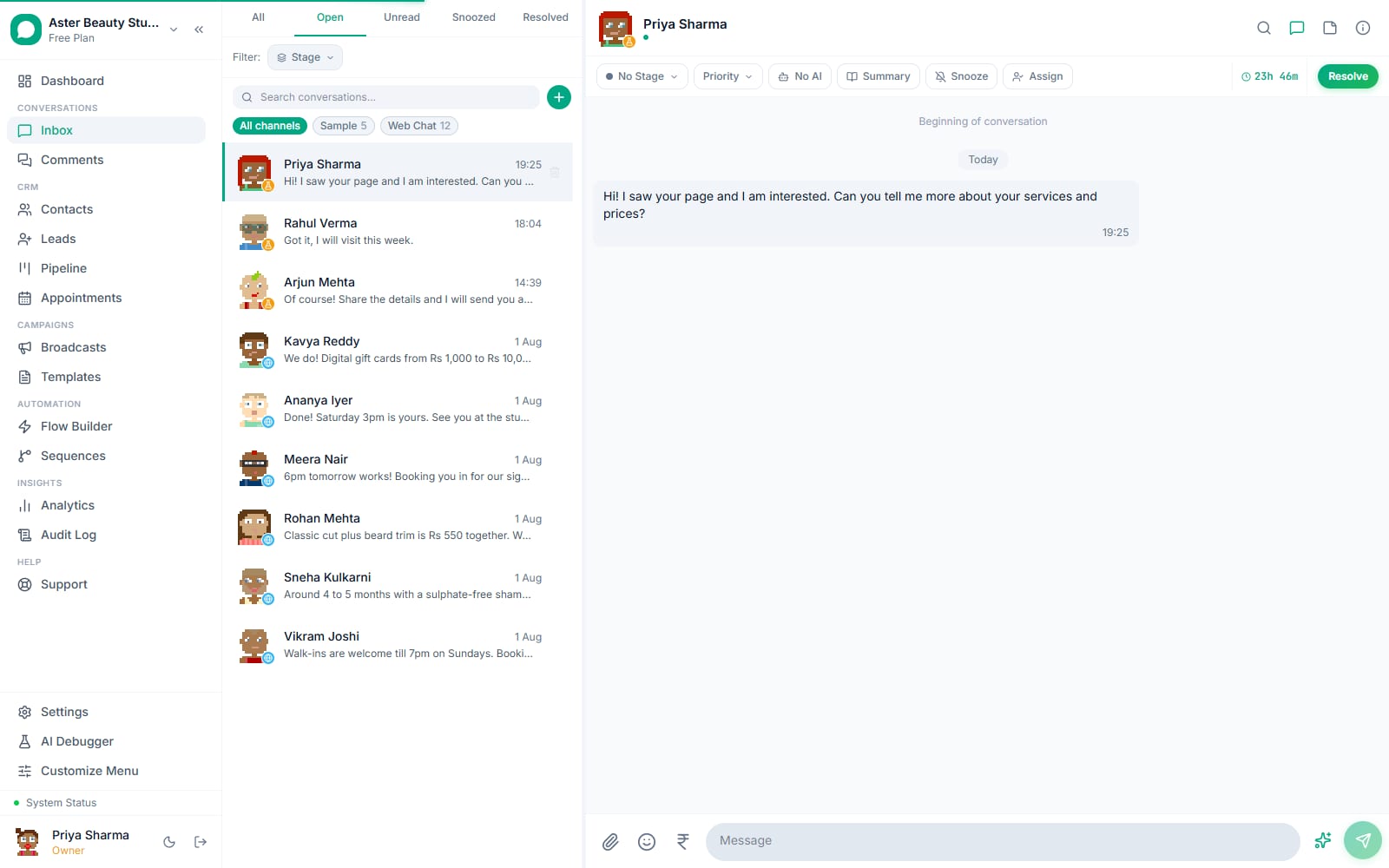
AI reply suggestions draft a reply for you from a conversation's recent history, right in the message composer, so you can send it as-is or edit it before it goes out. This article covers turning it on, using it, and where it draws its context from.
AI reply suggestions
- 1Open any conversation with at least one
- 2Click the sparkle icon
- 3Review the draft that appears in the
- 4Edit it if needed
- 5Send it, or discard it and type
Before you start
- AI reply suggestions need the AI Assistant plan feature, available on Growth and above, or grandfathered if your organisation had a provider key before this gate shipped.
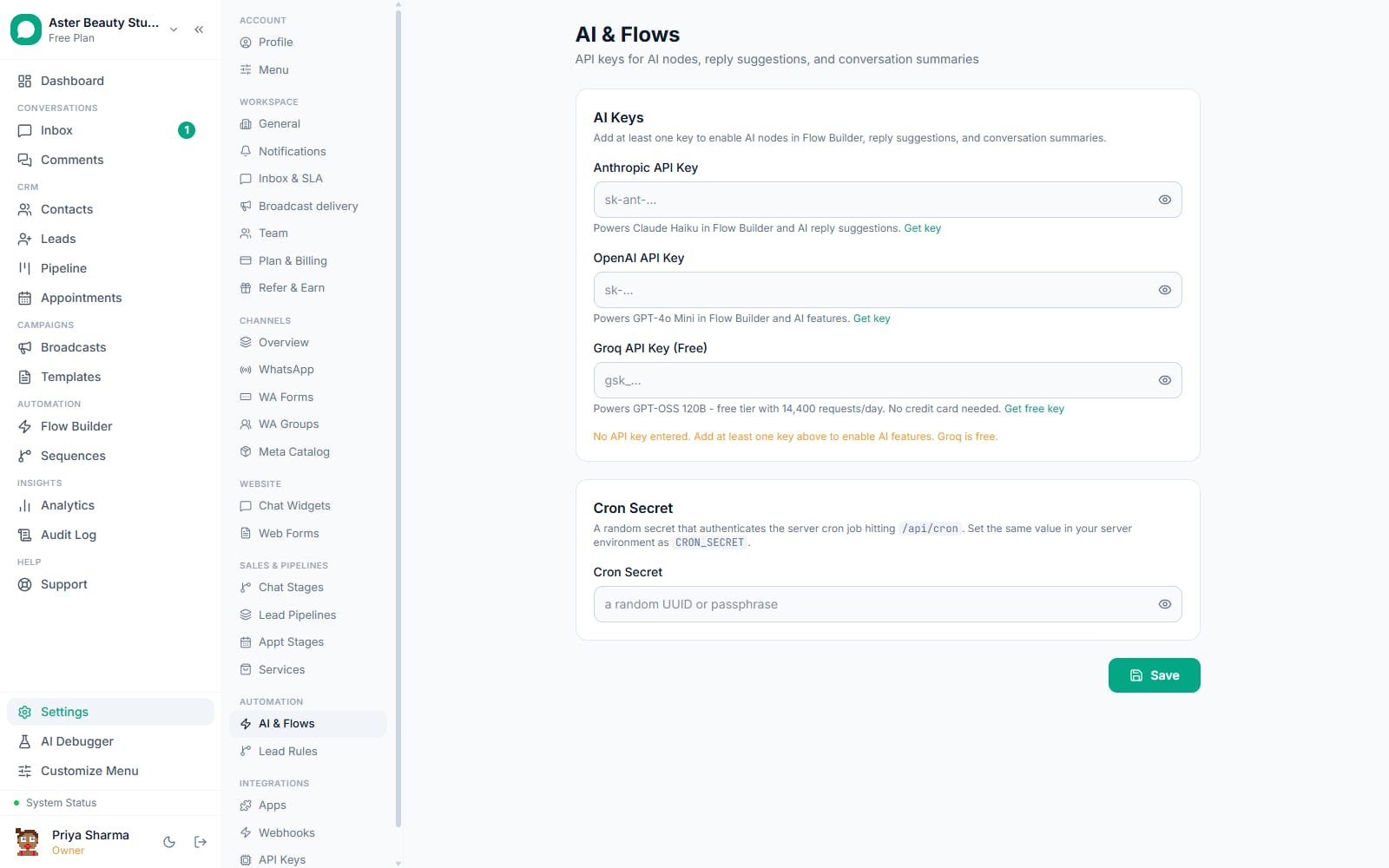
- At least one AI provider key must be configured in Settings, then AI & Flows. Groq's key is free and works for this feature the same as a paid Anthropic or OpenAI key.
- Suggestions only work on a conversation that already has at least one inbound (customer) message; there is nothing for the AI to respond to otherwise.
- This is an assist tool for agents, not an automation. It never sends on its own; every suggestion still needs a human to review and press Send.
- If you want a fully automated reply with no human review at all, that is a different feature: an AI Response node in Flow Builder, or the AI chatbot's chat widget. Reply suggestions are specifically the human-in-the-loop version.
Steps
- Open any conversation with at least one customer message. The sparkle icon appears in the message composer, next to the send button.
- Click the sparkle icon. It shows a loading spinner briefly while the suggestion is generated, typically a few seconds.
- Review the draft that appears in the composer. It is not sent automatically; it lands as regular editable text in the input box.
- Edit it if needed. Adjust tone, add a detail the AI could not know, or trim it down, exactly as you would edit anything you typed yourself.
- Send it, or discard it and type your own reply. Nothing about clicking the sparkle icon commits you to using its output.
A support agent handling a busy shift is the typical use case: a customer has asked a question that is clearly answered a few messages up the thread, and rather than re-reading the whole conversation and typing a reply from scratch, one click drafts a reasonable starting point. The agent still reads it before sending, the same as reviewing any teammate's draft, but the first-draft work is done.
What you will see
Clicking the sparkle icon replaces whatever was in the composer with a drafted reply based on the last 20 messages of that specific conversation, read in chronological order. If no AI key is configured, or the AI Assistant plan feature is not available to your organisation, clicking it shows an error explaining which is missing rather than a silent failure. A conversation with no customer messages yet, or one where the AI could not produce a usable draft, shows a clear "no suggestion" message instead of an empty or broken composer.
The suggestion tool is scoped tightly on purpose: it only ever reads the one conversation you are viewing, never your wider contact list, other conversations, or CRM records like leads or appointments. A reply drafted from a WhatsApp thread will not accidentally reference something a different customer said in an unrelated conversation, since the AI is never given that context to begin with.
Settings and options
| Setting or field | What it does | Default |
|---|---|---|
| AI Assistant plan feature | Gates access to reply suggestions; Growth and above, or grandfathered | Off below Growth unless grandfathered |
| Default AI Model | Which provider (Anthropic, OpenAI or Groq) drafts the suggestion | First configured provider, or your chosen default if more than one key exists |
| Message history window | How many recent messages are sent to the AI as context | Most recent 20, chronological order |
| Sparkle button | Triggers a new suggestion; replaces any text currently in the composer | Always visible when a bot key exists and the conversation has customer messages |
| Scope | Reads only the current conversation's messages; never other conversations or CRM records | Fixed, not configurable |
| Fallback provider | If the organisation's default provider has no working key, another configured provider answers instead | Automatic |
Troubleshooting
| Symptom | Likely cause | Fix |
|---|---|---|
| Clicking the sparkle icon shows a plan error | Your organisation is on a plan below Growth and is not grandfathered for AI Assistant access | Upgrade to Growth or above, or confirm with support whether your organisation should already be grandfathered |
| The error mentions no API key configured | No Anthropic, OpenAI or Groq key is set for the organisation | Add at least one key in Settings, then AI & Flows; Groq's key is free |
| The suggestion says there is no history to work from | The conversation has no inbound (customer) message yet | Wait for the customer to send at least one message, or write the first message manually yourself |
| The drafted reply ignores something said earlier in a long conversation | Only the most recent 20 messages are sent as context, so anything further back is not visible to the draft | Manually add the missing detail when editing the suggestion before sending |
| The suggestion feels off-brand or generic | The AI has no system prompt or brand-specific instructions in this path, unlike an AI Response flow node which can carry a custom prompt | Treat suggestions as a first draft to edit, not a final answer; for a fully on-brand automated reply, use an AI Response node in Flow Builder instead |
Why review every suggestion before sending
Treat a suggestion the way you would treat a colleague's draft: fast, usually a good starting point, but not guaranteed to be exactly right for this specific customer. The model has no visibility into anything outside the 20 most recent messages, so it can miss context from earlier in a long relationship, get a specific number or policy detail wrong if it was not stated in the visible history, or simply pick a tone slightly off from how your team usually writes. None of that makes the feature unreliable; it means the review step before you click Send is doing real work, not a formality.
Related reading
Reply suggestions share the same AI Assistant plan gate as conversation summaries and the AI debugger; if suggestions stopped working, check whether any of those also broke, since they usually share the same root cause.