On this page
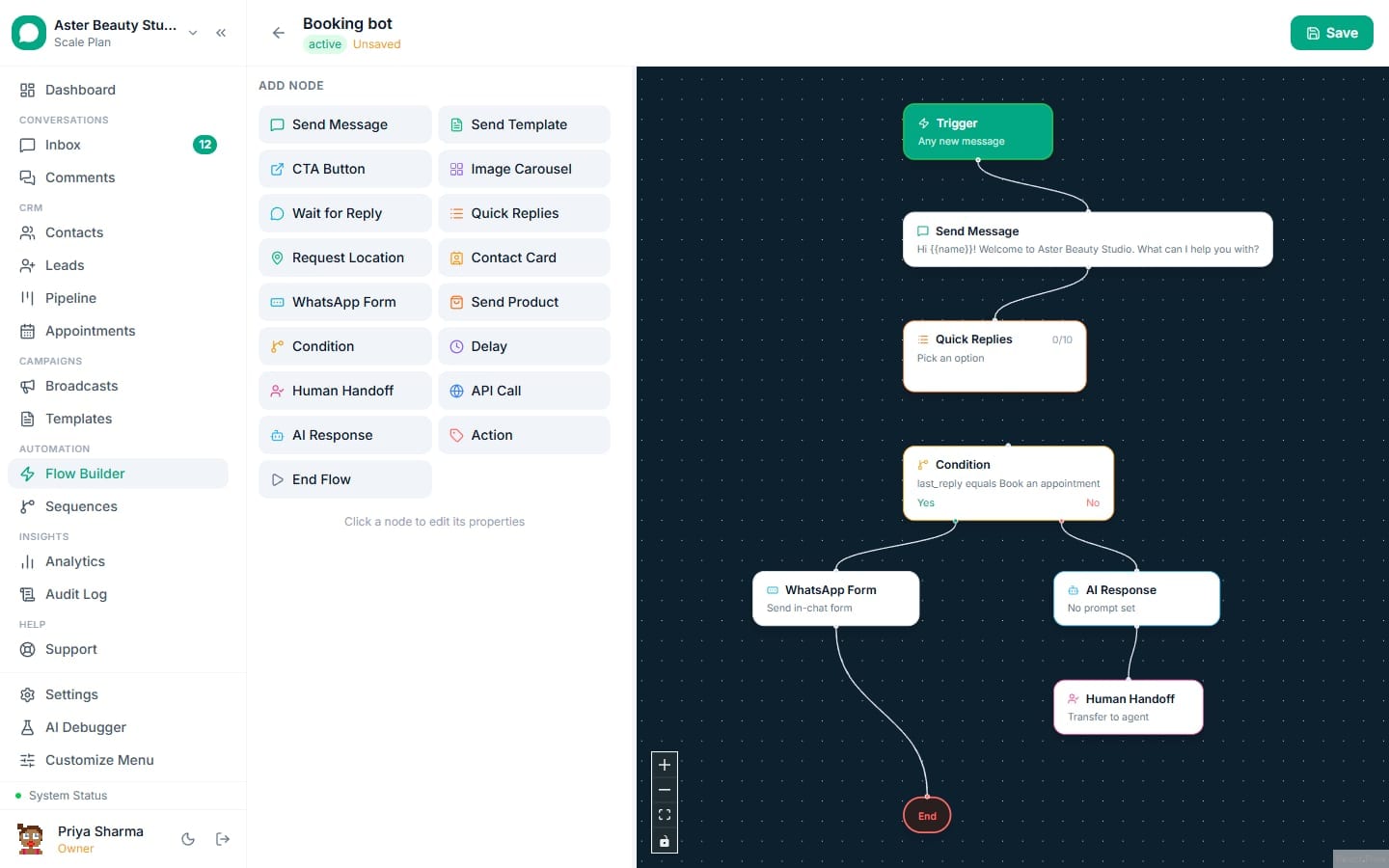
A flow's trigger node decides what starts it: a word a customer types, any message at all, a chat going quiet, a tag landing on a contact, a contact field changing, a contact matching a saved segment, a form submission, a new lead from any source, or one of three appointment events. This article covers every trigger category, exactly what each one's fields do, and how the platform checks for a match behind the scenes.
Before you start
- The trigger dropdown groups options by category: Messaging (Keyword / Inbound Message, Customer goes quiet, Contact enters a Segment), Tags (Contact receives a Tag), Contact fields (Contact field changes), Appointments (Appointment Booked, Appointment Reminder, Appointment Completed), Forms (Form Submitted) and Leads (New lead arrives).
- Only Active flows evaluate triggers. A flow left in Draft never fires, no matter how its trigger is configured.
- Segment-entry, appointment-reminder and Customer goes quiet triggers run on a schedule (hourly, every 5 minutes and every minute respectively), not instantly. Every other trigger fires the same second the underlying event happens.
- A trigger that targets a contact with no WhatsApp number (a website chat visitor, a Calendly booking made with only an email, or a Meta DM contact) is skipped, since there is nowhere for the flow to send a WhatsApp message. New lead arrives is the exception: a lead with a phone number gets a WhatsApp contact created on the spot, and a lead without one waits, marked "Automation pending", until that person messages you.
Steps
- Open the flow's trigger node and choose a Trigger Type from the dropdown.
- For Keyword / Inbound Message, enter one or more comma-separated keywords, or leave the field blank to catch any inbound message that no keyword flow already claimed. Keywords match whole words and ignore capital letters:
hianswers "Hi" and "oh hi there", and does not answer "children" or "this", although both contain those two letters. A keyword of four letters or more also answers longer forms of the word, sodelivercovers "delivery" and "delivered". A three-letter keyword also covers its plural (toyanswers "toys"). A one or two letter keyword matches only as a whole word. In languages written without spaces between words, such as Chinese, Japanese and Thai, a keyword matches wherever it appears.
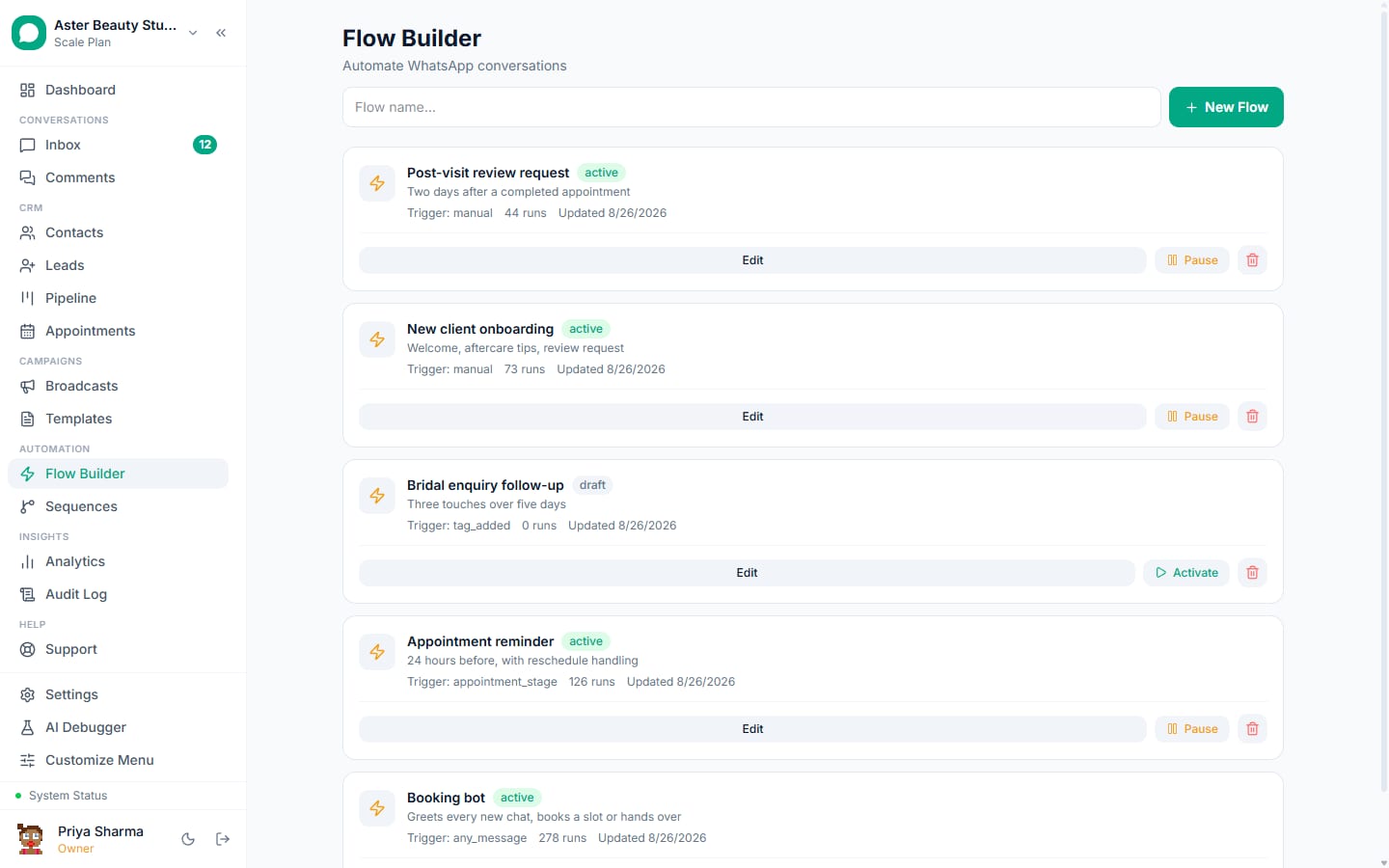
- For Customer goes quiet, set how long the chat must be silent (1 minute to 23 hours) and how often the flow may run in one chat ("Send at most once every", in hours, 24 by default). The flow starts when nothing has been sent or received for that long after your last reply, whichever flow sent it. A number can have one active flow with this trigger. For a follow-up that belongs to one keyword, keep that flow's keyword trigger and add a Wait until quiet step instead. Both are explained in following up when a customer goes quiet.
- For Contact enters a Segment, pick a saved segment from the dropdown. The flow runs once for each contact the first time they match that segment's filter, checked hourly.
- For Contact receives a Tag, pick a specific tag, or leave it on "Any tag" to fire whenever any tag is applied to a contact.
- For Contact field changes, optionally pick one contact field and the value it must become; leave both blank to fire on any change. The new values arrive in the flow as variables named after their field key.
- For the three appointment triggers, optionally scope to one service; leave it on "Any service" to catch every appointment. Appointment Reminder additionally needs an "Hours before appointment" value (1 to 168 hours), checked every 5 minutes.
- For Form Submitted, optionally scope to one specific form, or leave it on "Any form" to fire on every submission across every form in your workspace.
- For New lead arrives, tick the sources that should start the flow (none ticked means any source), and optionally narrow it to one pipeline, a campaign name that contains a word, a form name that contains a word, or one chat widget. Make Send Template the first step: the person has usually not messaged you yet, so a free-form message would wait for the 24-hour window. The lead's fields are variables,
{{name}},{{email}},{{campaign_name}},{{form_name}},{{stage_name}}and every form answer under its question ({{which_course}}for a question "Which course?"). Add an Enroll in sequence step to hand the lead to a drip sequence. - Activate the flow and confirm it fires by triggering the event yourself: message the keyword, book a test appointment, submit the test form, add the tag to a test contact, or add a lead by hand from the Leads page.
A salon that wants three different automated moments does not need three different tools: an Appointment Booked trigger sends the confirmation the instant the slot is taken, an Appointment Reminder trigger fires a day ahead with the service name and price already filled in, and an Appointment Completed trigger asks for a review once the visit is over. Each is its own flow with its own trigger node, so editing the reminder wording never risks breaking the confirmation.
What you will see
A matching keyword or catch-all trigger starts a flow execution the instant the message is processed, visible as a new run on the flow's list entry within a second or two. A segment-entry or appointment-reminder trigger takes up to an hour or 5 minutes respectively to notice a new match, since those run on a schedule rather than instantly. Every trigger passes useful context into the flow as variables you can reference with {{variable_name}}: an appointment trigger provides service_name, service_price (booked) or service_duration (completed) and appointment_at; a form trigger provides every field the customer answered.
None of this requires you to build any of the matching logic yourself. A keyword flow does not need you to write a webhook handler that checks incoming text against a list; a reminder flow does not need you to run your own cron job that scans a calendar every few minutes. Choosing a trigger type and filling in its two or three fields is the entire setup on your side.
Settings and options
| Trigger type | Category | Fields | Fires |
|---|---|---|---|
| Keyword / Inbound Message (with keywords) | Messaging | Keywords (comma-separated), match type | Instantly, when an inbound message contains a keyword as a word |
| Keyword / Inbound Message (blank) | Messaging | None | Instantly, as a catch-all for any inbound message no keyword flow already claimed; suppressed while the contact has an active sequence running |
| Customer goes quiet | Messaging | Quiet time (1 minute to 23 hours), Send at most once every (hours) | Every minute, for chats that have been silent for the quiet time after your last reply; one active flow per number; not while a person is handling the chat or a flow's own Wait until quiet step is waiting |
| Contact enters a Segment | Messaging | Segment | Hourly, for each contact matching the segment for the first time |
| Contact receives a Tag | Tags | Tag (optional; blank matches any tag) | Instantly, the moment the tag assignment is saved |
| Contact field changes | Contact fields | Contact field (optional), Only when it becomes (optional) | Instantly, whenever the value changes from the inbox, a form answer, the API or an import |
| Appointment Booked | Appointments | Service (optional) | Instantly, right after the appointment is created |
| Appointment Reminder | Appointments | Service (optional), Hours before appointment | Every 5 minutes, for appointments whose reminder offset falls in the current window |
| Appointment Completed | Appointments | Service (optional) | Instantly, the moment an appointment's status changes to completed |
| Form Submitted | Forms | Form (optional; blank matches any form) | Instantly, right after the submission is saved |
| New lead arrives | Leads | Sources (optional), Pipeline (optional), Campaign name contains, Form name contains, Chat widget (optional) | Instantly, the moment the lead is created; a lead with no phone number waits until that person messages you |
Troubleshooting
| Symptom | Likely cause | Fix |
|---|---|---|
| A keyword flow never fires for a real customer message | The message did not contain the exact keyword text, including a typo, extra punctuation, or a different word entirely | Broaden the keyword list with common variations, or switch to a blank catch-all trigger if precision is not critical |
| A segment-entry flow has not fired for a contact you can see clearly matches | The hourly check has not run yet, or the contact already matched the segment before the flow was created | Wait for the next hourly cycle; a contact that matched before flow creation never triggers it retroactively |
| An appointment reminder never sends | The service filter is scoped to a different service than the one actually booked, or the appointment was cancelled before the reminder window | Check the trigger's Service field, and confirm the appointment is still in "scheduled" status |
| A form-submitted trigger does not start a flow | The contact has no WhatsApp number (a widget-only submission with no phone field), or the form filter is scoped to a different form | Add a phone field to the form if you need WhatsApp follow-up, and confirm the trigger's Form dropdown matches the form that was actually submitted |
| A Customer goes quiet flow did not send its follow-up | A person replied in the chat (which pauses automation there), the customer's last message was never answered, or the flow already ran in that chat inside its "Send at most once every" time | Check the chat for the Paused chip and the flow's last run; resume automation on the chat if the bot should take over again |
| Two flows both respond to the same keyword | Both flows are active with overlapping keywords | Rename or disable one so only one flow owns that word |
| A New lead arrives flow did not start for a lead | The lead has no phone number and no WhatsApp contact (the lead shows "Automation pending"), or the lead's source, pipeline, campaign, form or widget is outside the trigger's conditions, or the contact has opted out | Add the phone number to the lead or wait for that person to message you; check the trigger's conditions against the lead's source and campaign; open the flow's runs to see what started |
| A tag-added trigger fired once but not again for the same contact | This is expected; the trigger only fires on the instant a tag assignment is created, not on every later save of a contact that already carries it | Remove and re-add the tag to fire it again, or use a different trigger for repeatable automation |
Related reading
Once your trigger is set, add the nodes that make up the conversation itself; see the flow node reference for every field, or the broader Flow Builder guide for wiring nodes together and testing the result.