On this page
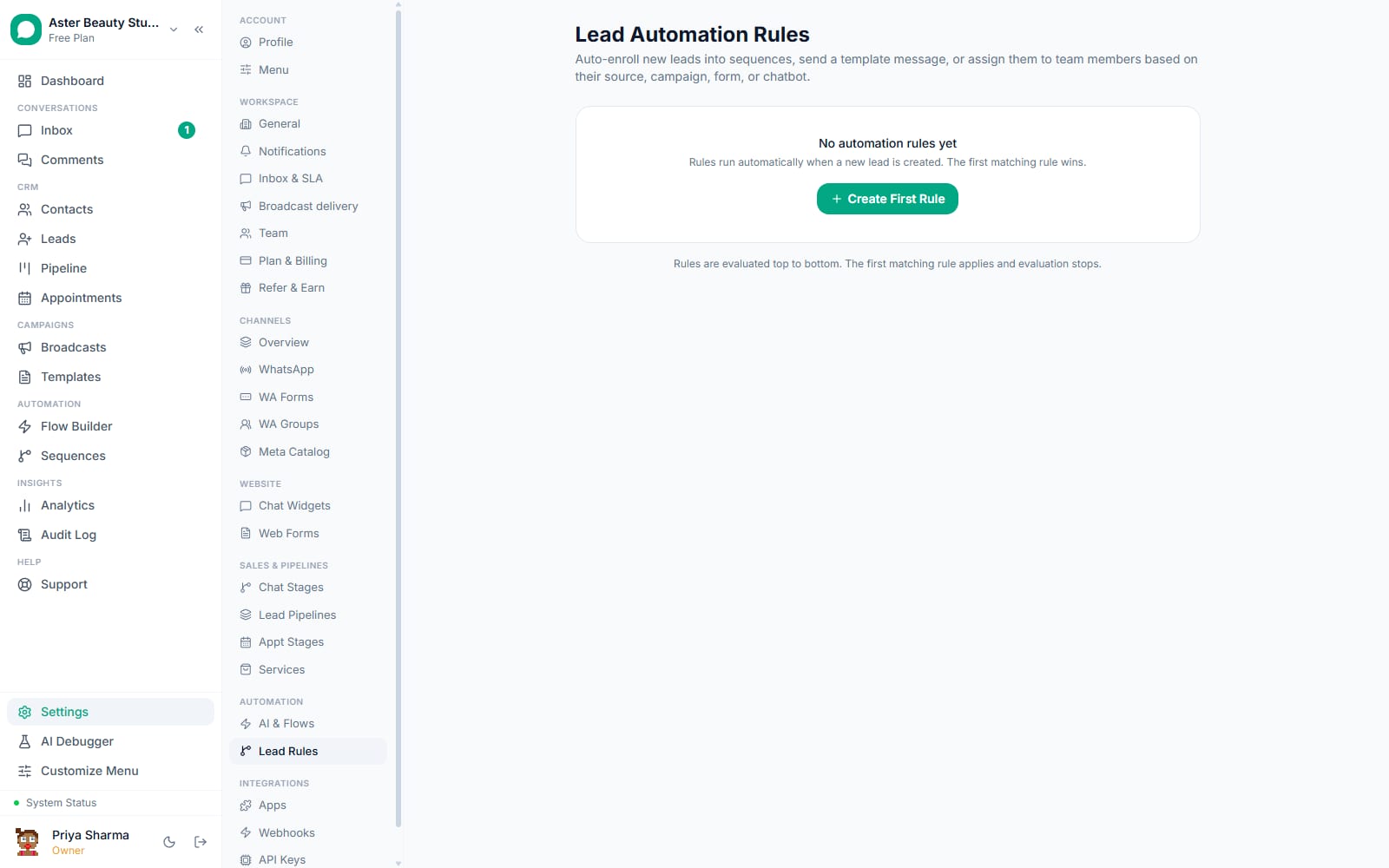
A lead rule decides who on your team owns a new lead the instant it is created, before anyone has looked at it. This walkthrough covers building a rule, ordering it against other rules, and what to use instead when you want to message the lead.
Before you start
- Lead rules are available on every plan, including Free, with no cap on the number of rules a workspace can create.
- A rule does one thing: it assigns the lead. To send a template, add a tag or start a sequence when a lead arrives, build a flow with the New lead arrives trigger. The two work together: the rule gives the lead an owner, the flow talks to the customer.
- A rule runs once, at the moment the lead is created. Changing a rule later does not reassign leads that already exist.
- Only Owner and Admin roles typically manage lead rules; check your custom role's permissions if the settings page is not visible.
Steps
- Open Settings, then Automation, then Lead Rules. The page lists every existing rule in the order it runs, with a plain-English summary of its conditions, such as "Source is Meta Lead Ad" or "Campaign name contains Diwali", and the team member it assigns to.
- Create a new rule and add conditions. Pick a field (Source, Campaign name, Form name, Pipeline, Label, or Chatbot), an operator where one applies (equals or contains), and a value. Add up to 5 conditions; every one of them must be true for the rule to match. A rule with no conditions matches every new lead, which is right for a catch-all at the bottom of the list.
- Choose the team member. Pick who the lead goes to. The lead's contact gets the same owner when nobody owns it yet.
- Order the rule against your others. Rules evaluate top to bottom, and the first match wins. Put specific rules (one campaign, one form) above general ones (any Meta Lead Ad) so the specific rule fires first.
- Save and watch a real lead hit it. When a lead arrives from any source, whether a Facebook Lead Ad, a website form, a chatbot conversation, a comment-to-DM capture, an ad that opened a chat, the API or a colleague adding it by hand, every active rule is checked in order and the first full match assigns it.
- Check the lead record. The assignee is visible on the lead in the Leads board and on the contact's chat in the inbox.
A real-estate agency with three project campaigns is a typical case for three rules: each matches on Campaign name and assigns the agent handling that project. A fourth rule with no conditions sits at the bottom and sends everything else to the front desk, so no lead ever waits unowned.
What you will see
A new lead that matches a rule shows its assignee within moments of being created. A lead that matches no rule is left unassigned and waits for manual triage, which is expected when there is no catch-all rule, not a bug.
To watch what a flow did with the same lead, open the flow's runs: every New lead arrives flow run is listed there with its steps.
Settings and options
| Setting or field | What it does | Default |
|---|---|---|
| Conditions (up to 5) | Source, Campaign name, Form name, Pipeline, Label, Chatbot; combined with AND logic | None set on a new rule |
| Source values | Meta Lead Ad, Click to WhatsApp ad, Web Form, WhatsApp Form, Chatbot, Comment Rule, API, Manual | N/A |
| Operator | Equals or contains, on fields that support text matching | Equals |
| Assign to | The team member who owns the lead, and its contact when unowned | Required |
| Rule order | Determines evaluation order; first full match wins and stops evaluation | Order created |
| Pause | A paused rule is skipped without being deleted | Active |
Troubleshooting
| Symptom | Likely cause | Fix |
|---|---|---|
| A specific rule never fires even though its conditions look right | A more general rule sits above it in the order and matched the lead first | Drag the specific rule above the general one so it gets first pick |
| A lead matched no rule at all | Every rule has at least one condition the lead does not satisfy, and there is no catch-all rule at the bottom | Add a rule with no conditions at the very bottom of the list if you want every unmatched lead to get a default owner |
| A rule scoped to one chat widget also fired for a different widget's leads | The Chatbot condition was left blank ("any chatbot") instead of set to the specific widget | Set the Chatbot condition explicitly to the widget you want to scope the rule to |
| I want the lead to get a message, not only an owner | Rules only assign | Build a flow with the New lead arrives trigger and a Send Template first step; see flow triggers |
| The contact kept its old owner after the rule assigned the lead | The contact already had an owner; a rule never overrides one | Change the contact's owner from the inbox if the new assignee should own the chat too |
Related reading
Build the flow that talks to the lead with the New lead arrives trigger, start a sequence from it with an Enroll in sequence step, or read the broader Flow Builder guide for wiring nodes together and testing the result.