On this page
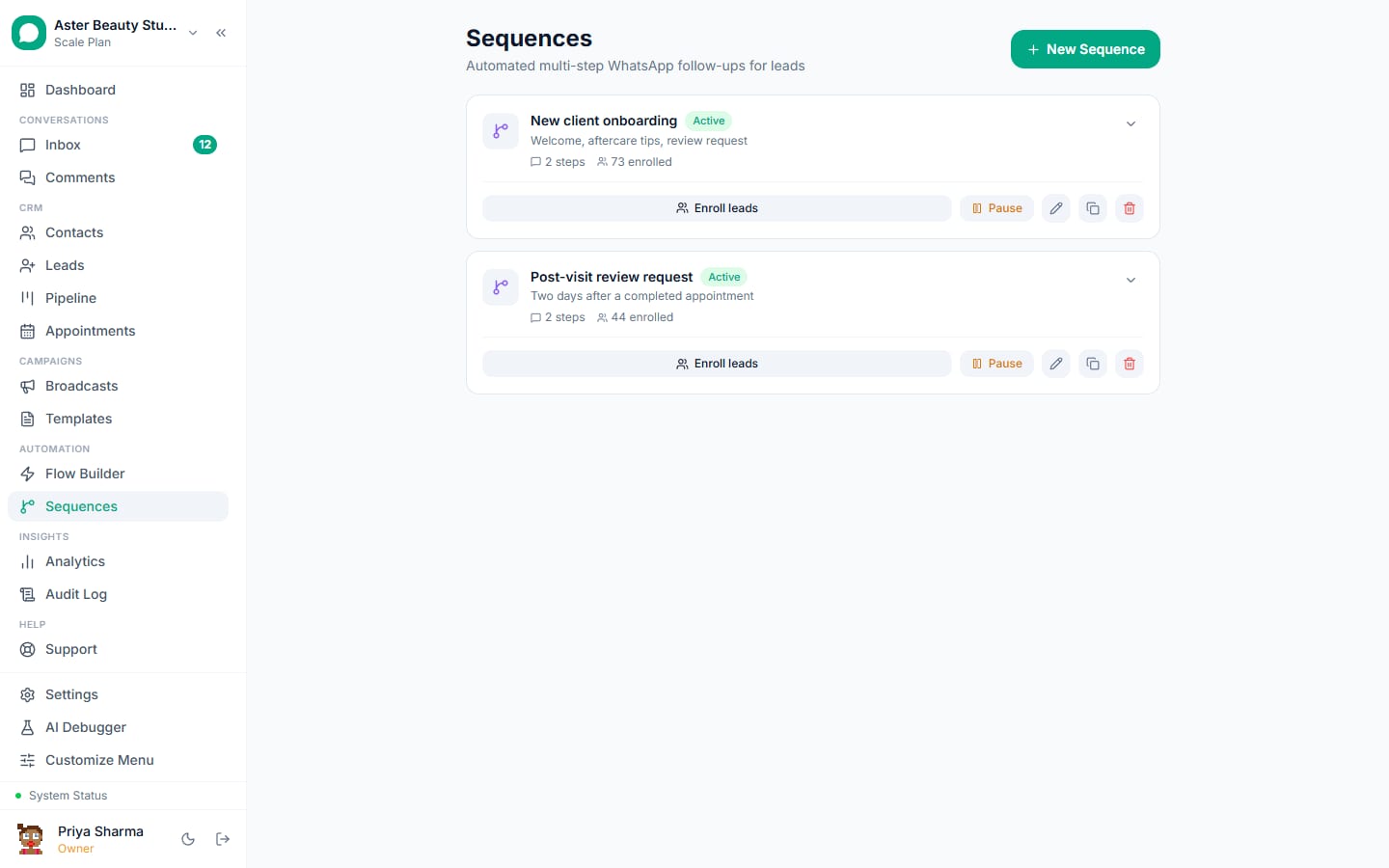
A drip sequence sends a lead or contact a series of pre-written WhatsApp messages spaced out over time, without anyone on your team clicking send for each one. This walkthrough covers building a sequence step by step, enrolling contacts into it, and reading the Enrollments view once it is running.
Sequences: first 5 of 6 steps
- 1Open Sequences and start a new one
- 2Add your first step
- 3Add a delay before the next step
- 4Repeat for as many steps as the
- 5Enroll leads
Before you start
- Sequences are available on every plan, including Free, with no separate cap on how many you can build. What limits volume is your plan's monthly conversation quota and contact limit, the same limits that govern every other outbound message.
- Any step scheduled to send more than 24 hours after the last customer message should be a template step, since only an approved template can reach someone outside WhatsApp's 24-hour service window.
- If you plan to enroll leads automatically rather than manually, set up the matching automation rule first; the rule references a sequence that must already exist.
- Sequences send over WhatsApp, so a sequence built for leads captured from a website chat widget, Calendly, or a Meta DM depends on that lead having, or later gaining, a usable phone number.
Steps
- Open Sequences and start a new one. Give it a name describing its purpose, such as "New enquiry nurture" rather than a date.
- Add your first step. Choose Text for a free-form message you write directly, or Template for a Meta-approved template with its language and variable mapping. The first step typically has no delay, since it is meant to send as soon as someone enrolls.
- Add a delay before the next step. Every step after the first has a wait duration in hours or days, shown as a "Wait" chip between steps on the timeline so the full schedule is visible at a glance. The default wait is 24 hours.
- Repeat for as many steps as the sequence needs. A typical nurture sequence runs 3 to 5 steps across a week to ten days; there is no fixed limit on how many steps a sequence can have.
- Enroll leads. Click Enroll Leads and choose a pipeline stage or a lead source to add everyone currently matching in one action, or leave enrollment to an automation rule so every new matching lead enrolls automatically going forward.
- Watch it run. Open the Enrollments view to see every contact who has ever run the sequence, their status, and how many steps have actually reached them.
A coaching institute running a 5-step enquiry nurture, for example, might send an instant welcome text on step one, a testimonial template two days later, a course brochure on day five, and a call-to-book template on day nine. Each step is edited independently, so tightening the wording on step three never touches the timing or content of any other step.
What you will see
Once enrolled, a contact is resolved to a WhatsApp conversation (a new one is created if none is open) and the step chain begins running with its delays, exactly like any other flow execution. The Enrollments view shows each contact's progress as "N of M steps," calculated from the actual tagged messages sent to them rather than their raw position in the underlying node graph, so a contact stuck at "1 of 4" tells you step two is worth reviewing. A contact who sends STOP mid-sequence, at any step, never receives the remaining messages; their enrollment is marked cancelled.
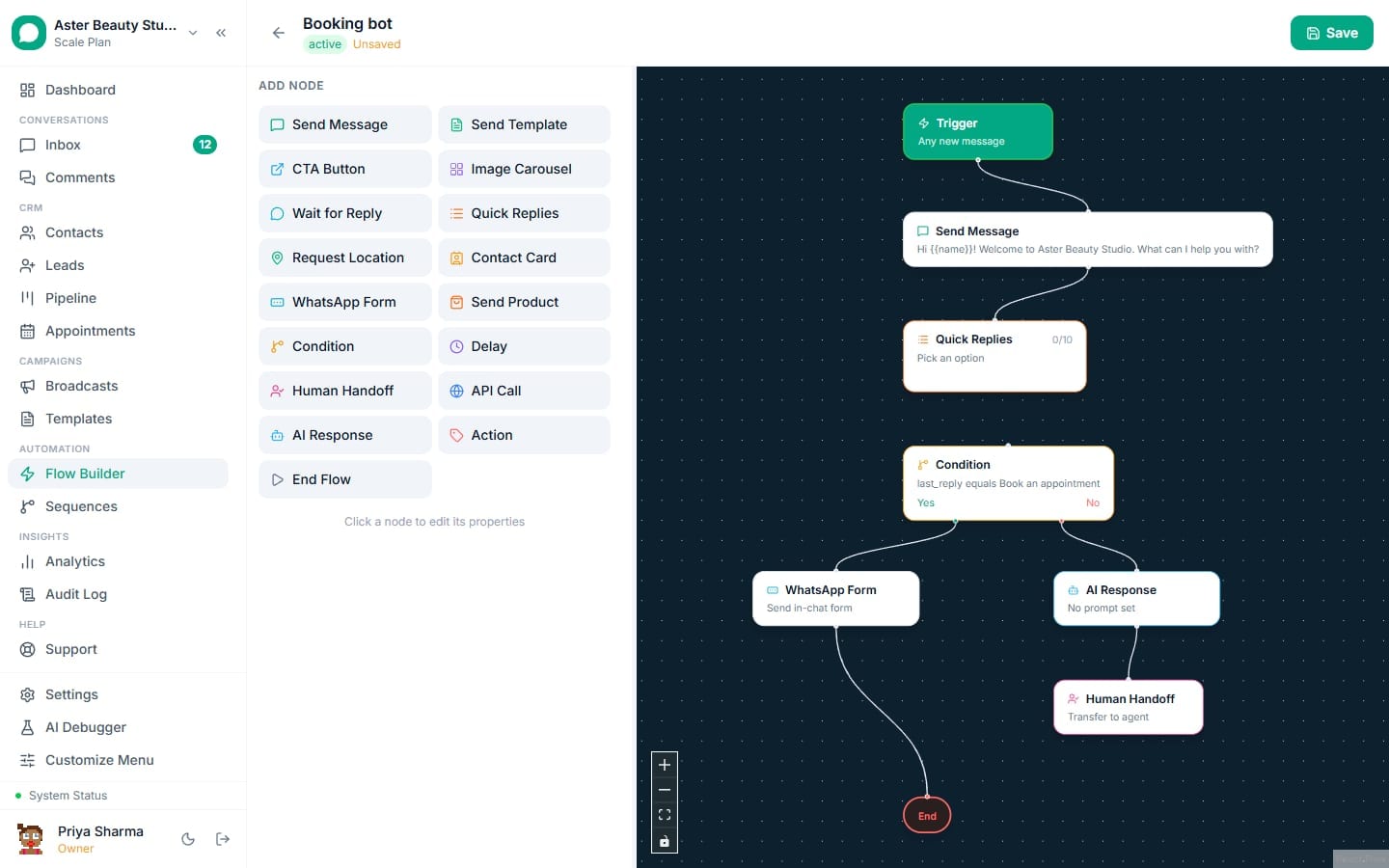
Behind the scenes, every sequence is stored as a real flow: a trigger node, alternating Delay and Send Message or Send Template nodes, and an End node, built automatically when you save the sequence editor's simpler step list. This is why a sequence gets every protection Flow Builder gives any other flow, the 24-hour window guard and the per-node opt-out check included, without you having to configure either one yourself.
Settings and options
| Setting or field | What it does | Default |
|---|---|---|
| Step type | Text (free-form) or Template (Meta-approved) | Text |
| Wait before step | Delay in hours or days before this step fires, shown after the first step | 24 hours |
| Enroll Leads | Manually enrolls every lead currently at a chosen pipeline stage or from a chosen source | Manual action |
| Automation rule enrollment | Enrolls each new matching lead the instant it is created, with no manual step | Off unless a rule references this sequence |
| Enrollment status | Running, completed, cancelled, or pending (waiting for a resolvable WhatsApp contact) | Running on successful enrollment |
| STOP handling | Checked before every step, not only at enrollment; cancels the run immediately on match | Always on, not configurable |
| Duplicate sequence | Copies every step and delay into a new draft you can retarget or edit | Available from the sequence's menu |
Troubleshooting
| Symptom | Likely cause | Fix |
|---|---|---|
| A contact's enrollment sits at "pending" indefinitely | The lead's phone has no matching or resolvable WhatsApp contact yet | This resolves automatically once that number first messages your connected WhatsApp number; nothing to fix unless the phone number itself is wrong on the lead |
| A step scheduled for day 3 never sent | It was a text step and the 24-hour service window had closed by the time the delay elapsed | Switch that step to a template step, since only an approved template reaches a contact outside the window |
| A contact keeps receiving steps after replying to ask a question | This is expected; a reply does not cancel a sequence, only STOP does | Add a Human Handoff or Resolve Conversation step if you want replies to end automation, or move the contact out of the sequence's enrollment trigger manually |
| Enrolling by pipeline stage enrolled fewer contacts than expected | Some leads at that stage have no phone number and their enrollment deferred to pending instead of failing outright | Check the Enrollments view for pending rows; they will resolve once those leads gain a usable WhatsApp contact |
| A duplicate sequence sent messages before you finished editing it | The duplicate copied the original's active status along with its steps | Confirm a duplicated sequence is in draft, or has no automation rule or manual enrollment targeting it, before you finish editing |
| The same phone number without a country code created a second contact | This should not happen; enrollment tries a suffix match against existing contacts before creating a new one, but a very short or malformed number can fail that match | Confirm the lead's phone field holds a real, complete number; numbers under 7 digits are not eligible for the suffix match |
Related reading
Pair a sequence with an automation rule so new leads enroll automatically at the moment they arrive, or use Flow Builder directly if a follow-up needs to branch on the contact's answer rather than run a fixed, linear script.