On this page
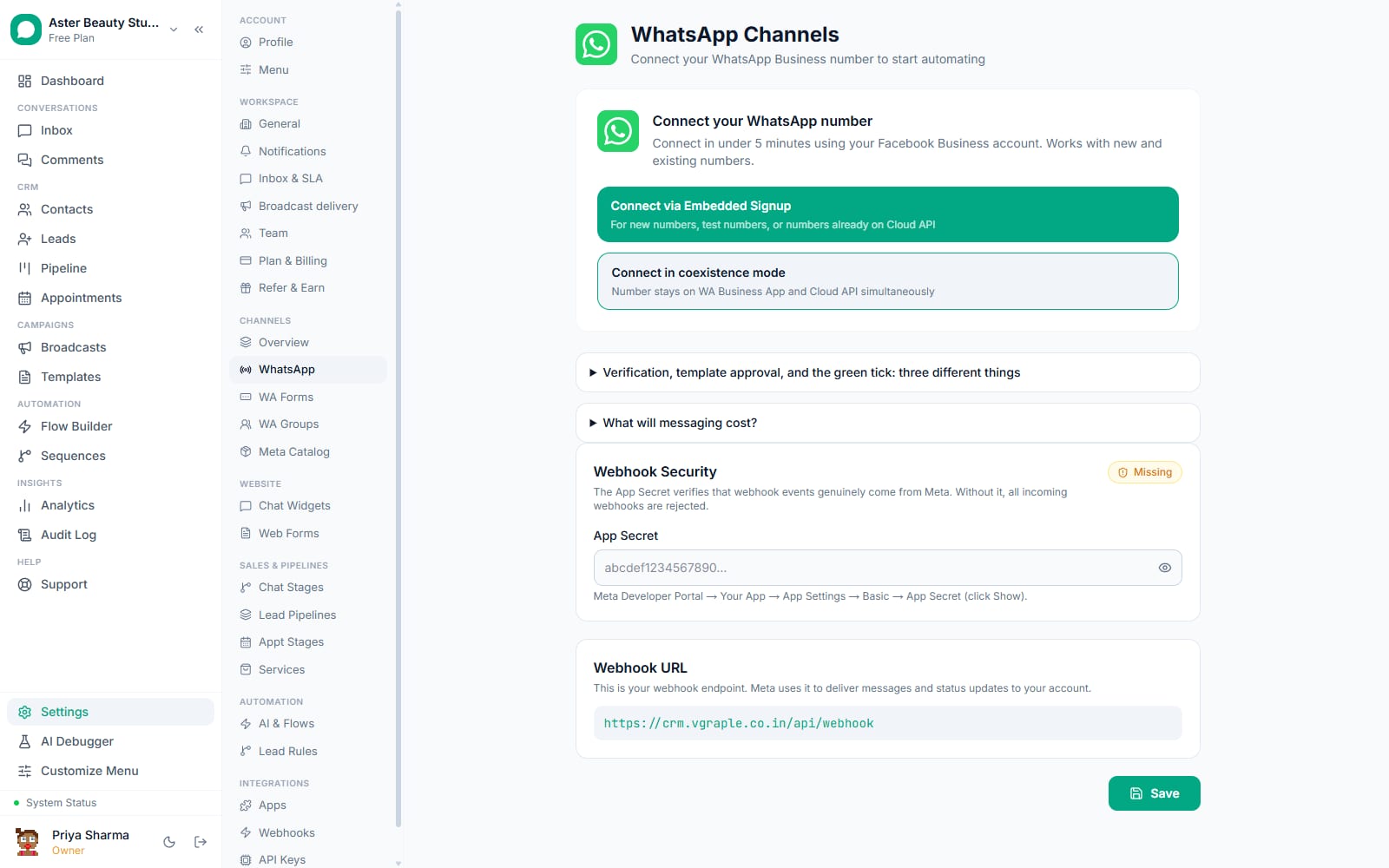
Claiming a WhatsApp username replaces the long phone number in your wa.me link with a short handle, done from the same WhatsApp channel card you already use in Settings, with Meta's own suggestions loaded automatically and every rejection reason translated into a plain sentence.
Claim a username: first 5 of 6 steps
- 1Open Settings, then Channels, then WhatsApp
- 2Open the username claim flow on that
- 3Or type your own handle
- 4Submit the claim
- 5Resolve a same-portfolio conflict, if one comes
Before you start
- You need the org settings permission (Owner or Admin, or a custom role granted
settings:org) to claim or change a username; other roles can see the current username but not change it. - Your WhatsApp number needs to already be connected: see connecting your WhatsApp number.
- Have your preferred handle in mind, or plan to pick from Meta's suggestions, which load for your specific number the moment the claim flow opens.
- A brand-new number with little sending history may not be eligible yet; this is a Meta-side eligibility rule tied to messaging tier, not something you can configure around.
Steps
- Open Settings, then Channels, then WhatsApp. Find the card for the number you want to claim a username for.
Open the username claim flow on that card. Meta-suggested, pre-reserved usernames for this specific number load automatically as a short list you can pick from with one click.
Or type your own handle. As you type, the field checks length (3 to 35 characters), allowed characters (letters, digits, periods, underscores), the no-leading-or-trailing-period rule, the no-double-period rule, the no "www" prefix rule, and the no domain-suffix rule, live, before you ever submit.
Submit the claim. A successful submission returns a "reserved" status immediately; Meta typically approves it within a few minutes without any further action needed from you.
Resolve a same-portfolio conflict, if one comes up. If the username is already assigned to a different number inside your own WhatsApp Business portfolio, a "confirm to move it" option appears; clicking it resubmits with Meta's transfer flag and reassigns the username to the number you are configuring.
Check status with Refresh. If you want to confirm a username has gone from reserved to active, click Refresh on the channel card; it re-checks Meta directly rather than relying on a cached value.
What you will see
The channel card shows your claimed username with a badge reading either "Pending approval" or "Active" once Meta confirms it. Your wa.me link updates to use the new handle (wa.me/yourbusiness instead of the phone number) as soon as the status is active. Nothing else on the number, phone number, verified display name, templates, changes as a result.
Settings and options
| Setting or field | What it does | Default |
|---|---|---|
| Meta-suggested usernames | Pre-reserved handles Meta offers for your specific number | Loaded automatically when the claim flow opens |
| Custom username field | Type your own handle, validated live against Meta's format rules | Empty until you type one |
| Confirm to move it | Resolves a conflict when the username belongs to another number in your own portfolio | Appears only when that specific conflict occurs |
| Refresh (channel card) | Re-checks the current username status directly with Meta | Manual, click any time |
| Username badge | Shows Pending approval (reserved) or Active (approved and live) | Updates automatically once Meta confirms |
Troubleshooting
| Symptom | Likely cause | Fix |
|---|---|---|
| "This username is already taken" | It belongs to another business entirely | Pick a different handle or one of Meta's suggestions |
| "Your account isn't yet eligible for a username" | Tied to your number's Meta-assigned messaging tier, usually on a newer number | Wait for the number's tier to grow through normal sending history; not something to override manually |
| "This username is tied to a Facebook Page/Instagram account that isn't linked" | The username belongs to a Page or Instagram account not yet linked to this WhatsApp Business Account | Link that Page or Instagram account to the WABA in Meta's own settings first, or choose a different username |
| Username stays "reserved" for a long time | Approval is a separate asynchronous step on Meta's side; this is not unusual | Click Refresh on the channel card periodically; VGraple CRM never shows "active" until Meta itself confirms it |
| "Your Meta connection is missing the whatsapp_business_management permission" | The Embedded Signup connection did not grant that permission, or it was later revoked | Reconnect the number via Embedded Signup to re-grant the required permission |
Related reading
A username sits alongside your verified display name and the green tick Official Business Account status as part of how customers see your business on WhatsApp. See channel health for what the rest of the channel card's status badges mean.