On this page
Collecting payments in WhatsApp means sending a payment link inside an active conversation and having it settle directly into your own Stripe or Cashfree merchant account, with the status updating in the same thread automatically once the customer pays. This walkthrough covers connecting a gateway, sending your first payment link, and understanding exactly whose account the money lands in.
Payments in chat: first 5 of 7 steps
- 1Open Payment Collection settings
- 2Choose a gateway
- 3Enter your Cashfree credentials, if chosen
- 4Enter your Stripe credentials, if chosen
- 5Save your settings
Before you start
- You need your own Cashfree or Stripe merchant account already set up under your business's own KYC and settlement terms; VGraple CRM connects to your account, it does not create one for you.
- Connecting a gateway requires the org owner's access, since credentials are a one-time secret. Sending a payment link from a conversation is available to any agent with inbox access once a gateway is connected.
- Payment Collection is available on every plan, including Free, with no cap on the number of links or transaction volume, since the money never passes through VGraple CRM's systems.
- Understand the 24-hour rule before you try to send your first link: a payment link can only be sent while the customer service window is open, meaning the customer has messaged you within the last 24 hours.
Steps
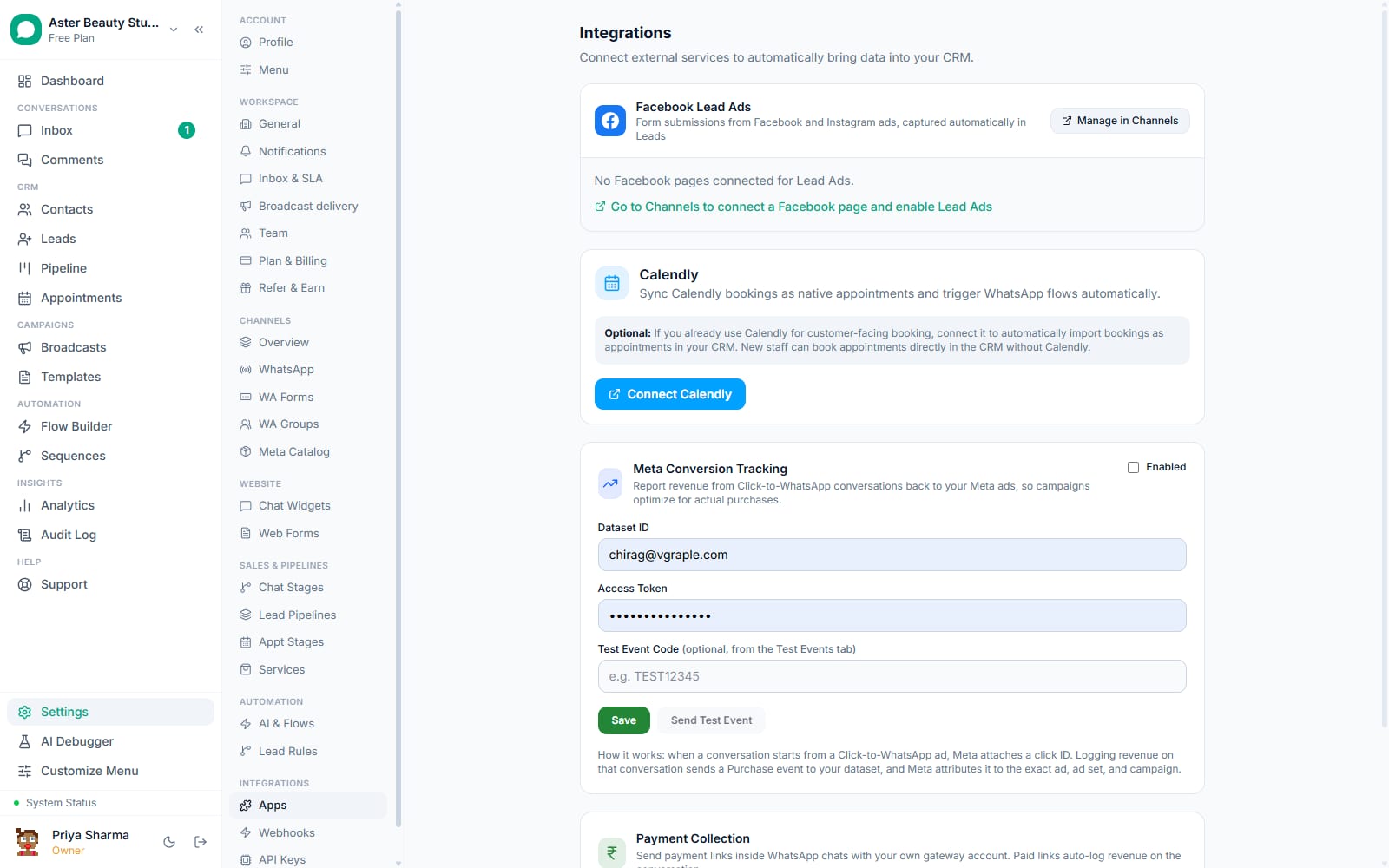
- Open Payment Collection settings. From Settings, go to Integrations, then find the Payment Collection card.
Choose a gateway. Pick Cashfree (UPI, cards, INR only) or Stripe (cards, INR plus international currencies) from the Gateway dropdown, based on who you are actually charging.
Enter your Cashfree credentials, if chosen. Paste your Cashfree Client ID and Client Secret from Cashfree's own dashboard under Developers > API Keys. No further webhook setup is needed, each link's notify URL points back automatically.
Enter your Stripe credentials, if chosen. Paste your Stripe Secret Key, then copy the webhook endpoint URL shown on this same screen, add it as a webhook in your Stripe dashboard subscribed to
checkout.session.completed, and paste the resulting signing secret back into VGraple CRM.Save your settings. Click Save. Only the org owner sees and can change these fields; anyone else viewing this page sees a message explaining that only the owner can manage payment credentials.
Send a payment link from an open conversation. With the 24-hour service window open, enter an amount, a currency and a short description, and the link generates through your connected gateway and sends as a text message in that thread.
Wait for the confirmation. Once the customer pays, the gateway's webhook confirms it, a revenue event is logged automatically, and a confirmation message posts into the same conversation, no manual follow-up required.
What you will see
The Payment Collection card shows your chosen gateway with masked credential fields once saved ("saved, enter a value to replace"). Inside a conversation, a sent payment link appears as an ordinary WhatsApp message with the link text. The moment the customer completes payment, the same conversation shows an automatic confirmation message, and the revenue appears on that conversation's record and, if the plan is Starter or above, in the Analytics dashboard's Revenue Attribution view.
Settings and options
| Setting or field | What it does | Default |
|---|---|---|
| Gateway | Disabled, Cashfree, or Stripe, which merchant account payment links use | Disabled |
| Cashfree Client ID / Client Secret | Your own Cashfree production credentials | Not set |
| Stripe Secret Key | Your own Stripe live secret key | Not set |
| Stripe webhook endpoint | The URL to add as a webhook in your Stripe dashboard | Shown once Stripe is selected |
| Stripe Webhook Signing Secret | Verifies that webhook events genuinely came from Stripe | Not set |
| Access to credentials | Only the org owner can view or edit gateway credentials | Owner-only |
Troubleshooting
| Symptom | Likely cause | Fix |
|---|---|---|
| No payment link option appears in a conversation | No gateway is connected yet, or the 24-hour service window is closed | Connect a gateway under Settings > Integrations > Payment Collection; ask the customer to send any message first if the window is closed |
| A customer paid but the conversation never got a confirmation | The Stripe webhook was not added in the Stripe dashboard, or the signing secret was pasted incorrectly | Recheck the webhook endpoint and event subscription in your Stripe dashboard, and re-save the signing secret |
| "Payment gateway not configured" error when sending a link | Gateway is set to Disabled, or credentials were never saved successfully | Return to Payment Collection settings and confirm a gateway is selected and saved |
| Cashfree payment link fails to generate | The Client ID or Secret is incorrect, or the Cashfree account is not yet approved for production Payment Links | Verify credentials directly in the Cashfree dashboard |
| Revenue is not showing on the Analytics dashboard | Your plan is Free or below Starter, which does not include the Revenue Attribution view | The underlying revenue record still exists on the conversation itself, visible on every plan; upgrade to Starter or above for the dashboard view |
| Only the org owner can see the credential fields | Payment gateway credentials are restricted to the org owner by design | Have the org owner make any credential changes |
Whose account does the money actually go to?
This is the first question every business asks, and the honest answer is the whole point of how it is built: the merchant account is yours. You connect the Cashfree or Stripe credentials from your own account, and every payment link goes through that account under your own KYC and settlement terms. VGraple CRM's role is to generate the link, place it in the right conversation, and listen for your gateway's webhook to know when it was paid. It never sits between your customer's money and your bank account, and it never takes a cut of the transaction.
Example
A tattoo studio takes a 30% deposit for a custom design over WhatsApp before booking a slot. The client taps the Cashfree link, pays by UPI, and the deposit lands in the studio's own Cashfree-linked bank account, while the WhatsApp thread confirms the booking automatically.
What Meta allows
Why choose Cashfree over Stripe, or the other way round?
A single gateway choice forces a tradeoff no Indian business really wants to make. Cashfree covers UPI, the payment method most Indian customers actually prefer, and domestic cards, but it is INR only. Stripe handles international cards in multiple currencies but has no UPI support. Picking based on who you are actually charging solves this cleanly: Cashfree for a domestic customer paying by UPI or a local card, Stripe for an international customer or one who specifically wants to pay in USD, EUR, GBP or AED. The gateway is chosen once in Settings and every payment link sent afterward uses it automatically; there is no per-message choice to make.
Example
A travel agency quoting a package to a customer based in India sends a Cashfree link so they can pay by UPI in seconds. The same agency quoting an identical package to a customer paying from Dubai sends a Stripe link in AED instead, since Cashfree cannot process a non-INR charge.
Once payments are set up, connect them to product messages from your Meta catalog so a customer can browse and pay without leaving WhatsApp.