On this page
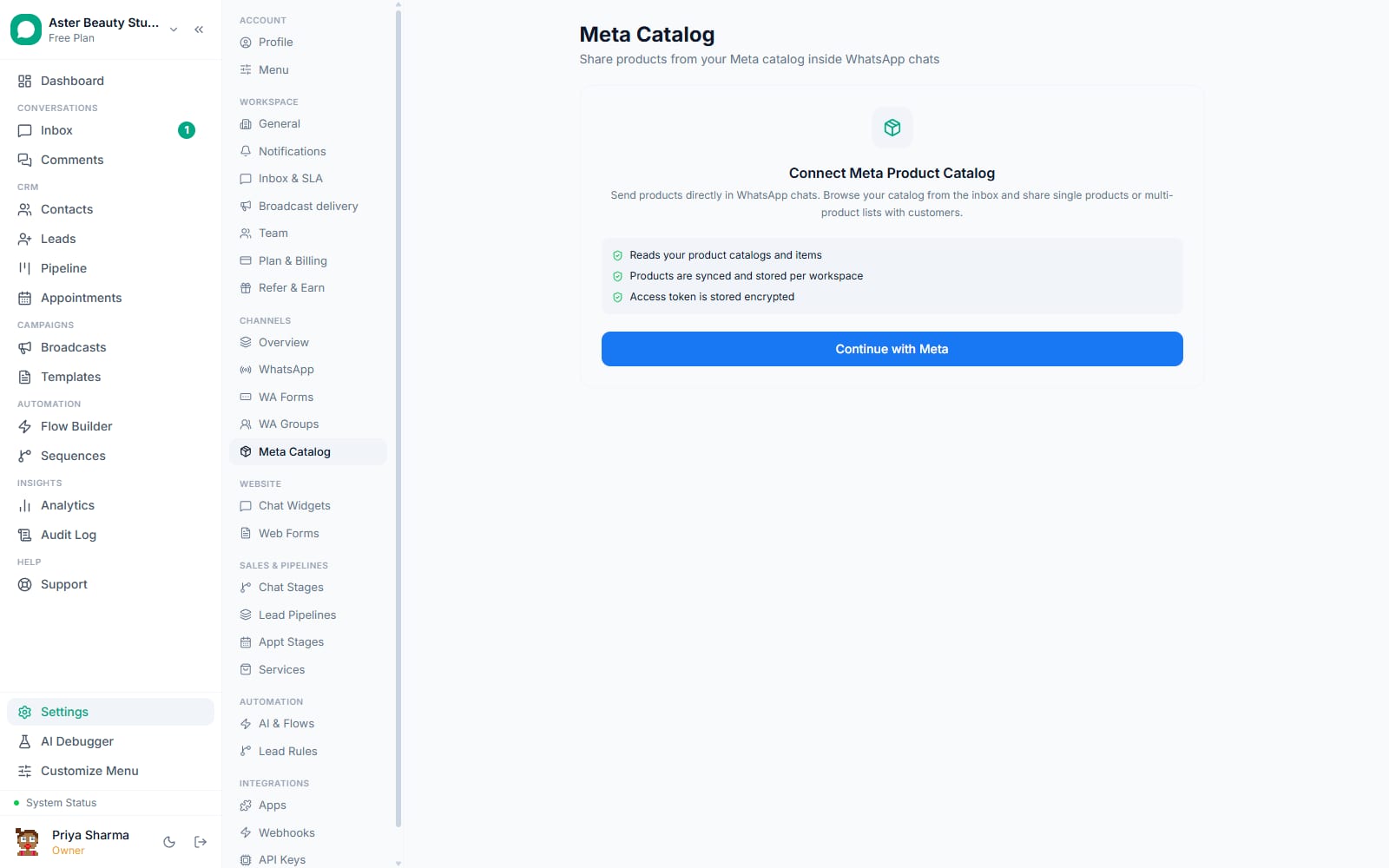
Connecting your Meta product catalog lets an agent or an automated flow send a product, a curated list of products, or your entire browsable catalog inside a WhatsApp chat, with the customer never leaving the conversation to see a price or a photo. This walkthrough covers connecting your catalog, sending products from the inbox, and turning on add-to-cart if you want customers to place orders directly.
Catalog: first 5 of 7 steps
- 1Connect your catalog
- 2Pick the catalog to connect
- 3Let the initial sync run
- 4Turn on catalog access for agents
- 5Send a product from a conversation
Before you start
- You need an existing Meta product catalog in Meta Commerce Manager, connected to a Meta Business account you administer; VGraple CRM reads an existing catalog, it does not create one.
- You need the permission that grants access to organisation settings, included in Owner and Admin by default, to connect the catalog itself; sending a product from an open conversation is available to any agent with inbox access once connected.
- Catalog connection is available on every plan, including Free, with no cap on synced products or catalog messages sent.
- If your business sells services rather than physical products, you likely want the separate Service Catalog instead; see the FAQ below before spending time on a Meta catalog you do not need.
Steps
- Connect your catalog. From Settings, go to Meta Catalog and click Continue with Meta. VGraple CRM lists every catalog your Meta Business account has access to.
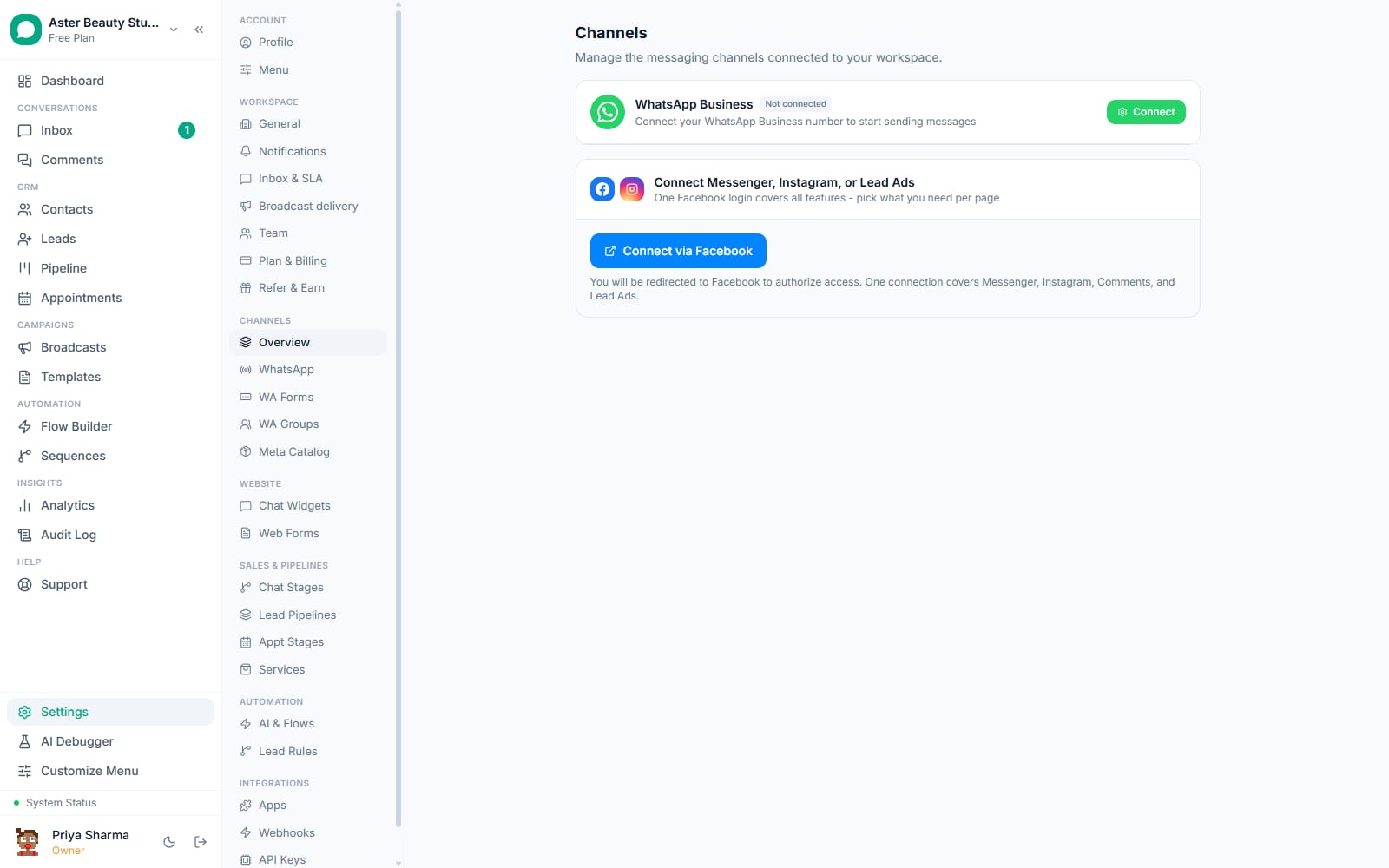
Pick the catalog to connect. Choose the correct one from the list if your Business Manager has more than one, and confirm.
Let the initial sync run. Every product's retailer ID, name, description, price, image, availability and category is pulled in a paginated read and stored against your workspace. This can take a few minutes for a large catalogue.
Turn on catalog access for agents. The Catalog enabled toggle puts a shop icon in the inbox composer so agents can browse and send products from any conversation. Leave the separate Allow add-to-cart toggle off for now unless you want customers building orders directly.
Send a product from a conversation. Open any chat, click the shop icon in the composer, search or filter by availability, and choose to send a single product, several products grouped into named sections, or the whole catalog as a browsable message.
Add a Send Product step to a flow, if useful. In Flow Builder, use the Send Product step with a fixed or variable retailer ID so a chatbot can reply with the exact product someone asked about by name or by button tap.
Re-sync whenever your Meta catalog changes. Click Re-sync in Settings > Meta Catalog to pull the latest prices, availability and any new or removed products, which updates existing rows rather than creating duplicates.
What you will see
Settings > Meta Catalog shows your connected catalog's name, a product count, the last synced time, and a sync history log recording who synced and how many products changed. Sending a product in a conversation renders inline in the chat with its image and price, and tapping it opens WhatsApp's native product detail view without the customer leaving the conversation. If add-to-cart is enabled, a customer's completed cart arrives in your inbox as an order message listing every item, quantity and price.
Settings and options
| Setting or field | What it does | Default |
|---|---|---|
| Connect catalog | Authorises VGraple CRM to read a chosen Meta Business catalog | Not connected |
| Catalog enabled | Shows the shop icon in the inbox composer for agents | Off until turned on |
| Allow add-to-cart | Lets customers build an order using WhatsApp's native cart | Off until turned on |
| Re-sync | Pulls the latest prices, availability and products from Meta | Manual, run on demand |
| Product browser | Searchable, filterable list of synced products in Settings | Read-only view of synced data |
Troubleshooting
| Symptom | Likely cause | Fix |
|---|---|---|
| Catalog picker is empty after connecting | Your Meta Business account has no catalog, or the account connected does not have access to the one you expected | Check Meta Commerce Manager for the correct Business account and catalog ownership |
| Shop icon does not appear in the inbox composer | The Catalog enabled toggle is off | Turn it on under Settings > Meta Catalog |
| A product shows the wrong price or "out of stock" incorrectly | The catalog has not been re-synced since the price or stock changed in Meta Commerce Manager | Click Re-sync in Settings > Meta Catalog |
| A flow's Send Product step sent nothing | The referenced retailer ID could not be resolved, often because the product was deleted from Meta's catalog after the flow was built | The step logs a warning and the flow continues; check the flow's variable source and confirm the product still exists in Meta Commerce Manager |
| Customer's cart never arrived as an order | Allow add-to-cart was off at the time they browsed, or they backed out before sending the cart | Turn on Allow add-to-cart if you want this capability; a cart is only sent when the customer explicitly submits it |
| Catalog was rejected or restricted by Meta | Meta's own commerce review found a policy issue with the catalog, unrelated to VGraple CRM | Resolve the flagged issue directly in Meta Commerce Manager; VGraple CRM performs no separate content review of its own |
Is there a separate catalog for service businesses?
Yes. A salon sells appointment slots, not physical products with SKUs, so Settings > Services (the same screen as Settings > Catalog) offers an internal Service Catalog unrelated to the Meta product catalog: services or packages with a name, category, exact or ranged pricing, duration and an optional deposit amount. This catalog exists to supply variables to booking flows and WhatsApp Flow forms rather than to send catalog-style product messages, since WhatsApp's native product message format assumes a connected Meta catalog behind it. A business that only books appointments through Calendly integration does not need a Meta catalog connection at all.
Example
A tattoo studio lists "Fine Line Tattoo, Small" as a service with a price range of Rs 3,000 to Rs 8,000 in the Service Catalog. A WhatsApp Flow booking form pulls that name and price range into the confirmation message automatically, with no Meta product catalog involved.
What Meta allows
When should I send a single product versus a multi-product list?
Sending the wrong message shape for the moment wastes the conversation's momentum. A single product message is right when a customer already knows what they want or named a specific item; it shows just that one product with its image, price and a View button, and reads as a direct, confident answer. A multi-product list is right when a customer is comparing, "what facials do you have" or "show me your under-1000 range," since it groups up to 30 products into named sections in one message instead of forcing an agent to send several separate replies. The full-catalog message, opened with a single "View catalog" button, suits open-ended browsing where the customer has not narrowed anything down yet.
Example
A salon's WhatsApp bot detects the word "facial" in an inbound message and replies with a multi-product list titled "Facial Treatments," grouped into sections like "Under 45 minutes" and "Deep cleanse packages," rather than sending the entire 60-item service catalogue to someone who asked about one category.
Once your catalog is connected, pair it with collecting payments in WhatsApp so a customer can go from browsing a product to paying for it inside the same conversation.