On this page
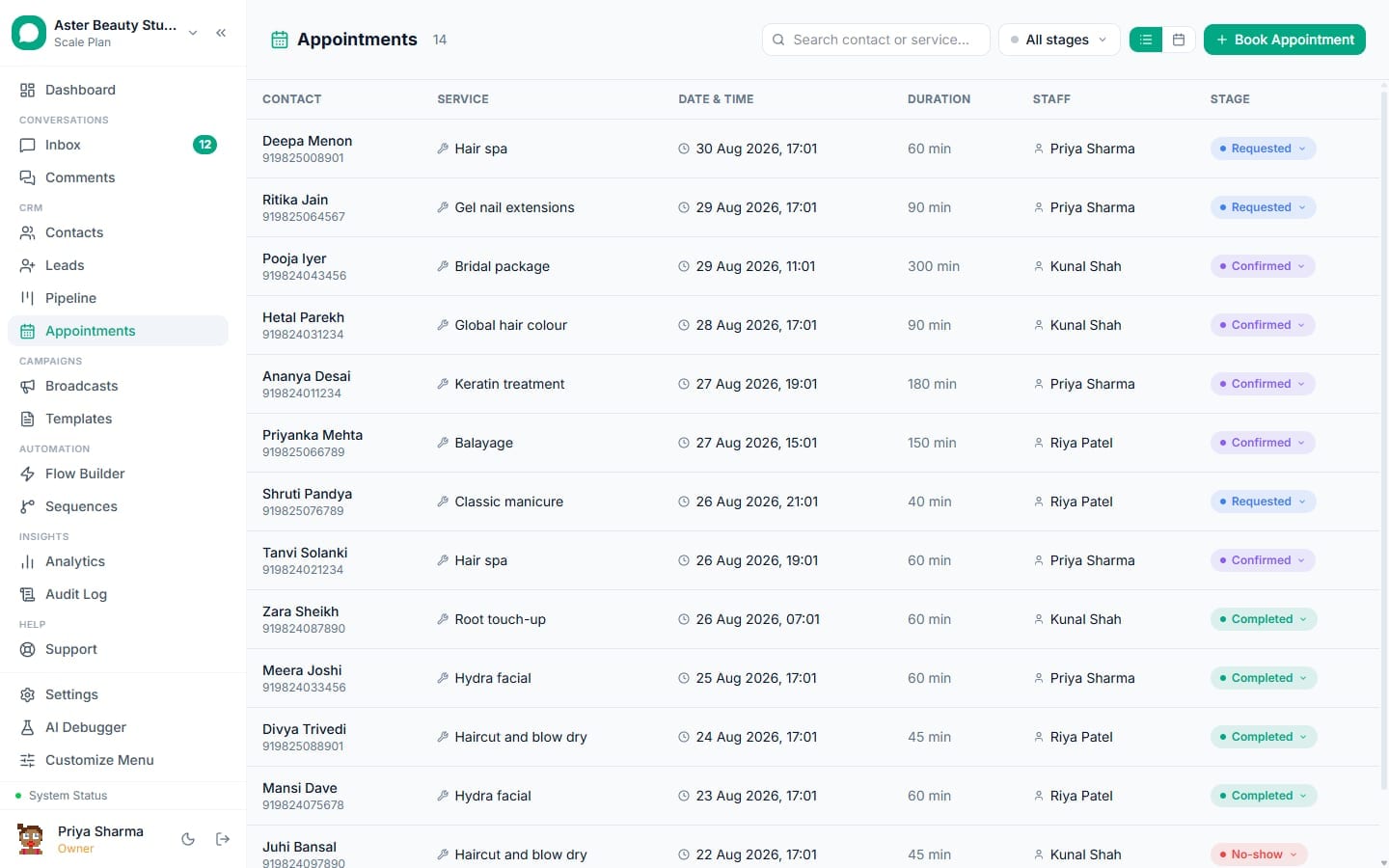
Appointments let customers request and confirm a booking inside the WhatsApp conversation they are already having, with the result landing on a shared calendar your team manages and reminders sent automatically. This walkthrough covers setting up services and stages, connecting a booking source, and building your first reminder flow.
Appointments: first 5 of 7 steps
- 1Define your services first
- 2Review or add appointment stages
- 3Connect a booking source
- 4Build a reminder flow
- 5Attach a flow to a stage, if
Before you start
- Appointments are available on every plan, including Free; the calendar, custom stages, staff assignment and reminder flows are identical at every tier.
- Your account needs the "View appointments" permission (and the corresponding manage permission to change stages or services), included in Owner and Admin by default.
- Decide how customers will actually book before you configure reminders: through a chatbot flow with an Appointment node, through the AI assistant's booking action, or through a synced Calendly account (see connecting Calendly).
- Have at least one service defined if your business offers more than one type of appointment (a consultation versus a follow-up, for example), since reminder and confirmation templates read the service name as a variable.
Steps
- Define your services first. Go to Settings, then Services, and add every service or appointment type your business offers, with a name, an optional price or price range, and a duration. This is the same internal catalogue used elsewhere for pricing variables in flows.
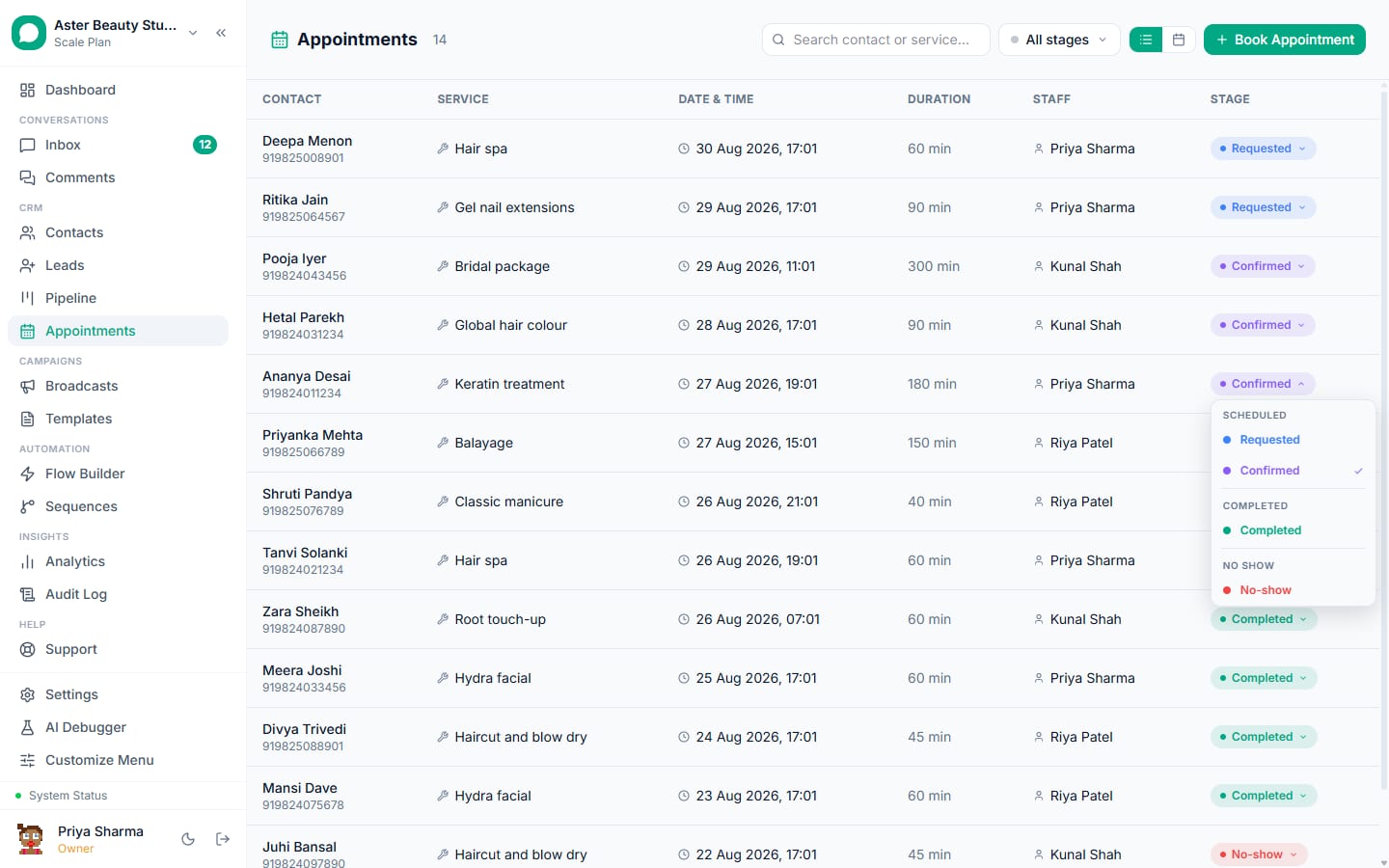
Review or add appointment stages. Go to Settings, then Appointment Stages. Four default categories exist, Scheduled, Completed, Cancelled and No Show, each of which can hold one or more stages of your own naming and colour.
Connect a booking source. Add an Appointment node to a chatbot flow in Flow Builder so customers can request a slot inside a conversation, turn on the AI assistant's appointment action, or connect Calendly if that already runs your calendar.
Build a reminder flow. In Flow Builder, create a new automation with a trigger type of "Appointment reminder," set how many hours before the appointment start time it should fire, and design the message using an approved template with the date, time and any preparation notes.
Attach a flow to a stage, if you want stage-based automation. From Appointment Stages, pick a stage and assign a flow that fires automatically whenever an appointment enters or leaves it, useful for a no-show follow-up or an automatic confirmation.
Open the Appointments calendar for day-to-day management. From the main navigation, click Appointments. Use the calendar or list view, filter by staff, service or date, and click any appointment to see the customer, assigned staff, notes and current stage.
Move a stage and let attached automation fire. Change an appointment's stage from its detail view or directly from the calendar. Any flow attached to that stage's entry or exit runs automatically.
What you will see
New bookings appear on the calendar in real time, whether they were captured conversationally, through the AI assistant, or synced from Calendly, each tagged with its service, assigned staff member (if set) and current stage colour. A reminder flow you built fires silently in the background at the hour offset you configured, sending the approved template and, once sent, showing up in that contact's conversation history. Moving a card between stages updates its colour immediately and, if a flow is attached to that transition, triggers a send within moments.
Settings and options
| Setting or field | What it does | Default |
|---|---|---|
| Services | The list of appointment types with name, price and duration, used as flow variables | Empty until you add your own |
| Appointment stage categories | Scheduled, Completed, Cancelled, No Show, the four fixed umbrella categories | Four categories, one default stage each |
| Custom stages within a category | Your own named, coloured stages beyond the defaults | None beyond the default stage per category |
| Reminder flow hours-before | How long before the appointment start time a reminder flow fires | Not set; you choose per flow |
| Staff assignment | Which team member an appointment is assigned to | Unassigned unless set |
| Calendar filters | Filter the calendar or list by staff, service or date | Unfiltered |
Troubleshooting
| Symptom | Likely cause | Fix |
|---|---|---|
| A reminder never sent | The contact was opted out or blocked, or the reminder template was not approved yet | Confirm the contact's opt-in status and check the template's approval status in creating templates |
| Two bookings landed on the same slot | The bookings came through conversational capture (chatbot or AI assistant), which does not check a live calendar automatically | Manually resolve the conflict; route future bookings through Calendly if double-booking is a recurring problem, since Calendly enforces its own availability rules |
| A stage's attached flow did not fire | The flow is inactive, or the stage transition happened through a bulk action that bypassed the normal update path | Check the flow's status is active in Flow Builder; retry the stage change from the appointment detail view directly |
| Reschedule reply is sitting unread in the inbox | This is expected; a reply to a reminder or confirmation template lands as a normal message, there is no automatic engine that parses it and moves the calendar entry | An agent reads the reply and updates the appointment's time or stage manually |
| A future appointment still shows a stage I just deleted | Deleting a stage does not reassign appointments that referenced it | Reassign the affected appointment(s) to a valid stage manually; the delete confirmation tells you how many were affected |
| Calendly bookings are not showing up | Calendly is not connected, or the connection dropped | See connecting Calendly to reconnect |
How does an appointment reminder actually get scheduled?
A reminder is not a fixed system default, it is an automation flow with a trigger type of "Appointment reminder" and a configurable number of hours before the appointment start time. The platform checks every few minutes for appointments entering that window and fires the flow once per appointment. The common pattern is two flows, one at 24 hours and one at 1 hour, but nothing stops you from adding a third at, say, 3 days out for a consultation that needs preparation, or running only a single reminder if that fits your business better.
Every reminder is skipped automatically for a contact who cannot receive a WhatsApp template, someone who has opted out or a number Meta has already flagged as unreachable, so a reminder flow never wastes a send on a contact who was never going to receive it in the first place.
What is the difference between an appointment stage and a lead pipeline stage?
An appointment stage tracks the status of a booked slot, whether it is upcoming, was completed, got cancelled, or the customer never showed up. A lead pipeline stage, covered separately in creating pipelines and stages, tracks where a prospect sits in your sales process before they ever book anything. A lead can be sitting in a "Qualified" pipeline stage while its linked appointment independently moves from "Scheduled" to "Completed," since the two settings screens track different parts of the same customer relationship and are configured in entirely separate places under Settings.
Example
A salon assigns a "No Show" stage a flow that automatically sends a rebooking message. A client who misses their slot triggers that flow the moment the front desk marks the appointment "No Show," without anyone remembering to follow up by hand.