On this page
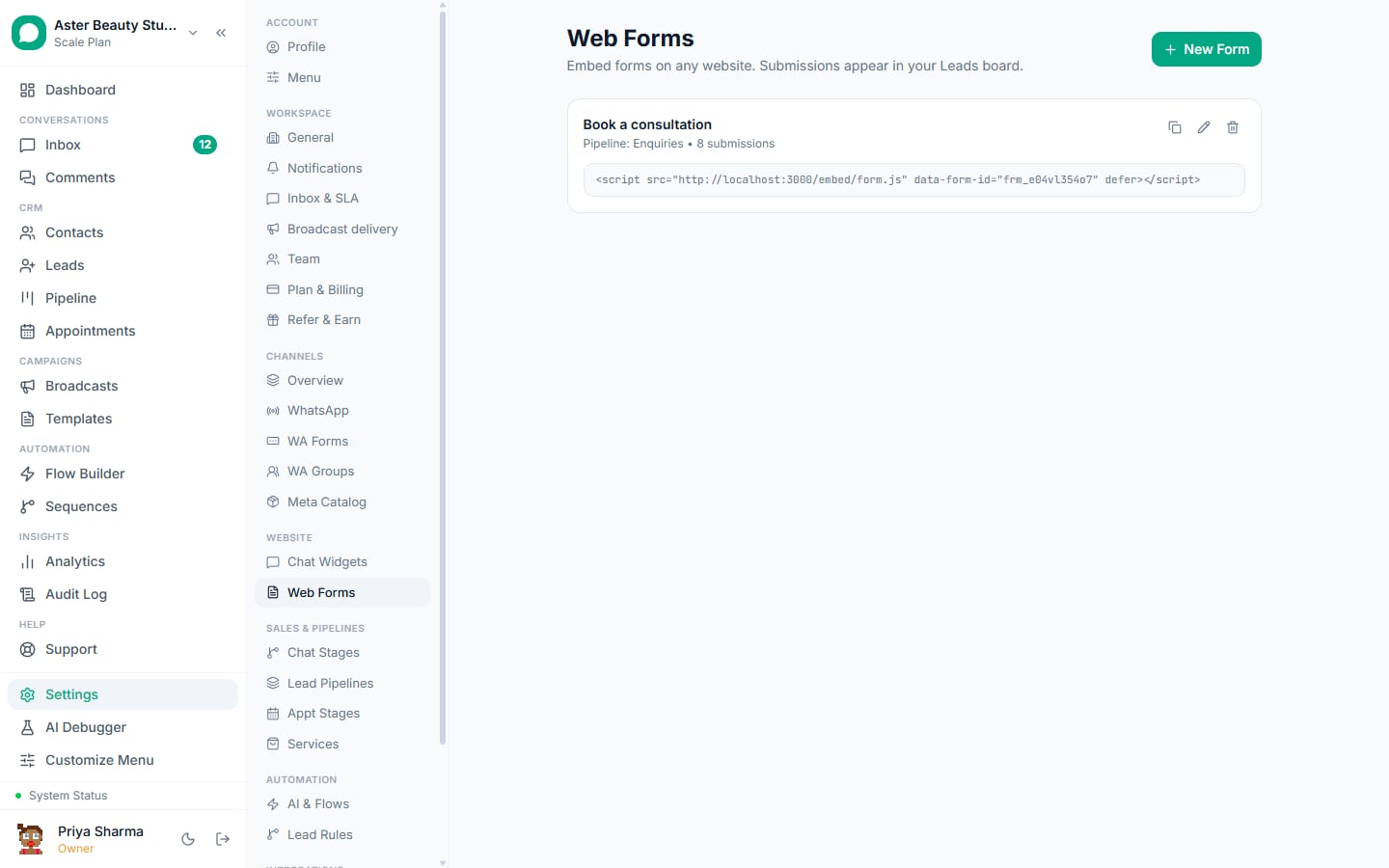
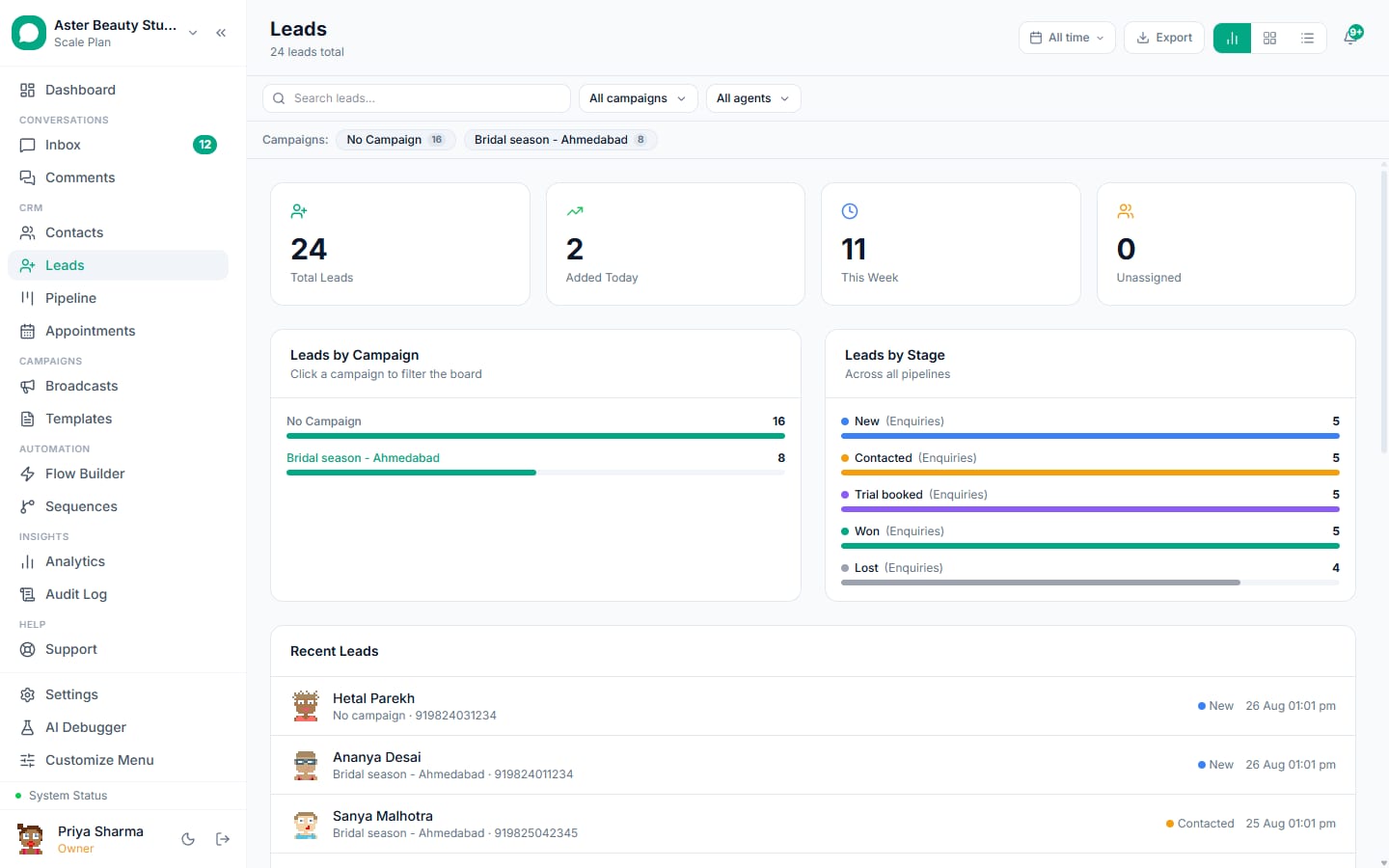
Building a form in VGraple CRM creates a multi-page, embeddable data-collection form, with 14 field types, conditional logic and pricing cards, whose every submission becomes a lead in your pipeline instantly. This walkthrough covers building your first form, embedding it, and setting up what happens the moment someone submits.
Forms: first 5 of 8 steps
- 1Open the form builder
- 2Add pages and fields
- 3Map fields to lead data
- 4Add conditional logic, if needed
- 5Style the form
Before you start
- Forms are available on every plan, including Free, with no cap on the number of forms or submissions.
- Your account needs the "Manage settings" permission to build or edit forms, included in Owner and Admin by default; the form itself is public once embedded and needs no login to fill out.
- Decide which pipeline new leads from this form should land in; if you have more than one, see creating pipelines and stages first.
- Have access to your website's HTML or a page builder that accepts a script tag, since embedding is the only way to put the form live.
Steps
- Open the form builder. From the sidebar, go to Settings, then Forms, and click New Form.
Add pages and fields. Drag fields from the palette onto the canvas: text, dropdown, pricing card, rating and more. Mark any field required, and add extra pages if the form is long enough to benefit from feeling like a short conversation rather than one long scroll.
Map fields to lead data. For any text, email or phone field that should populate the lead's core record automatically, set its lead field mapping so a submission fills in name, email or phone without a manual step.
Add conditional logic, if needed. Set a rule so one field's answer shows or hides others, for example a "which service?" answer only revealing the questions relevant to that service.
Style the form. Pick a theme, light, dark, or a fully custom palette matching your brand, and set the button text and success message shown after submitting.
Configure what happens on submit. Choose the pipeline a submission should create a lead in, add the email addresses that should get a team notification, and set a custom thank-you message or a redirect URL.
Copy the embed snippet and add it to your website. From the form's Embed tab, copy the one-line script tag referencing the form's unique key, and paste it wherever the form should appear on your site.
Build a WhatsApp follow-up, if you want one. In Flow Builder, create a flow with a "Form submitted" trigger tied to this specific form, so a matching contact receives an automated message the moment they submit.
What you will see
The form renders inline wherever you placed the embed snippet, matching the theme you chose. Every submission appears in the form's Submissions tab as a readable table, one column per field, with the matching lead linked directly from the row. If notification emails were configured, your team gets an email within seconds; if a flow with a form-submission trigger exists and the phone matches an existing contact, that contact receives the automated WhatsApp message you built.
Settings and options
| Setting or field | What it does | Default |
|---|---|---|
| Pipeline | Which pipeline a submission creates or updates a lead in | Set when configuring the form |
| Field mapping | Links a text, email or phone field to the lead's core record | Unmapped unless set |
| Conditional logic | Shows or hides fields based on an earlier answer | Off unless a rule is added |
| Theme | Light, dark or custom colours, radius, font and button text | Light theme |
| Notification emails | Addresses that receive an email on every submission | None until added |
| Thank-you message or redirect | What the visitor sees after submitting | A default thank-you message |
| Honeypot spam protection | A hidden field that catches basic automated bots | On by default |
Troubleshooting
| Symptom | Likely cause | Fix |
|---|---|---|
| The embedded form does not appear on the page | The script tag was removed, edited, or placed inside a container that hides it | Re-copy the exact snippet from the form's Embed tab and confirm it sits in visible page markup |
| Submissions are not turning into leads | The form was not assigned to a pipeline, or the submission failed silently on the visitor's side | Confirm a pipeline is set on the form's configuration; check the Submissions tab to see if the row exists at all |
| No WhatsApp follow-up sent after a submission | The submitted phone did not match an existing contact, or no flow with a form-submission trigger exists for this form | This is expected when the phone does not match; the submission still becomes a lead for manual outreach. Build a flow with the right trigger if one is missing |
| Team notification email never arrived | No notification email address was added in the form's settings | Add one or more addresses under the form's configuration |
| Conditional logic is not hiding the field I expected | The rule was built on the wrong field, or the condition value does not exactly match the option's stored value | Recheck the rule's source field and the exact answer value it is comparing against |
| A form I need a plain link for has no shareable URL | Forms are embed-only; there is no VGraple-hosted form page | Host a minimal one-line HTML page containing just the embed snippet, or embed the form on an existing page |
What is the practical difference between form field mapping and form data?
A field you map to name, email or phone becomes part of the lead's core record, visible in the same place as any other lead's contact details and usable in filters and sorting. Every other answer, including something rich like a pricing-card choice with its price and description, is stored as form data attached to the lead rather than flattened into a generic note, visible in a dedicated Form Data tab on the lead's detail panel. This distinction matters because only mapped fields are searchable and filterable across your leads the same way a contact's name or phone is; unmapped answers are still fully preserved and readable, just not structured for filtering.
Example
A real-estate agency's property-interest form maps name, email and phone to standard lead fields, but leaves "budget range" and "preferred location" as regular dropdown answers. A counsellor calling back opens the lead's Form Data tab and sees both immediately, even though neither is a filterable column on the leads table.
How does a submission avoid creating a duplicate lead?
Every submission is checked against your org's existing leads by email before a new one is created. If a lead with the same email already exists, VGraple CRM fills in any missing name or phone from the new submission rather than creating a second record; if none exists, a new lead is created in the pipeline the form is configured for, starting at that pipeline's first stage. This means a returning visitor who fills the same form twice, or a different form on the same site, does not end up as two disconnected leads your team has to notice and merge by hand.
Example
A visitor fills a coaching institute's "Free Demo Class" form with their email, then a week later fills the same institute's "Enrolment Enquiry" form with the identical email address. The second submission updates the existing lead rather than creating a new one, so a counsellor sees both submissions' answers on the same record instead of working two separate leads for the same person.
Once your form is live, connect it to Facebook Lead Ads or your leads pipeline directly to see how form-sourced leads compare to leads from other channels.