On this page
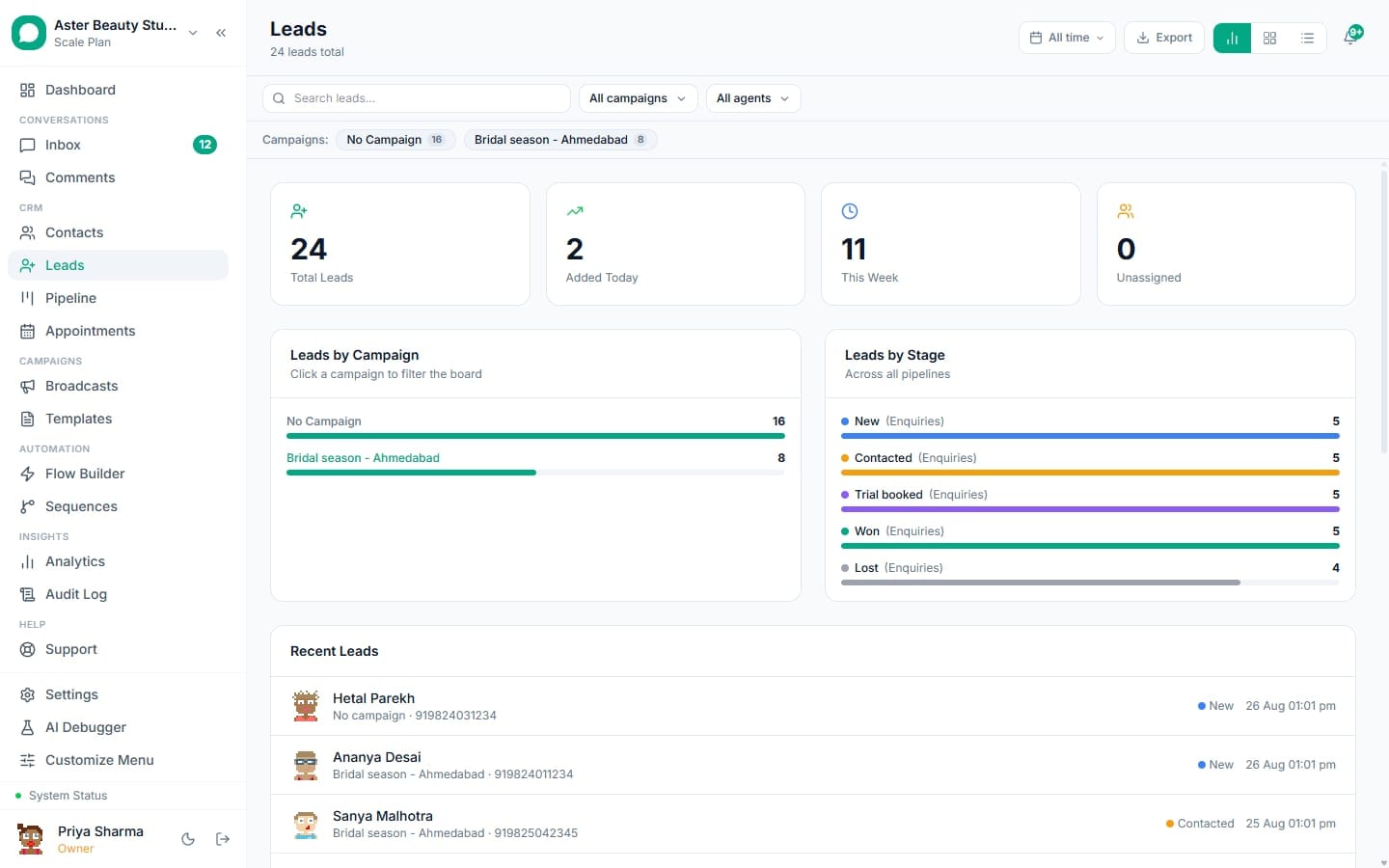
The leads pipeline is where every inbound inquiry lands before it becomes a paying customer, whether it arrived from a WhatsApp message, a web form, a Facebook ad or a booked call. This walkthrough covers the Dashboard, Board and List views, how a lead moves through stages, and exactly when it becomes a WhatsApp contact you can message directly.
Leads pipeline: first 5 of 7 steps
- 1Open Leads from the main navigation
- 2Check the Dashboard view first
- 3Switch to Board for day-to-day work
- 4Open a lead to see the full
- 5Use List view for sorting and bulk
Before you start
- The leads pipeline is available on every plan, including Free, with no separate cap on lead count.
- Your account needs the permission that grants access to the Leads module, included in Owner, Admin and most custom roles by default.
- A default pipeline with three starter stages already exists on a new org, so there is nothing to build before your first lead arrives. If you want a second pipeline or custom stage names, see creating pipelines and stages first.
- At least one lead source should be connected for leads to arrive automatically: a form (see building forms), Facebook Lead Ads (see connecting Facebook Lead Ads), Calendly (see connecting Calendly), or simply an inbound WhatsApp conversation.
Steps
- Open Leads from the main navigation. Click Leads in the sidebar. The page opens on whichever view (Dashboard, Board or List) you last used, defaulting to Dashboard the first time.
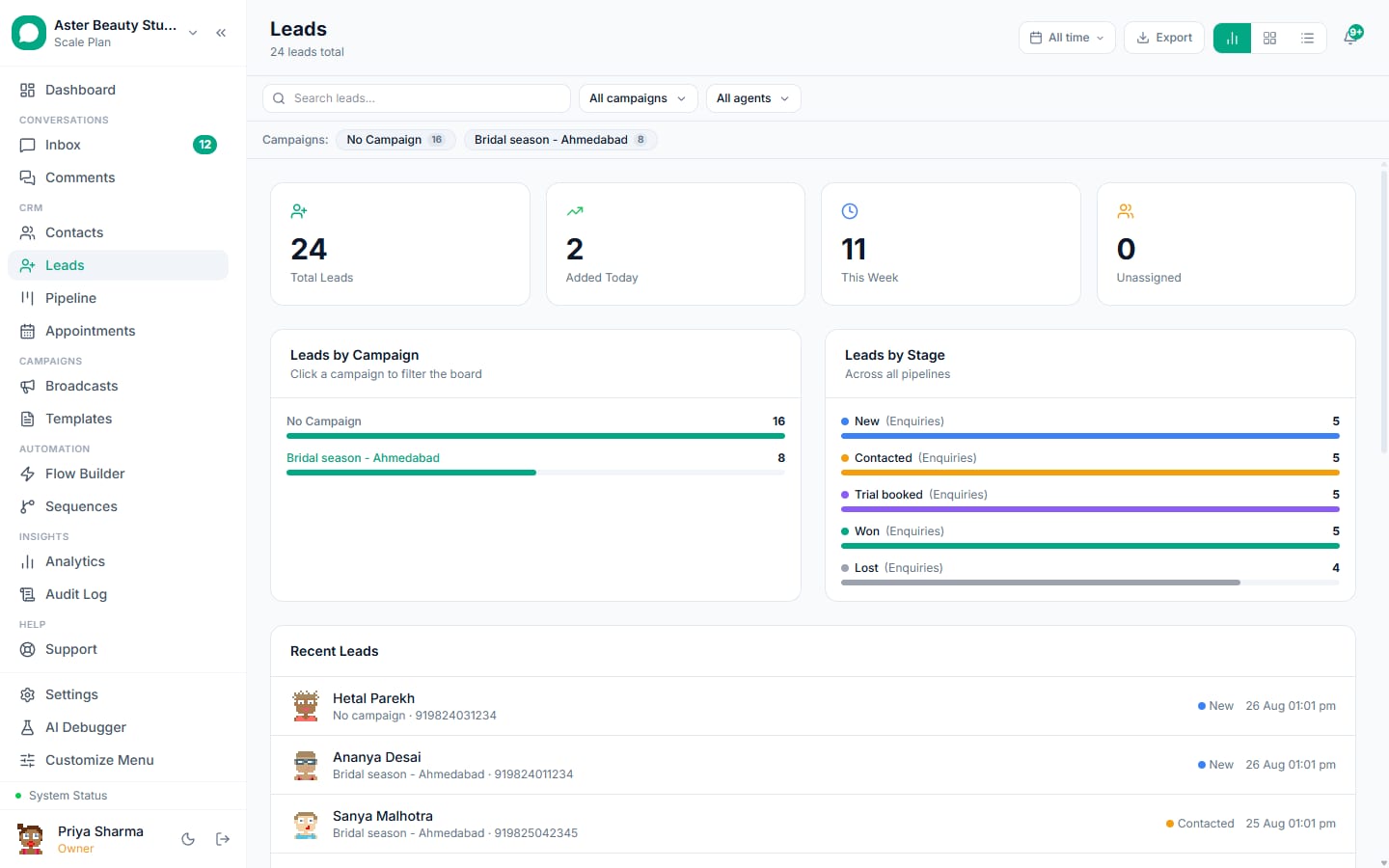
Check the Dashboard view first. It shows total lead counts, a Leads by Campaign chart, and a Leads by Stage breakdown, useful for a quick read on where volume is coming from before you start working individual leads.
Switch to Board for day-to-day work. Click the Board tab to see a Kanban view with one column per stage. Drag a lead's card from one stage to the next as it progresses, for example from "New" to "Contacted" to "Qualified" depending on how your pipeline's stages are named.
Open a lead to see the full detail panel. Click any card or table row to open its detail panel: contact details, the pipeline stage, a lead score with a factor breakdown, form answers if it came from a form, a Notes timeline, and a Sequences tab showing every automated follow-up it has ever been enrolled in.
Use List view for sorting and bulk work. Click the List tab for a table you can sort by any column (score, created date, stage, source) and select multiple rows for bulk actions like tagging or reassigning.
Assign a lead to a team member. From the detail panel's Pipeline and Assignment section, pick who owns this lead. There is no automatic assignment unless you set up an automation rule with an assignment action.
Filter by campaign or source when you need to. Both Board and List support filtering, useful right after connecting a new Facebook Lead Ad campaign or a new form to check that leads are actually arriving and landing in the right stage.
What you will see
A new lead card appears in the first stage of whichever pipeline it was routed to, tagged with its source (Meta Lead Ad, Web Form, WhatsApp Form, Calendly, Comment Rule, Chatbot or Manual) and, where applicable, the campaign or form name it came from. A 0 to 100 lead score badge shows on the card immediately, colour-coded hot, warm or cold. The moment a usable phone number exists on the lead, its detail panel shows a linked WhatsApp contact, no separate "convert to contact" step is needed or offered, because it happens automatically.
The Dashboard view's Leads by Campaign chart updates the moment a new lead lands, so a running Facebook or Instagram campaign shows fresh volume without a manual refresh. Opening a lead that came from a form shows every submitted answer under a Form Data tab, including anything not mapped to a standard field like name, email or phone, stored exactly as the person typed or selected it.
Why does a lead's detail panel matter more than the card itself?
The card on Board or List is a summary meant for scanning a full pipeline quickly, name, source, score and stage. The detail panel is where the actual work happens: a Notes timeline for anything your team logs manually, a Sequences tab listing every automated follow-up the lead has ever been enrolled in with its current status, and a Pipeline and Assignment section for moving the lead or reassigning it to a different team member. For a lead with form data attached, the raw answers sit in their own tab rather than being flattened into a single note field, so a counsellor or agent calling back can see exactly what was asked and answered.
Example
A coaching institute's counsellor opens a lead that came from a course-interest form. The detail panel's Form Data tab shows the exact course and batch the visitor selected, including the fee shown at the time, so the callback starts with the right pitch instead of a generic "how can I help."
Settings and options
| Setting or field | What it does | Default |
|---|---|---|
| View | Dashboard, Board or List, the three ways to look at the same pipeline data | Dashboard on first visit, remembers your last choice after |
| Pipeline selector | Switches which pipeline's leads you are viewing, if you have more than one | The org's default pipeline |
| Stage filter | Narrows the Board or List to a single stage | All stages shown |
| Campaign filter | Narrows to leads from one Facebook or Instagram campaign | All campaigns shown |
| Assigned to | Filters by which team member owns the lead | Unfiltered |
| Sort (List view) | Sort by score, created date, name or stage | Newest first |
Troubleshooting
| Symptom | Likely cause | Fix |
|---|---|---|
| A lead I expected never appeared | The source it came from was never connected, or a Facebook Page's access token expired | Check Facebook Lead Ads or forms connection status in Settings; a Facebook connection expiry shows a reconnect notice |
| A lead has no phone number and cannot be messaged | The original form, comment or chatbot capture never provided one | Add a phone number manually on the lead detail panel, or wait for the person to message your WhatsApp number directly, which links automatically |
| Two leads exist for what looks like the same person | Different sources capturing the same person with slightly different contact details create separate leads by design; leads are not deduplicated the way contacts are | Manually check both records and merge notes by hand, or move one to Closed if it is a genuine duplicate |
| A lead landed in the wrong pipeline | No campaign-to-pipeline mapping exists for that source, so it fell back to the org's default pipeline | Set up a campaign mapping under Leads in Settings if this source should always route elsewhere, or move the lead manually |
| The lead score seems stuck or wrong | Score only recalculates on creation, on an inbound reply, or on the periodic background sweep for recency, not on every page load | Open the lead detail panel and use the manual recalculate button on the score section |
| Dragging a card on Board view does not save the stage change | A network interruption during the drag, or the browser tab lost focus mid-drag | Refresh the page and try again; the stage move only commits after a successful save |
Once your pipeline is set up the way you want it, tune the stages themselves in creating pipelines and stages, and understand exactly how the score on each card is calculated in how lead scoring works.