On this page
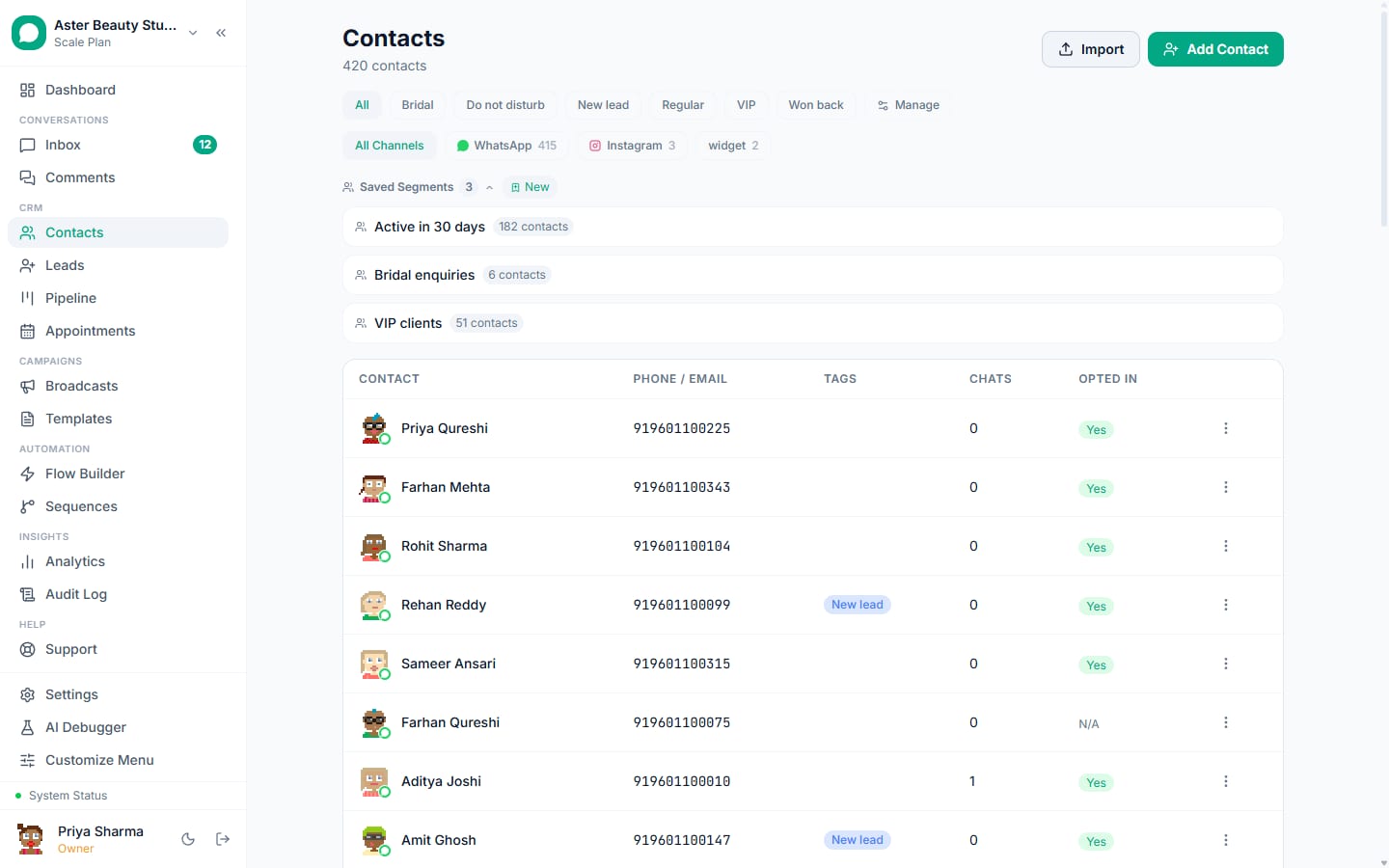
A contact record is the one place a customer's name, phone, conversation history, tags, custom fields and consent status live, and it is the audience every broadcast, sequence and flow reads from. This walkthrough covers adding and tagging contacts, understanding what is encrypted, and building a nested segment for a targeted audience.
Contacts: first 5 of 7 steps
- 1Open Contacts from the main navigation
- 2Add a contact manually, or let one
- 3Tag contacts as you work
- 4Add custom fields, if your business tracks
- 5Build a saved segment
Before you start
- Contact management is available on every plan, with contact count capped by tier: 500 on Free, 5,000 on Starter, 25,000 on Growth, unlimited on Scale.
- You need whatever role already grants access to the Contacts module; adding, tagging and segmenting are typically available to any agent role, while custom field creation is restricted to Owner and Admin.
- Understand that a self-serve contact merge is not a feature you can trigger yourself today; see the FAQ on merging below before assuming a button exists somewhere.
- If you plan to import a list, read importing contacts from CSV first rather than adding contacts one at a time.
Steps
- Open Contacts from the main navigation. Click Contacts in the sidebar to see the full list, with tags, chat counts and quick actions.
Add a contact manually, or let one be created automatically. Click Add Contact and fill in name, phone and any custom fields, or simply let a contact get created the moment someone messages your WhatsApp number, submits a form, or arrives from a lead ad.
Tag contacts as you work. Open any contact and apply one or more tags, useful groupings like "VIP," "Newsletter" or "Returning Customer" that you can filter and segment on later.
Add custom fields, if your business tracks more than the standard ones. Under Settings, define any extra fields your contacts should carry, birthday, membership tier, preferred branch, and they appear on every contact's detail view.
Build a saved segment. From the Contacts page, open the segment builder, add conditions (tag, opt-in status, last seen, appointment history and more), group them with AND or OR, and save the segment with a name for reuse as a broadcast audience.
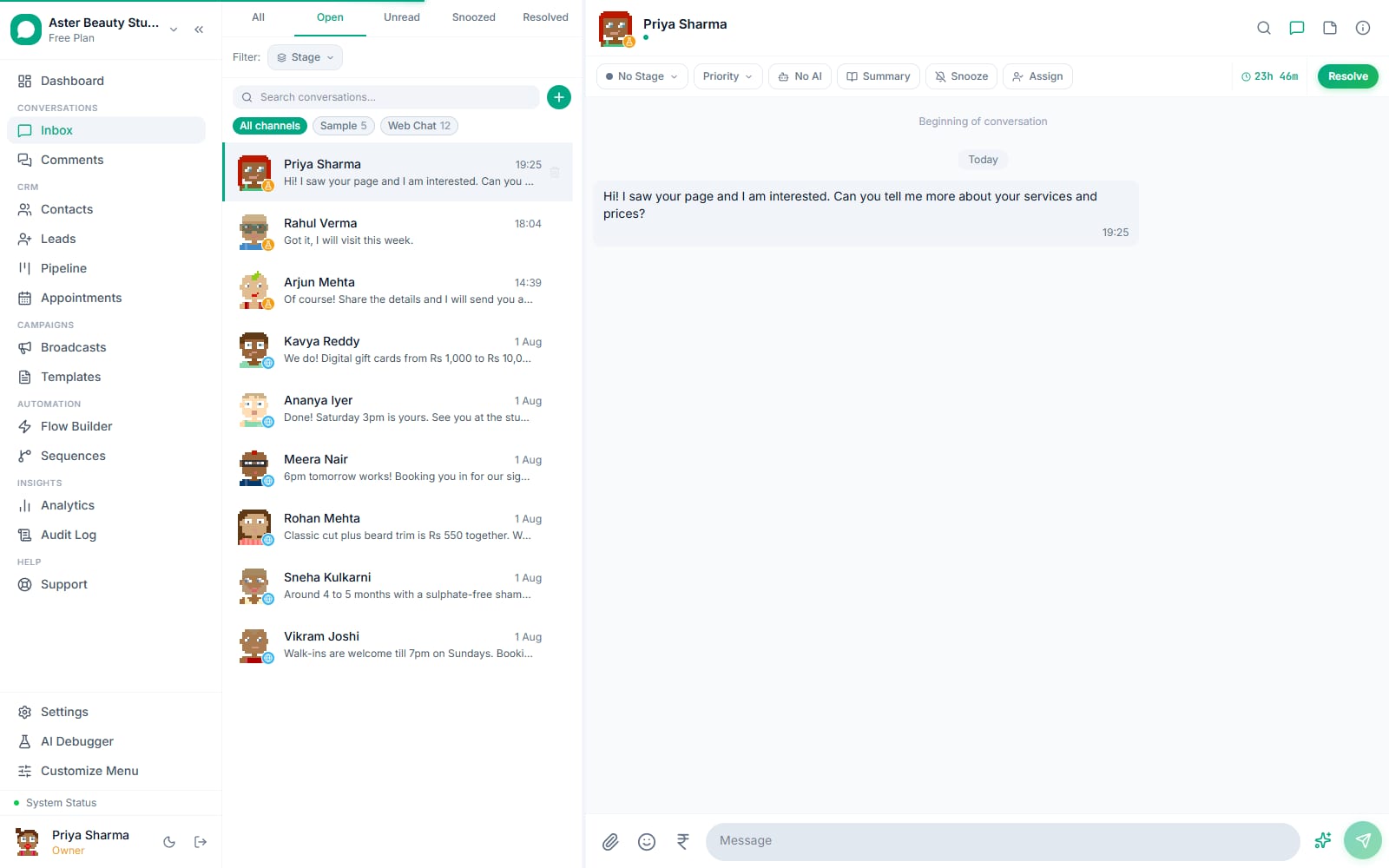
Review a contact's full cross-channel history. Open any contact to see every conversation it has had, regardless of whether it happened on WhatsApp, Instagram, Messenger or your web chat widget, in one unified view.
Check consent status before a large send. A contact's opted-in status and any marketing_stopped flag from Meta's own signal are both visible on the contact detail view; see opt-in and consent for exactly what each means.
What you will see
Every contact appears in the list with its name (or phone number if no name is known), a chat count, tags, and a source-channel indicator. Opening a contact shows its full conversation history across every connected channel, tags, custom fields, and any linked lead or appointment records. A saved segment shows a live count that updates as you adjust its conditions, so you know exactly how many contacts a broadcast built from it will reach before you save.
Settings and options
| Setting or field | What it does | Default |
|---|---|---|
| Tags | Free-form labels applied to contacts for filtering and segmenting | None until created |
| Custom fields | Extra fields beyond name, phone and email tracked per contact | None until defined in Settings |
| Segment builder | Nested AND/OR condition groups across 14 fields, saved for reuse | No saved segments until you create one |
| Source channel | WhatsApp, Instagram, Messenger or web_chat; governs routing eligibility | Set automatically on contact creation |
| Source | Reporting-only origin (WhatsApp, form, Calendly, import, manual) | Set automatically on contact creation |
| Opted-in status | Whether the contact can receive marketing sends | True unless an opt-out keyword or Meta's marketing_stopped signal fires |
Troubleshooting
| Symptom | Likely cause | Fix |
|---|---|---|
| A contact did not receive a WhatsApp broadcast | Its source channel is not WhatsApp, it is opted out, or it is blocked | Check the contact's source channel and opt-in status on its detail view; a non-WhatsApp source channel excludes it from WhatsApp sends regardless of any other setting |
| Two records exist for what looks like the same person | No merge has happened yet for this pair; automatic merging only fires on a web chat identity match | Contact support, or ask a super admin to run the duplicate-contacts cleanup tool, since self-serve merge is not available from the Contacts page |
| Searching a phone number returns nothing even though the contact exists | The search term does not match the stored plaintext shadow column format, most commonly a missing or different country code | Search with the full E.164-style number including country code, matching how it was originally saved |
| A segment shows 0 contacts unexpectedly | A group's AND/OR logic is combined incorrectly, producing an impossible combination of conditions | Review each group individually; a common mistake is ANDing two mutually exclusive tag conditions instead of ORing them |
| Custom field values disappeared after an import | The CSV import mapping did not include that column, so existing values were left untouched, not necessarily deleted | Check the specific contact's detail view; custom fields not touched by an import are never cleared automatically |
| Contact still receives marketing messages after they said stop on WhatsApp | The keyword sent did not exactly match a recognised opt-out word, or Meta's own webhook has not yet propagated | See opt-in and consent for the exact keyword list and how the marketing_stopped signal is honoured |
Why does a contact stay searchable if its data is encrypted?
Name, phone and email are encrypted at rest, and because encryption uses a fresh random value on every write, the same phone number produces different stored ciphertext each time it is saved, which means the encrypted columns can never be matched directly in a database search. To keep search working, VGraple CRM maintains separate plaintext, lowercased shadow columns that exist purely for search and exact-match lookups; the encrypted fields remain the source of truth for everything displayed and sent to Meta.
Example
Searching "9876543210" in the Contacts list matches against the plaintext shadow column kept in sync on every write, never against the encrypted ciphertext stored in the underlying phone field itself.
Can I merge duplicate contacts myself?
Not from a self-serve tool on the Contacts page today. One specific case merges automatically: a web chat visitor mid-conversation who provides an email matching an existing contact is merged into that contact live, carrying over every conversation, tag, note and appointment. For everything else, a duplicate-contacts cleanup tool exists, but it lives under the super-admin System area and is not exposed to a regular org owner or agent. If you spot a genuine duplicate that needs merging outside the automatic web chat case, contact support (Monday to Friday, 10 AM to 7 PM IST) rather than looking for a merge button that is not part of the standard interface today.
What can a saved segment actually filter on beyond a simple tag?
Beyond tag and opt-in filters, segments support behavioural fields, whether the contact has received or opened a broadcast, whether they have been active in the last N days, and appointment-based fields, service history, completed appointment count, last or next appointment date, and whether they have ever had a specific appointment status like no-show. Every condition sits inside a group, and groups combine with AND or OR at two nesting levels, so a segment is not limited to a flat list of ANDed filters the way a single tag search would be.
Example
A clinic builds a segment for "(tagged Returning Patient OR had 2 or more completed appointments) AND next appointment does not exist," to find loyal patients who have not rebooked, as the audience for a targeted re-engagement broadcast.
Once your contacts are organised, revisit importing contacts from CSV for bulk additions, or opt-in and consent to understand exactly how STOP and START are honoured across every channel.