On this page
Importing contacts from a CSV validates and normalises every phone number against a table of country dial codes before anything is saved, so a messy spreadsheet built up over years of manual collection does not turn into a pile of unreachable contacts. This walkthrough covers preparing your file, mapping columns, choosing duplicate handling, and reading the results afterward.
CSV import: first 5 of 8 steps
- 1Open the import tool
- 2Upload your CSV
- 3Map your columns
- 4Set the country code fallback
- 5Choose how duplicates are handled
Before you start
- CSV import accepts files up to 5MB and processes up to 5,000 contact rows per import; a larger list needs multiple passes.
- You need whatever role already grants access to the Contacts module.
- Your plan's contact limit still applies during an import: 5,000 on Free, 50,000 on Starter, 2,00,000 on Growth and unlimited on Scale. An import that would exceed your limit stops accepting new rows once it is reached. The account owner is emailed when the limit is reached (on Free, also at 80%), and contacts created when a customer messages you are never refused, even at the limit.
- Download the sample CSV template from the import modal before building your own file if you are unsure of the expected column layout.
Steps
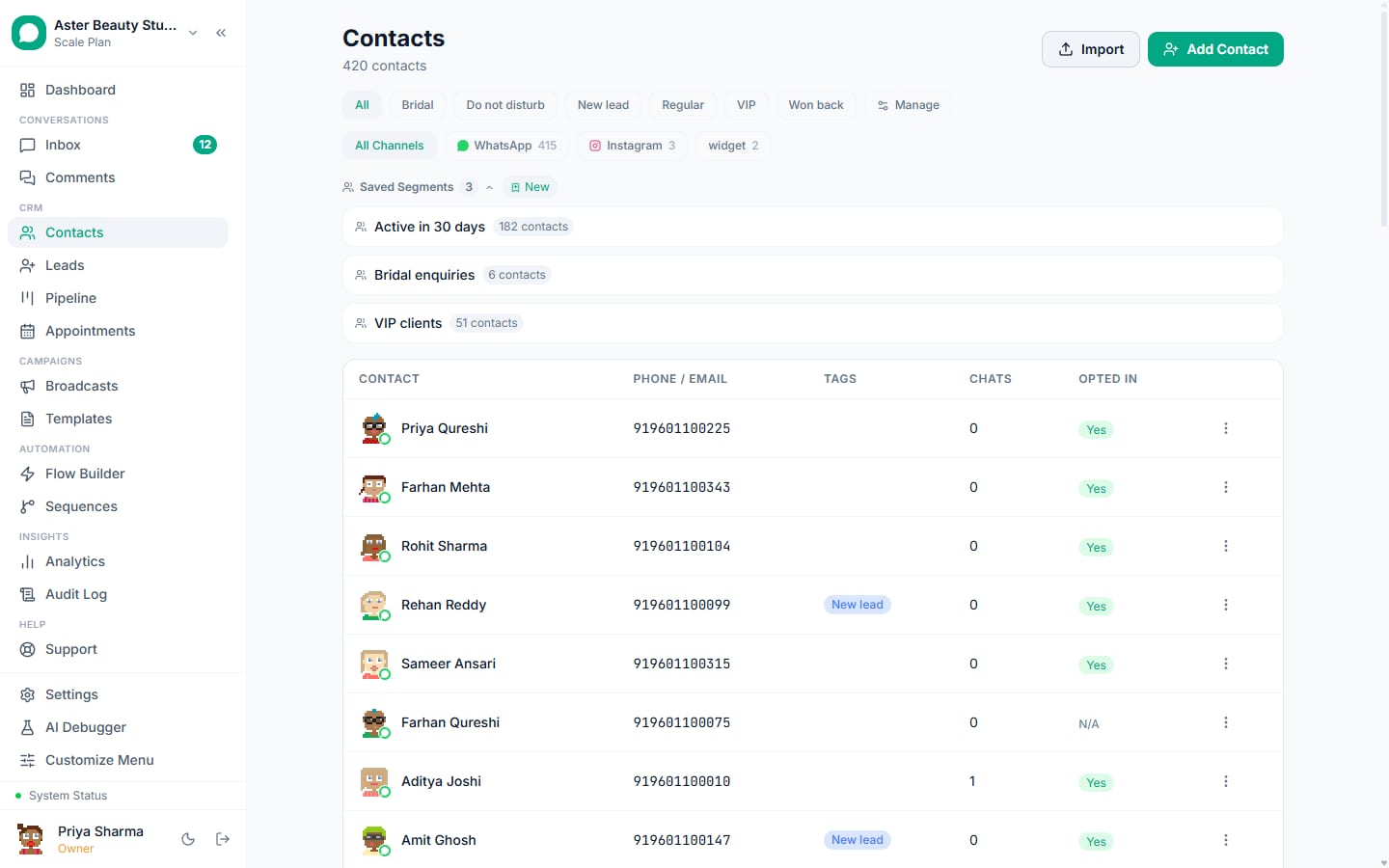
- Open the import tool. From the Contacts page, click Import.
Upload your CSV. Drag your file into the drop zone, or click to browse. Only
.csvfiles under 5MB are accepted; a Sample CSV download is available if you want to see the expected format first.Map your columns. The importer auto-detects likely matches (a column named "Mobile" maps to Phone automatically, for example); review and correct the mapping for Phone (required), Name, Email, Language and Tags.
Set the country code fallback. Choose which country code gets prepended to any phone number in your file that looks like it is missing one, India (+91) by default, since a 10-digit number with no country code is assumed to be Indian unless you tell the importer otherwise.
Choose how duplicates are handled. Pick Skip duplicates to leave an existing contact untouched, or Update existing to overwrite name and email and add new tags to a contact that already exists with the same phone number.
Decide on marketing consent, honestly. Only check "Mark all imported contacts as opted in" if you genuinely have consent from every person in the file, and confirm the consent attestation checkbox that appears once you do. Leave it unchecked if you are unsure, since an opted-out import still adds the contacts, just without marketing eligibility.
Apply tags to the whole batch, if useful. Select any existing tags that should be applied to every contact in this import, useful for tracking which batch a contact originally came from.
Run the import and review results. Click Import. The results screen shows how many were imported, how many were skipped or updated, and how many had errors, with a downloadable CSV of any failed rows.
What you will see
A summary of three numbers: Imported, Skipped (or Updated, depending on your duplicate mode), and Errors. If any rows failed, a table shows the row number, the phone value as submitted, and the specific reason, most commonly an invalid or unparseable phone number. A "plan contact limit reached" notice appears if you hit your plan's cap partway through, explaining that upgrading is needed to import the rest.
Settings and options
| Setting or field | What it does | Default |
|---|---|---|
| Country code fallback | Prepended to phone numbers missing a country code before validation | India (+91) |
| Duplicate mode | Skip duplicates (leave existing untouched) or Update existing (overwrite name and email, add tags) | Skip duplicates |
| Mark all imported contacts as opted in | Sets opted-in status on every contact in this batch, gated behind a consent attestation | Off |
| Apply tags | Applies one or more existing tags to every contact in the batch | None selected |
| File limits | Maximum file size and row count accepted per import | 5MB, 5,000 rows |
Troubleshooting
| Symptom | Likely cause | Fix |
|---|---|---|
| A row failed with an invalid phone error | The value could not be turned into a valid phone number even after applying the country code fallback | Check the raw value in the downloaded errors CSV; fix the source data and re-import just that row |
| Import stopped partway with a "plan limit reached" message | Your org's total contact count hit the plan's cap during the import | Upgrade your plan, or delete unneeded contacts first, then re-run the import for the remaining rows |
| A contact I expected to update was skipped instead | Duplicate mode was set to Skip rather than Update | Re-run the import for just that row with Update existing selected, or edit the contact manually |
| Tags did not apply to imported contacts | The Tags column in the CSV was not mapped, or the batch-level tag selection was left empty | Recheck the column mapping step, and select tags in the batch-apply section if you want them applied to every row |
| "Confirm the consent attestation" error blocked the import | You checked "Mark all imported contacts as opted in" but did not tick the attestation checkbox that appeared underneath | Check the attestation box, or uncheck the opted-in option if you are not actually certain of consent |
| File rejected before upload even started | The file is larger than 5MB, or is not a .csv file | Split a larger export into multiple files under 5MB and under 5,000 rows each, saved in CSV format |
Why does the country code fallback matter for Indian phone numbers?
Every phone number is normalised to E.164 format before it is saved, and a 10-digit number typed as "9876543210" with no country code is genuinely ambiguous without context. The country code fallback tells the importer what to assume: with India selected, that value becomes "+91 98765 43210," matched correctly against any existing contact stored the same way. A number already written with a country code, "+91 98765 43210" or "919876543210," is parsed directly and the fallback setting is not applied to it at all, so mixed-format files (some rows with a country code, some without) are handled correctly in the same pass.
Example
A D2C store importing a customer list collected at checkout over several years finds most numbers written as plain 10-digit values with no country code. Setting the fallback to India (+91) once, rather than editing every row by hand, correctly normalises the entire file in one import.
What should I do before marking a batch opted in?
Meta's Business Messaging Policy requires genuine consent before sending marketing messages, and the consent attestation checkbox exists specifically to make you stop and confirm this rather than tick a box out of habit. A list collected through a proper opt-in mechanism, a signed form, a checkbox at checkout, a WhatsApp conversation where the person explicitly agreed, is safe to mark opted in. A list bought, scraped, or collected without an explicit messaging opt-in is not, regardless of how the contacts were used elsewhere in your business, and marking it opted in risks your WhatsApp number being restricted.
Once your import is clean, review managing contacts, custom fields and segments to tag and organise the batch you just brought in, and read opt-in and consent for exactly how consent is tracked and enforced afterward.