On this page
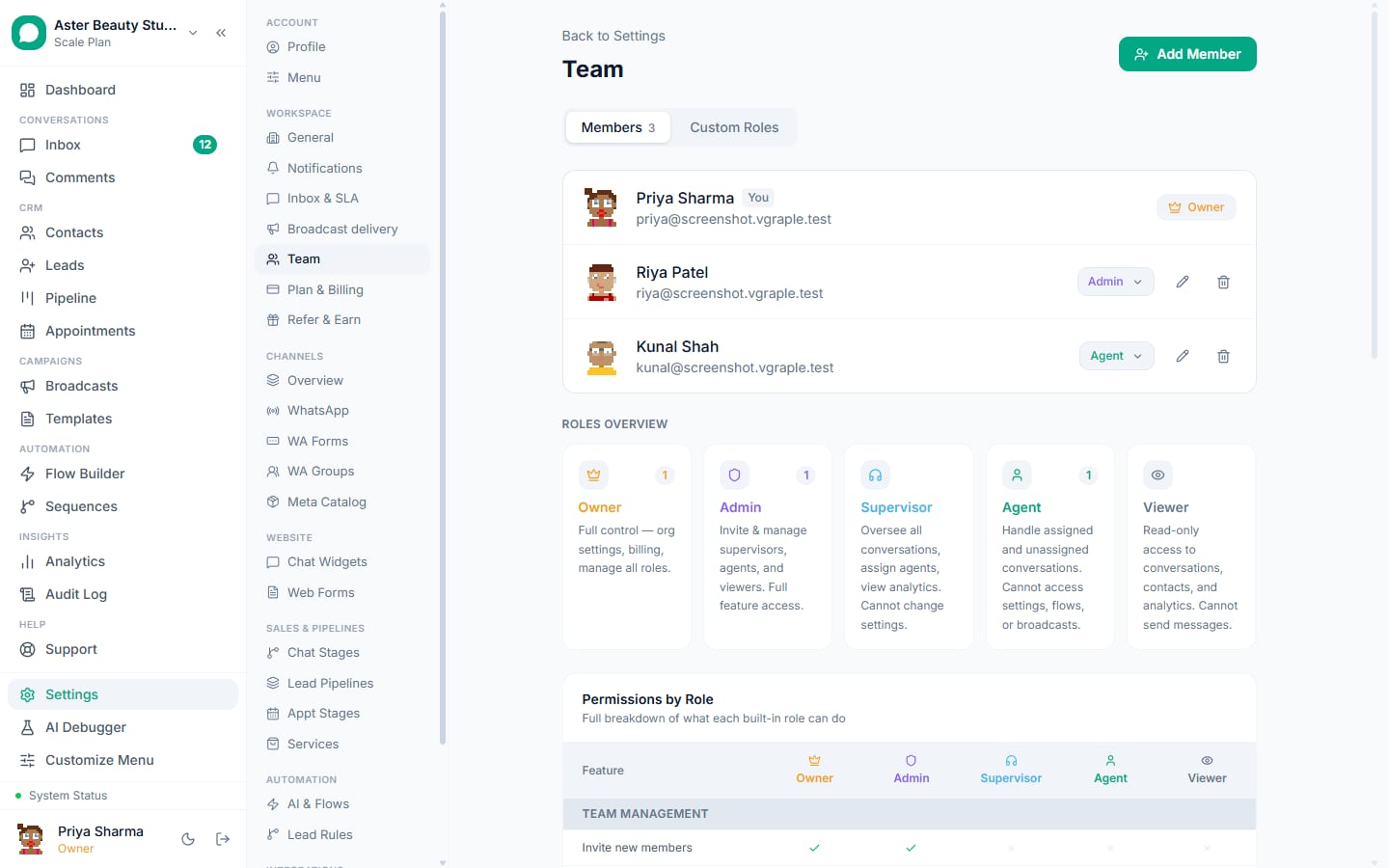
VGraple CRM uses role-based access: every teammate has one role, and the role decides which modules they see and which actions they can take. Five system roles cover most teams; custom roles let an owner shape access module by module. This reference lists what each role can do, who can manage whom, and the handful of things reserved for the owner.
Before you start
- Roles are assigned when you invite someone under Settings, then Team, and can be changed later by an Owner or Admin.
- Seats count against the plan: Free 1, Starter 5, Growth 15, Scale unlimited. Deactivating a member frees the seat.
- Team membership controls which conversations an Agent sees; the role controls what they can do with them.
The five system roles
| Role | Summary | Typical use |
|---|---|---|
| Owner | Full control: organisation settings, billing, secrets, all roles, ownership transfer, organisation deactivation | The business owner or the person who signed up |
| Admin | Invite and manage Supervisors, Agents and Viewers; full feature access; edits settings but cannot view secrets | Operations lead, agency account manager |
| Supervisor | Sees all conversations, assigns agents, views analytics; cannot change settings | Team lead, floor manager |
| Agent | Handles assigned and unassigned conversations; no access to settings, flows or broadcasts | Sales and support staff |
| Viewer | Read-only conversations, contacts and analytics; cannot send messages | Auditor, trainee, finance |
What each role can do
| Capability | Owner | Admin | Supervisor | Agent | Viewer |
|---|---|---|---|---|---|
| View all conversations | Yes | Yes | Yes | Assigned and unassigned only | Yes |
| Send messages, resolve, assign | Yes | Yes | Yes | Send and resolve | No |
| Manage quick replies (canned responses) | Yes | Yes | No | No | No |
| Contacts: view, create, edit, delete, block | Yes | Yes | View, create, edit | View, create, edit | View |
| Leads and pipeline stages | Yes | Yes | View, edit | View, edit | View |
| Broadcasts: create, send, delete | Yes | Yes | No | No | No |
| Flows: create, edit, toggle, delete | Yes | Yes | No | No | No |
| Templates: create, edit, toggle, delete | Yes | Yes | No | No | No |
| Appointments and Service Catalog | Yes | Yes | View, edit | View, edit | View |
| Analytics | Yes | Yes | Yes | No | Yes |
| Audit log | Yes | Yes | No | No | No |
| Organisation, channel and pipeline settings | Yes | Yes | No | No | No |
| View secrets: API keys, Payment Collection, Meta Conversion Tracking | Yes | No | No | No | No |
| Invite and manage members | All roles below Owner | Supervisor, Agent, Viewer | No | No | No |
| Billing, ownership transfer, deactivate organisation | Yes | No | No | No | No |
The exact permission set behind this table lives in the app's permission map; the table reflects it at the time of writing and the security and roles page tracks changes.
Custom roles
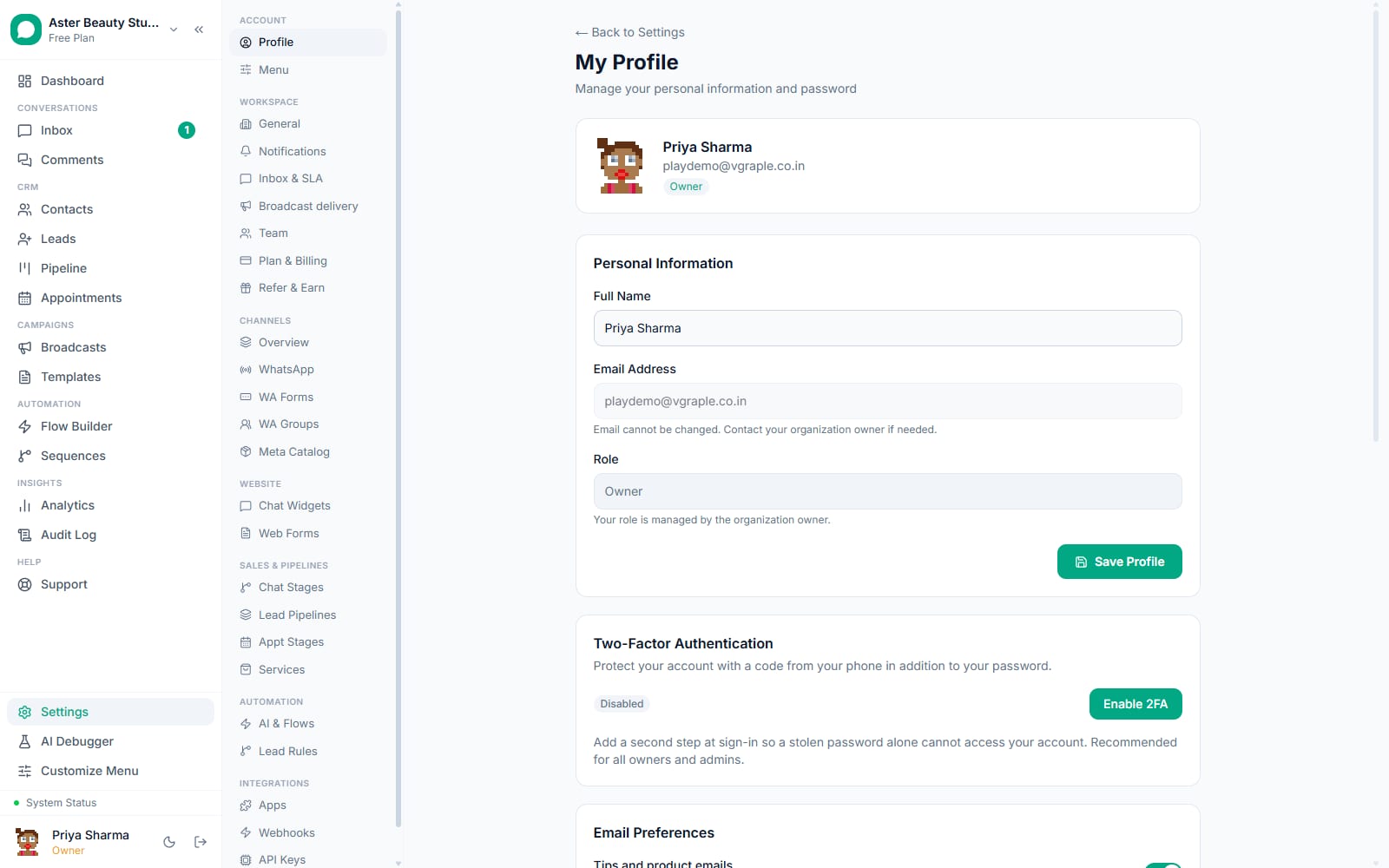
Owners can create a custom role under Settings, then Team, choosing an access level for each of the twelve modules: none, view, edit or full. Levels map to the same underlying permissions as the system roles, so a custom role with Inbox at full and everything else at none behaves like an Agent who can also assign. Custom roles never see secrets and cannot invite members; those stay with Owner and Admin.
Who can manage whom
| Actor | Can assign or change | Cannot touch |
|---|---|---|
| Owner | Admin, Supervisor, Agent, Viewer, custom roles | Nothing; ownership moves only through Transfer Ownership |
| Admin | Supervisor, Agent, Viewer, custom roles | Owner and other Admins |
| Supervisor, Agent, Viewer | Nobody | Team settings |
How teams change what an Agent sees
Roles decide actions; teams decide scope. An Agent in the Sales team sees unassigned conversations and those assigned to them or to the Sales team, not the Support team's queue. Supervisors, Admins and Owners see every conversation regardless of team. Put a member in more than one team when they cover both queues, and use auto-assignment rules to route new conversations by channel, source or flow choice so the queues fill themselves.
Choosing roles for common setups
| Setup | Suggested roles |
|---|---|
| Owner-operated shop with two staff | Owner, two Agents |
| Sales team with a lead | Owner, one Supervisor, Agents in a Sales team |
| Agency managing a client's account | Client as Owner, agency lead as Admin, agency staff as Agents or a custom role |
| Clinic with reception, nurses and doctors | Owner, reception as Agents, nurses as a custom role (Inbox view, Appointments edit), doctors as Viewers |
| Finance or auditor access | Viewer, or a custom role with Analytics view only |
Owner-only actions
- View or create API keys, and edit Payment Collection and Meta Conversion Tracking settings.
- Change the plan, cancel the subscription, open the billing portal.
- Transfer ownership to an Admin or another member (Settings, Danger Zone).
- Deactivate the organisation, which revokes access for all members immediately.
Settings and options
| Setting | What it does | Default |
|---|---|---|
| Role on invite | Sets the member's role at invitation | Agent |
| Team membership | Scopes which conversations an Agent sees | No team |
| Custom role | Per-module access levels | None until created |
| Deactivate member | Removes access and frees the seat; their history stays | Active |
Troubleshooting
| Symptom | Likely cause | Fix |
|---|---|---|
| A teammate cannot see Broadcasts or Flows | Their role is Agent or Viewer | Change to Supervisor for analytics, Admin for broadcasts and flows, or a custom role |
| An Admin cannot open API Keys | Secrets are Owner-only | Ask the Owner, or transfer ownership if the Admin runs the account |
| Invite fails with a seat error | The plan's seat limit is reached | Deactivate an unused member or upgrade |
| An Agent sees conversations from another team | Agents see all unassigned conversations | Assign conversations to teams or use auto-assignment rules |
Own records only
Teams where each member handles their own customers - brokers, agents, franchise staff - can build a custom role whose Inbox, Contacts and Leads are limited to Own records. That member then sees conversations, contacts and leads assigned to them, plus anything nobody has claimed yet. Assignment happens automatically: assigning a conversation or a lead assigns its contact to that member if it was unassigned, a member is assigned the contacts they add or import, and a number routed to one person assigns its conversations to them. Owners, admins and supervisors keep full visibility, and a contact's assignee can be changed from its edit dialog (Assigned to), which appears once the workspace has more than one member.