On this page
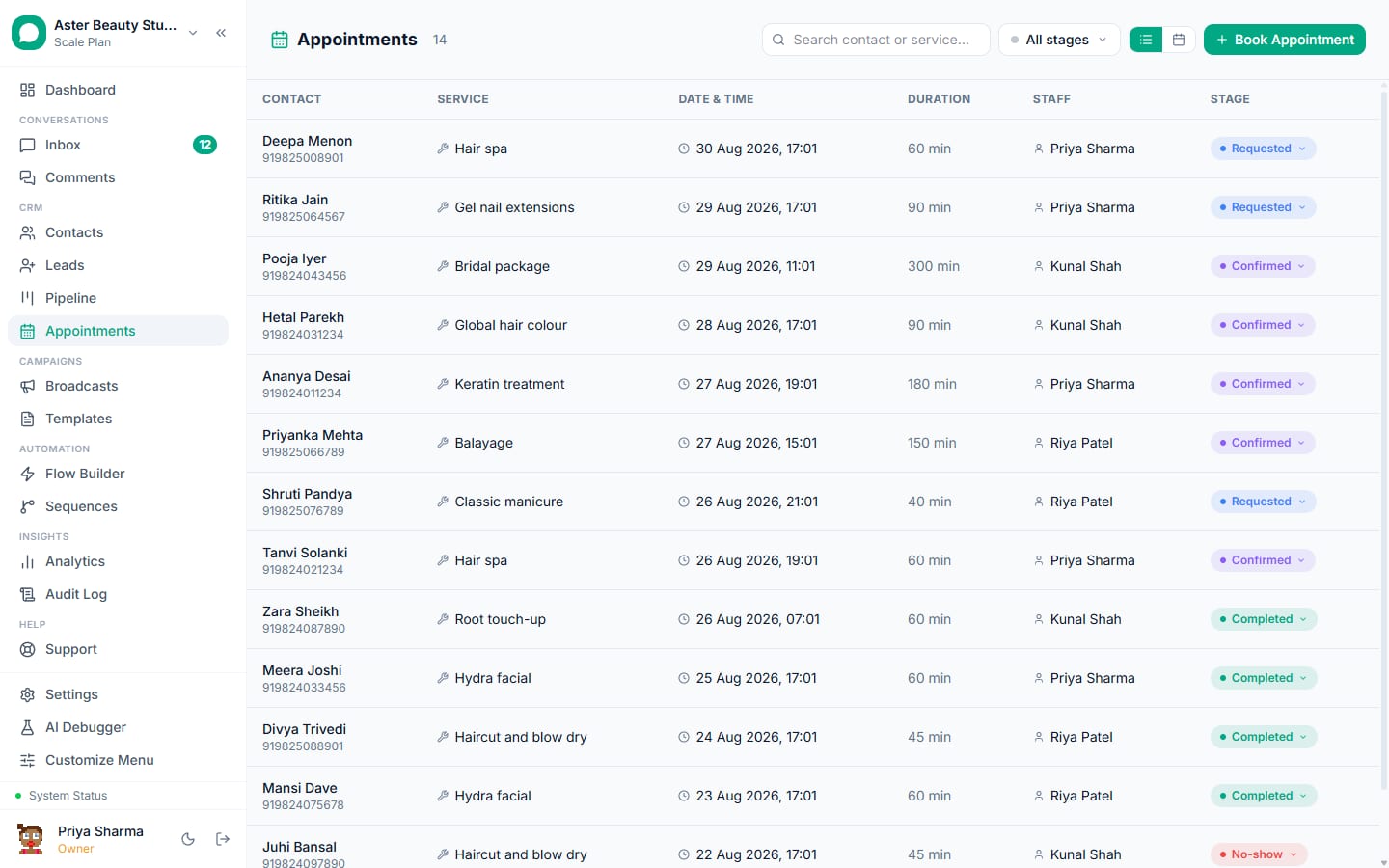
The Calendly integration turns every booking made through your Calendly links into an appointment in VGraple CRM, matched to the contact by phone number, so confirmations, reminders and follow-ups go out on WhatsApp and the conversation shows the appointment. It is native: you authorise VGraple CRM with Calendly's OAuth, and bookings arrive by Calendly webhook or, on plans without webhooks, by polling.
What syncs
| Data | Direction | Timing |
|---|---|---|
| New bookings with event type, time, invitee name, email, phone and answers | Calendly to VGraple CRM | Real time (webhook) or about every 5 minutes (polling) |
| Cancellations and reschedules | Calendly to VGraple CRM | Same as above |
| Appointment record, stage and contact link | Inside VGraple CRM | Immediate on arrival |
| WhatsApp confirmations, reminders and follow-ups | VGraple CRM to WhatsApp | Per stage automation or flow |
| Event type to service matching | Inside VGraple CRM | Manual, under Settings, Services |
Setup
- Go to Settings, then Integrations, and find the Calendly card. Click Connect Calendly.
- Sign in to Calendly and approve the requested access. You land back on the Integrations page with the card showing Connected, your Calendly name and email, and the sync mode badge (Real-time or Polling).
- Under Settings, then Services, add or rename services so their names match your Calendly event types exactly; flows and templates can then use the service name as a variable.
- Set appointment stage automation (confirmation on Scheduled, reminder 24 hours before, follow-up on Completed) or build a flow with the Appointment booked trigger.
- Book a slot through your own Calendly link and check it appears on the Appointments calendar linked to the right contact.
Who uses it
Consultants, clinics, coaching institutes and agencies that already publish Calendly links in emails, on websites and in ads, and want the booking to reach the same WhatsApp conversation where the customer asked questions. It is also the quickest way to give a WhatsApp chatbot a booking step without building slots in VGraple CRM: the flow sends the Calendly link, the booking comes back as an appointment.
How matching works
Calendly sends the invitee's name, email and any phone field on the event type's form. VGraple CRM normalises the phone to international format and matches it to an existing contact; if none exists, a new contact is created with the email and phone so the confirmation can go out on WhatsApp. Without a phone field on the Calendly form, the appointment is still created and can be linked by hand from its detail screen, so add a required phone question to every event type you want automated.
Three recipes
- Consultation booked on Calendly -> WhatsApp confirmation with the meeting link and a reschedule quick reply. Stage automation on Scheduled sends a utility template; the reply lands with the desk.
- Reminder 24 hours and 2 hours before -> no-show rate drops. Appointment timers send utility reminders; a no-show moves the stage and sends a rebook prompt.
- Booking answers include a budget -> lead created and scored, sales assigned. A rule on appointment created writes the answers to custom fields and creates a lead in the sales pipeline.
Disconnecting
Disconnect from the same card at any time. New bookings stop syncing at once; appointments already created stay, with their reminders and history, so a temporary disconnect for troubleshooting is safe.
Limits and gotchas
- Polling mode adds up to 5 minutes of delay and is assigned automatically when your Calendly plan does not support webhooks; upgrading Calendly and reconnecting switches to Real-time.
- Bookings without a phone number cannot be matched automatically; ask for the phone on the Calendly form.
- Calendly remains the source of truth for availability; VGraple CRM does not push appointments back to Calendly.
- WhatsApp messages to a customer who has not messaged you require an approved utility template.
The Calendly guide has the full settings table and troubleshooting.
The Calendly card also shows the last sync time, which is the quickest way to confirm the connection is alive after a Calendly plan change.