On this page
In short
- Attach a video to a new support request or a reply: MP4, WebM or MOV, up to 100 MB each, up to five files a message
- On the web use the paperclip, or drag the file onto the message box; on Android tap Attach a photo or video, then Photos and videos
- A progress bar shows the upload; Send waits until every file is ready, and a dropped connection shows Retry, which sends the file again into the same upload
- The video plays inside the request for you and for our team, and only people who can see the request can watch it
You can attach a screen recording or any video to a VGraple CRM support request, on the web and in the Android app. MP4, WebM and MOV files of up to 100 MB each upload with a progress bar, and the video plays inside the request for you and for our team. A recording is often the fastest way to show a problem: we see exactly what you clicked and what happened, without a back-and-forth of questions.
What can I attach to a support request?
Each message in a support request, the first one or any reply, can carry up to five attachments. Videos join the images and PDFs that were already accepted.
| Kind | Formats | Largest file |
|---|---|---|
| Video | MP4, WebM, MOV | 100 MB |
| Image | JPEG, PNG, WebP, GIF | 10 MB |
| Document | 10 MB |
The type is decided by the file's contents, not its name. A video renamed to .mp4 that is really an AVI is refused, and so is a file that is only sound (an audio recording saved in an MP4 container). If a video is refused, the message under the file says why.
Note
A workspace can upload 1 GB of support attachments in any 24 hours. That is roughly ten full-size videos, far more than a support conversation needs, and it stops a runaway upload from filling storage.
How do I record my screen?
Use the recorder already on your device. Keep the recording to the steps that show the problem, from the screen before it to the error itself; a one or two minute recording is usually plenty and stays well under 100 MB.
| Device | Built-in recorder | Saves as |
|---|---|---|
| Windows 11 | Snipping Tool, Record (or Win + Shift + R) | MP4 |
| Windows 10 and 11 | Xbox Game Bar (Win + G), Capture | MP4 |
| Mac | Screenshot app (Shift + Command + 5), Record | MOV |
| Android | Quick Settings, Screen record | MP4 |
| iPhone and iPad | Control Centre, Screen Recording | MP4 in Photos |
Tip
Before you record, close anything private that would appear on screen, such as other customers' chats, banking tabs or passwords. Our team sees everything in the recording.
How do I attach a video on the web?
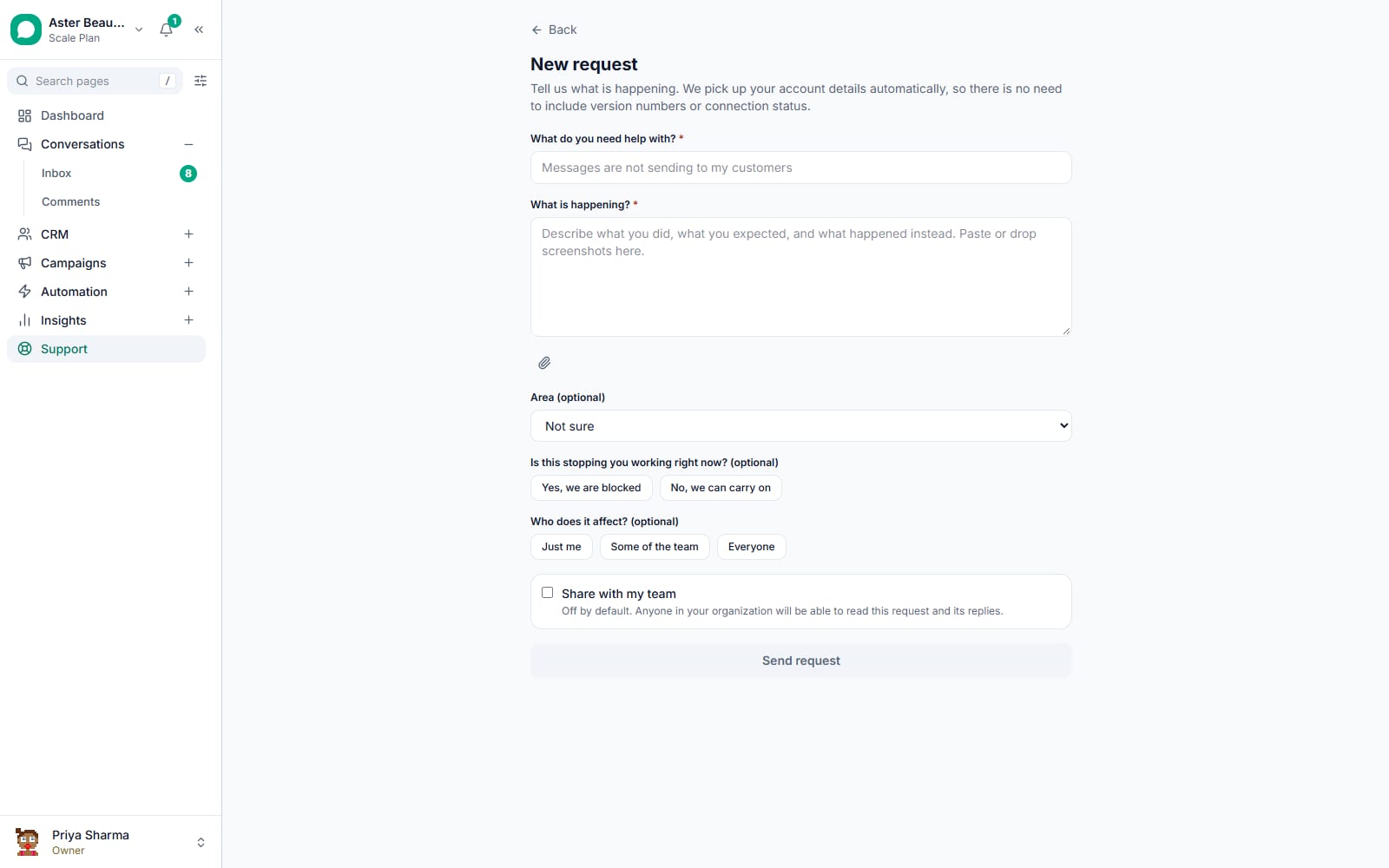
- Open Support in VGraple CRM, then New request, or open the request you already have. You can have one open request at a time, so if one is open, add the video there.
- Click the paperclip next to the message box and choose the video. You can also drag the file onto the message box.
- Watch the progress bar on the file's chip. When the upload finishes the chip says checking... for a moment while the file is confirmed, then shows the video's length.
- Write what the recording shows, then send. Send waits until every file is ready, so nothing goes out half uploaded.
If you close or reload the page while a video is still uploading, your browser asks you first, because leaving stops the upload.
How do I attach a video on Android?
- Open More, then Help and support, and start a request or open your open one.
- Tap Attach a photo or video, then Photos and videos, and pick the recording. Screen recordings are in your gallery, usually in a Screen recordings album.
- The file's chip shows the upload percentage and a thin progress bar. After the upload it says Checking, then shows the video's length.
- Type your message and send.
On Android, a recording larger than 100 MB is compressed on the phone first (the chip shows Compressing with a percentage) and is sent only if it then fits. Recordings under 100 MB are sent exactly as recorded, so text on screen stays sharp.
Note
An older version of the Android app does not offer videos. Update the app from Google Play, or attach the video from the web.
What if the upload fails?
A failed file shows the reason under the message box and, when trying again can help, a Retry button.
| What you see | What it means | What to do |
|---|---|---|
| The connection dropped, or the upload was interrupted | The network went away during the upload | Press Retry. The browser also retries by itself when the connection comes back, and Android when you return to the app |
| The upload did not finish | The file did not fully arrive | Press Retry |
| Videos can be at most 100 MB | The file is too large | Trim the recording or record a shorter one, then attach it again |
| Only MP4, WebM and MOV videos can be attached | Another format, such as AVI, MKV or 3GP | Export or convert it to MP4 |
| That file has no video in it | A sound-only recording | Attach the screen recording itself |
| Daily limit of 1 GB | Your workspace has reached the day's attachment limit | Share a link to the file, or attach it tomorrow |
Retry sends the file again from the beginning, into the same upload rather than a second one, and a file you remove with the cross is dropped from the message straight away.
How do videos play in the request?
A video appears in the message with the player's own controls. On the web you can play, pause, seek, go full screen and download it; the file is streamed, so a long recording starts playing without downloading it all first. On Android, the message shows a preview frame and the video's length; tap it to play full screen, and use the back button or Close to return to the request.
If your browser cannot play a particular file (some HEVC recordings from an iPhone or a Mac play only in Safari), the message says so and offers Download instead. The file itself is fine, and our team can still open it.
Who can see the video?
Exactly the people who can see the request. A request is visible to you and, if you shared it with your team, to your teammates; the VGraple support team sees it to help you. Videos are kept in private storage with no public link, and every view checks that the person watching is allowed to see that request. A video attached to an internal note by our team is never shown to your workspace.
Every attachment you upload or remove is recorded in your workspace's audit log.
Related
- Onboarding and Support, the support desk, hours and how requests work
- Getting started with VGraple CRM
- Android notifications not arriving, a common reason to send us a recording
- Export your data