On this page
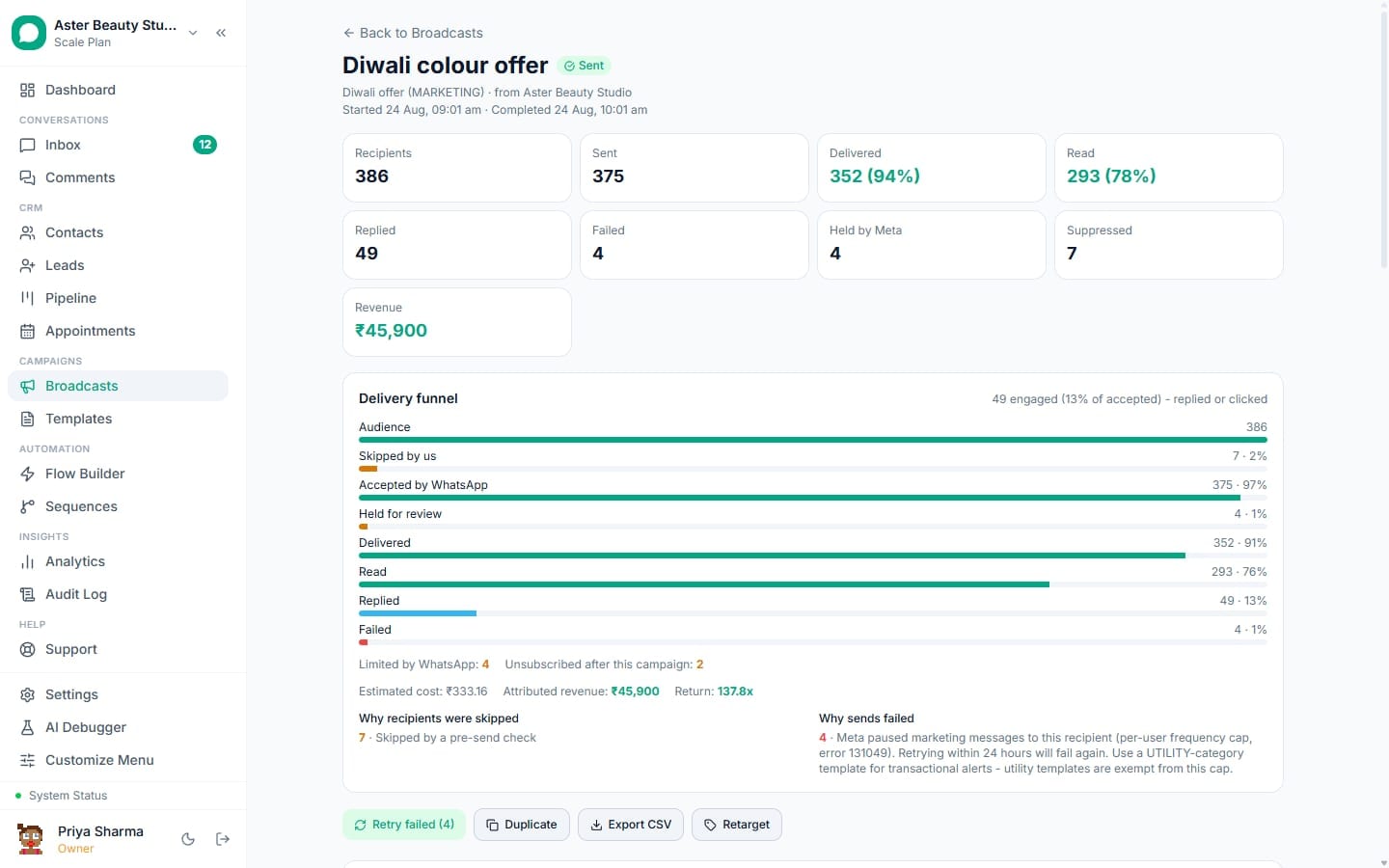
Your first WhatsApp broadcast sends an approved template to a chosen audience, with a live recipient count, a cost estimate, and a real per-recipient delivery status from the moment you click send. This walkthrough covers the full path from an empty Broadcasts page to a completed campaign.
Before you start
- You need a connected WhatsApp number (see connecting your WhatsApp number) and at least one approved template (see creating your first template).
- Your account needs the "Send broadcasts" permission, included in Owner and Admin by default.
- Have some contacts in VGraple CRM already, imported, added manually, or arrived through a real or sandbox conversation, since a broadcast needs an audience to send to.
- There is no monthly conversation limit to check: conversations are unlimited on every plan, including Free. Before a large first send, check the daily messaging limit and the cost estimate on the review screen instead.
Steps
- Open Broadcasts and start a new campaign. From the main navigation, click Broadcasts, then New Broadcast.
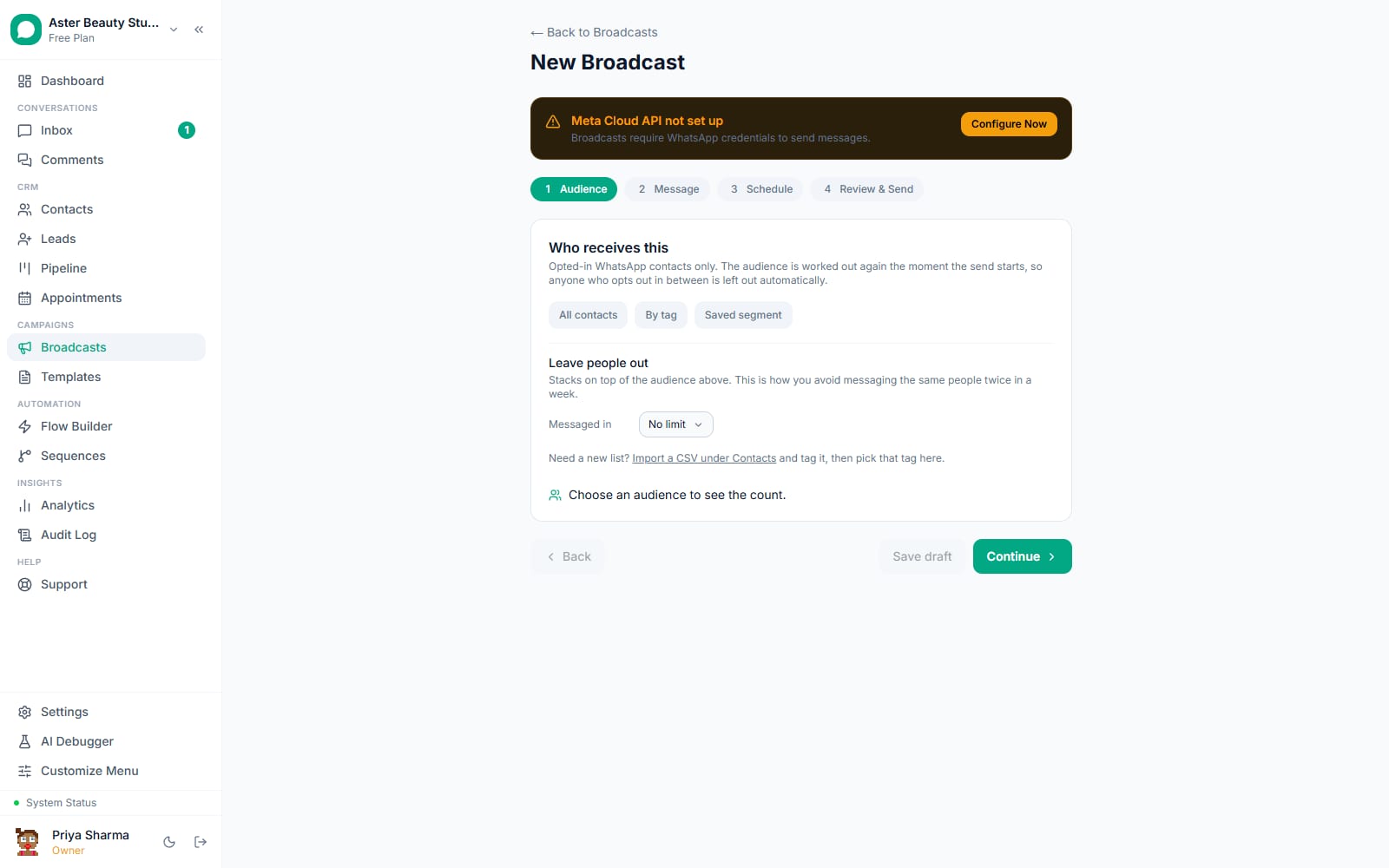
Build your audience. Choose from all contacts, a tag, a saved segment, or a CSV upload. The recipient count updates live as you narrow it, and any audience is automatically combined with safety checks (opted-in, not blocked, a real WhatsApp contact), so it can only get smaller, never wider, than those checks allow.
Pick your approved template and map variables. Select the template you created, then map each
{{1}},{{2}}variable to a contact field (name, phone, email, or a custom field) or fixed text, with a required fallback value for every variable in case a contact's field is empty. The composer renders the message against five real contacts so you see exactly what they will each receive.Send a test message to yourself. Use the test send option to message your own number (or a colleague's) before committing to the full audience, and confirm the header, body and buttons render as expected.
Choose when to send. Send immediately, or schedule it for a future time. Leave A/B testing and send-time optimisation off for your first campaign; they are worth exploring once you are comfortable with the basics.
Review the real numbers, then send. The review step shows the exact recipient count, the estimated per-country cost, how much of your daily messaging headroom this will use, and what will be skipped and why. Click Send (or Schedule) once it looks right.
Watch it send live. The campaign detail page updates through the delivery funnel in real time: pending, sent, delivered, read, with a per-recipient table you can filter by status or search by name.
What you will see
A new entry appears in your Broadcasts list with a status (Sending, Completed, Scheduled, or Paused) and a live count of how many recipients have been reached. Opening the campaign shows the full funnel and, once anyone replies, their message lands in the shared Inbox automatically tagged with this campaign's name.
Settings and options
| Setting or field | What it does | Default |
|---|---|---|
| Audience source | Tags, saved segments, all contacts, or a CSV upload | Chosen fresh for each campaign |
| Variable fallback values | What sends if a contact's mapped field is empty | Required for every variable before sending is allowed |
| Test send | Sends the exact composed message to one number without touching the real audience | Optional, available on the review step |
| Send timing | Immediately, scheduled once, or recurring | Send immediately unless you choose otherwise |
| Concurrent campaigns | How many broadcasts can send at the same time | Up to 3 by default |
Troubleshooting
| Symptom | Likely cause | Fix |
|---|---|---|
| No templates appear in the picker | No template has been approved yet, or the approved template uses a media header or variable URL button the broadcast sender does not support | Finish creating your first template; check the template list for which types the campaign picker filters out and why |
| Recipient count is much lower than expected | Contacts without a valid WhatsApp number, opted out, or blocked were automatically excluded | Expected behaviour; open the audience step's breakdown to see how many were filtered and why |
| Campaign paused itself shortly after starting | A template pause, a portfolio-wide Meta pacing event, a red quality rating, the daily messaging limit running out, or a high failure rate in the first batch | Open the campaign detail page; the pause reason is shown in plain language along with whether it resumes automatically |
| Test send never arrives | The test number is not on WhatsApp, or the template's header media failed to upload | Confirm the test number can receive WhatsApp messages, and re-check any header image or document attached to the template |
| Some recipients show "suppressed" instead of "sent" | The platform refused to send because of an opt-out, a block, a frequency window, or a missing valid WhatsApp number | Expected and by design; suppressed recipients are never billed and never retried automatically |
| Broadcast finished but no replies showed up in Inbox | Replies can take a moment to arrive, or the recipient replied outside the tracked window | Wait a minute and refresh; if it persists for a specific contact, check that contact's conversation directly |
Related reading
Once your first broadcast is done, automate the next one with your first chatbot flow, or revisit creating templates to build a small library for different campaigns.