On this page
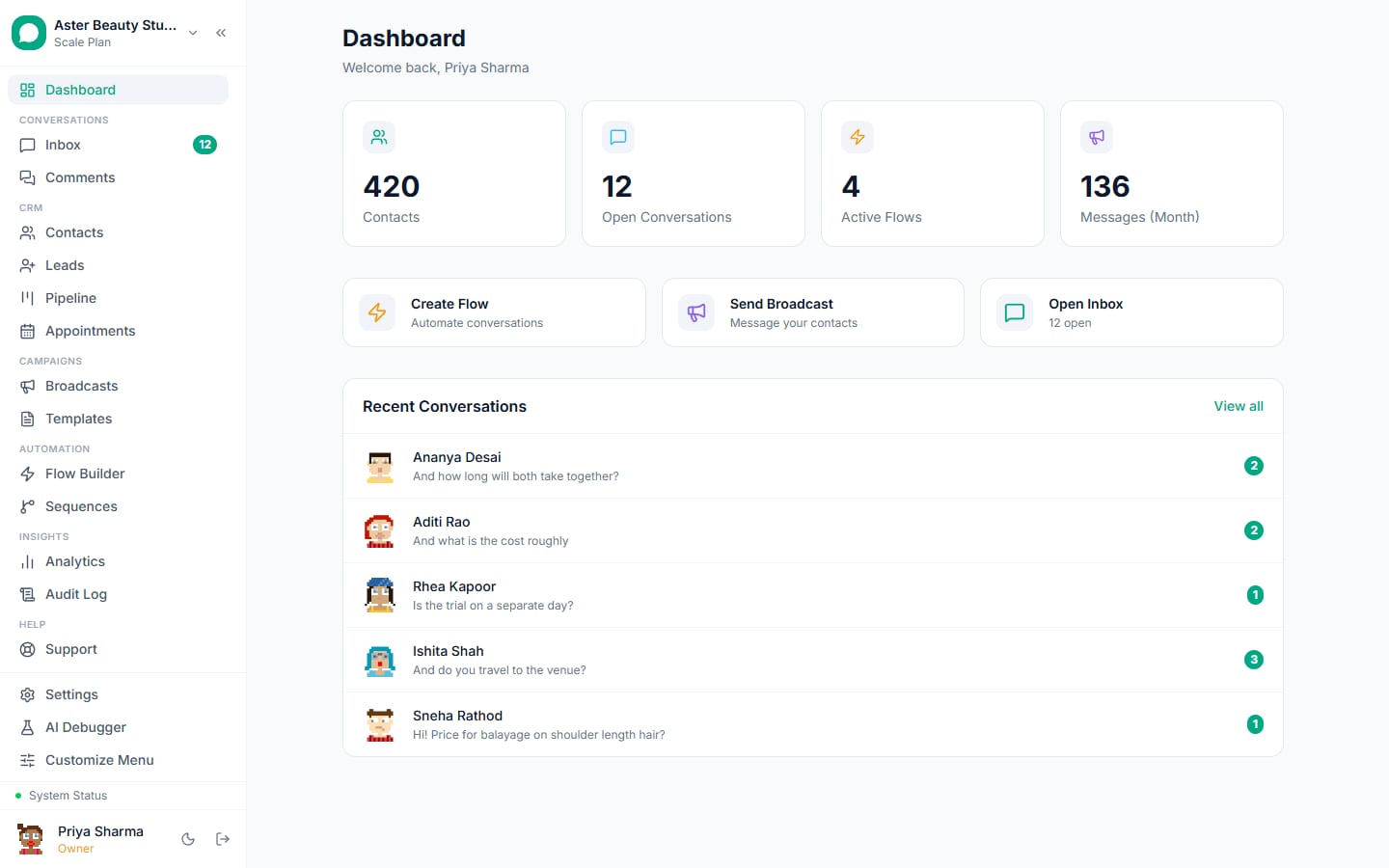
Getting started with VGraple CRM takes about 15 minutes: create a free account, answer a few questions in the setup wizard, then either connect your WhatsApp number or explore first with sample data. This article walks through every screen in order, from the signup form to your first message landing in the inbox.
Getting started: first 5 of 6 steps
- 1Create your account
- 2Verify your email
- 3Answer four quick questions
- 4Connect WhatsApp, or skip it
- 5See it work
Before you start
- No plan or payment is required. The Free plan has no time limit and needs no card, so you can complete every step below without upgrading.
- Have your business name ready, and if you plan to connect WhatsApp during setup, a Facebook account with access to your business and a phone number that is not already active on personal WhatsApp or the WhatsApp Business app.
- Only the account you sign up with (the workspace Owner) can access Settings and run the wizard. If a colleague also needs access, invite them after setup from Settings, then Team, rather than having them sign up separately, which would create a second, empty workspace.
- The mobile app (Android) can sign in and use an already-connected workspace, but the wizard below runs on the web app at crm.vgraple.co.in, since Meta's Embedded Signup only works in a desktop browser.
Steps
- Create your account. Go to crm.vgraple.co.in/register and fill in your name, business name, work email and a password (minimum 8 characters). A WhatsApp number is optional at this stage; ticking the box under it lets VGraple CRM send setup tips and account alerts to that number later. Click Create free account.
Verify your email. You are sent to a "check your inbox" screen and an email with a verification link arrives within a minute. Click the link; it confirms your address and signs you straight in, no separate login step needed.
Answer four quick questions. The setup wizard opens automatically for a new, unconnected workspace. Confirm or edit your business name, pick your industry (Retail and E-commerce, Beauty and Wellness, Healthcare, Education, Travel and Hospitality, Real Estate, Professional Services, Food and Restaurants, or Other) and team size, then choose what you want to do first: answer customers faster, send campaigns, close more sales, or automate replies. Finally, say where your business is on WhatsApp today: already using the WhatsApp Business app, already on the API with another provider, or a new number not on WhatsApp yet. This last answer decides which connection options the next screen shows you.
Connect WhatsApp, or skip it. If you said you already use the WhatsApp Business app, the wizard leads with coexistence mode so you keep the app while VGraple CRM connects alongside it (see connecting in coexistence mode). Any other answer leads with standard Embedded Signup (see connecting your WhatsApp number). Both screens also show a sandbox card if you would rather try VGraple CRM on your own phone first with no Meta setup at all (see trying the sandbox). Click Continue once connected, or Skip for now.
See it work. If you connected a number, the wizard shows a QR code: scan it with your phone's camera, or message the displayed number on WhatsApp. The moment your message arrives, it appears live on screen and you can open the conversation and reply from inside VGraple CRM, exactly as a customer's message will look. This step is skipped automatically if you did not connect a number.
Finish and pick a starting point. The final screen offers "Explore with sample data" if you have not connected WhatsApp yet (see the sample workspace), plus shortcuts to import contacts, create your first automation, or invite a teammate. Click Go to Dashboard whenever you are ready; nothing here is mandatory, and every shortcut is also reachable later from the main navigation.
What you will see
You land on the Home dashboard with your business name in the header. If you connected WhatsApp, the inbox already has at least one real conversation (your own test message) and a Connect WhatsApp checklist item is marked done. If you skipped connecting, the dashboard shows a persistent Connect WhatsApp number card and, if you chose it, five to six sample conversations sitting in your inbox with realistic customer messages for your industry, clearly separate from real customer data.
Settings and options
| Setting or field | What it does | Default |
|---|---|---|
| Business name | Shown in the header, notification emails and template variables; editable any time from Settings, then General | Your name at signup, or "Business name" if left blank |
| Industry | Selects which sample conversation set is used if you load sample data, and tailors some template gallery suggestions | Not set until chosen in the wizard |
| Where you are on WhatsApp today | Decides which connect option (coexistence or Embedded Signup) shows first on the Connect WhatsApp screen | Not set until chosen in the wizard |
| WhatsApp opt-in for account updates | Lets VGraple CRM message your own number with setup help and account alerts | Off unless you tick the box and provide a number |
| Onboarding status | Tracked per workspace; a completed or explicitly skipped wizard never reopens automatically | Incomplete until you finish or skip it |
Troubleshooting
| Symptom | Likely cause | Fix |
|---|---|---|
| The verification email never arrived | Spam filtering, or a typo in the email address | Check spam and promotions folders; use the resend link on the "check your inbox" screen, or re-register with the correct address |
| The wizard keeps reappearing every time I sign in | Onboarding was never marked complete because you closed the browser before reaching the last screen | Reopen the wizard and click through to Go to Dashboard, or use any "Skip" button on any step to mark it done |
| I cannot see Settings or the wizard at all | Your account was invited as an Agent or Viewer, not the workspace Owner | Ask whoever created the workspace to invite you with the Admin role, or check Settings, then Team for your assigned role |
| The QR code in "See it work" never receives my message | You messaged a different number, or your phone has no signal | Confirm the number shown on screen matches what you scanned, and that WhatsApp on your phone shows the message as sent, not just queued |
| I signed up twice and now have two separate workspaces | Registering again with a different email (or Google account) always creates a new, empty workspace rather than joining an existing one | Ask an Owner or Admin of the correct workspace to invite your other email from Settings, then Team, and use that invite to log into the right workspace |
Related reading
Once your workspace exists, the next steps are connecting your WhatsApp number (or coexistence mode if you already use the WhatsApp Business app), inviting your team, and creating your first template.