On this page
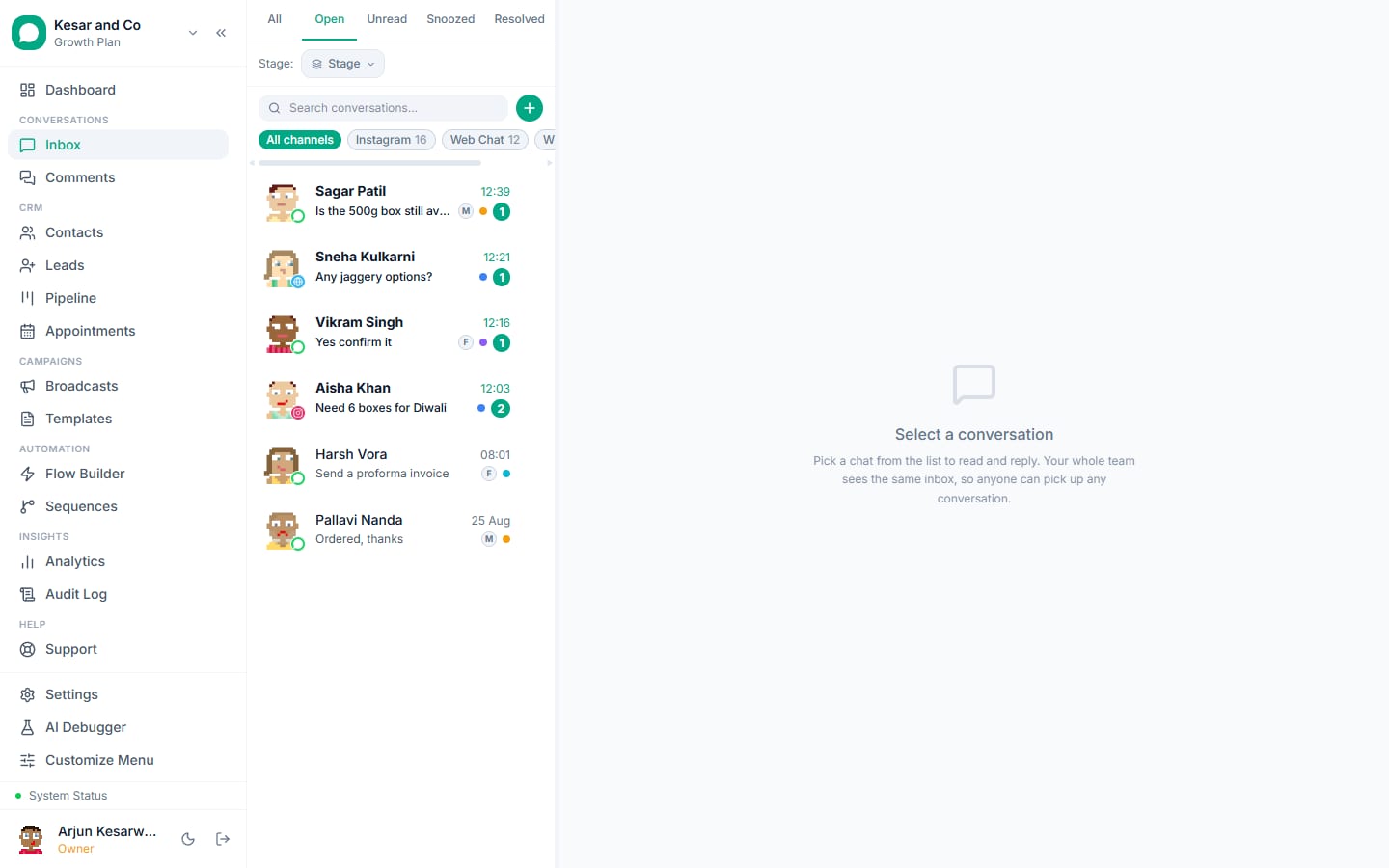
The VGraple CRM chat widget runs on any Shopify site as a two-line embed: a floating button opens a chat that can hand visitors to WhatsApp, capture leads, answer with the AI from a knowledge base, and route to your team's inbox. This is the native website channel; no marketplace app or plugin is involved, and the same widget works on every platform.
What syncs
| Data | Direction | Timing |
|---|---|---|
| Visitor messages, name, email, phone, page URL | Shopify site to VGraple CRM inbox | Real time |
| Agent, flow and AI replies | VGraple CRM to the visitor's chat | Real time |
| Lead creation and tags from the widget's pre-chat form | Inside VGraple CRM | On submit |
| Handoff to WhatsApp (wa.me with prefilled text) | Widget to WhatsApp | On tap |
Setup
- In VGraple CRM go to Settings, then Chat Widget, create a widget and add your store's collection and FAQ pages as knowledge base URLs.
- Copy the embed code from the Embed Code tab.
- In Shopify admin, open Online Store, then Themes, Edit code, and paste the snippet before the closing head tag in
theme.liquid. - Add your myshopify and custom domains to the widget's allowed domains.
- Open the storefront in a private window, send a test message and confirm it lands in the inbox.
- Optionally add a WhatsApp button to the cart and checkout pages using the widget's page rules.
Orders and carts
The widget handles conversation; order confirmations, shipping updates and abandoned-cart nudges come from the Shopify via Zapier route or Shopify webhooks to the REST API. Together they give a Shopify store a WhatsApp presence without a Shopify app.
What the visitor experiences
A small button in the corner (colour and position are yours) opens a chat panel with your greeting and, if you enabled it, a short pre-chat form for name, phone and what they need. Replies come from the AI within seconds when the answer is in the knowledge base, from a flow when the question matches a trigger, or from a person in the inbox during business hours; outside them the widget says when you are back and offers WhatsApp. A "Continue on WhatsApp" action opens a wa.me link with the conversation context prefilled, so the visitor lands in a WhatsApp chat that your inbox already knows about, and the two threads sit under one contact.
What the team experiences
Widget conversations arrive in the same inbox as WhatsApp and Instagram, tagged with the channel and the page the visitor was on, with assignment rules, notes, tags and stages as usual. The Android app notifies on new widget chats like any other. Pre-chat form answers become contact fields and, if you chose so, a lead in a pipeline, so a sales conversation started on the website is already a card on the board by the time someone answers it.
Shopify specifics
Theme updates can overwrite theme.liquid; keep the snippet in a note and re-add it after a theme change, or place it in a custom section included by the theme. Shopify's checkout pages are locked on most plans, so the widget appears on the storefront and cart but not on checkout; a WhatsApp link in the order confirmation email or the thank-you page covers post-purchase questions.
Three recipes
- Visitor asks a pricing question -> AI answers from the knowledge base -> offers "Continue on WhatsApp" -> conversation continues on the phone with consent recorded.
- Pre-chat form collects phone and service -> lead created in the Website pipeline -> assignment by service -> utility follow-up template if the visitor leaves.
- Visitor on a product page -> widget opens with a page-specific greeting -> agent sends the product and a payment link.
Limits and gotchas
- The widget needs the two script tags on every page where it should appear; site builders that strip scripts on some templates need the code in the site-wide header.
- Content Security Policy headers on the site must allow the widget's script and frame origins; the embed guide lists them.
- A widget conversation is a website channel until the visitor moves to WhatsApp; WhatsApp templates and consent rules apply only after that.
- Plan caps: 1 widget on Free, 10 on Starter, 10 on Growth, unlimited on Scale.
- Knowledge base sources are per widget, so a support widget and a sales widget can answer differently.
The chat widget guide covers every setting; the chat widget feature page shows what visitors see.