On this page
Connecting Zapier to VGraple CRM means authenticating the VGraple CRM app in your Zapier account with an API key, after which six instant triggers and three actions become available to combine with any of Zapier's thousands of other apps. This walkthrough covers creating the connection, understanding each trigger and action, and what actually happens behind the scenes when a Zap turns on.
Zapier: first 5 of 7 steps
- 1Generate an API key in VGraple CRM,
- 2In Zapier, create a new Zap and
- 3Connect your account
- 4Pick a trigger or an action, and
- 5Map fields from the previous step, or
Before you start
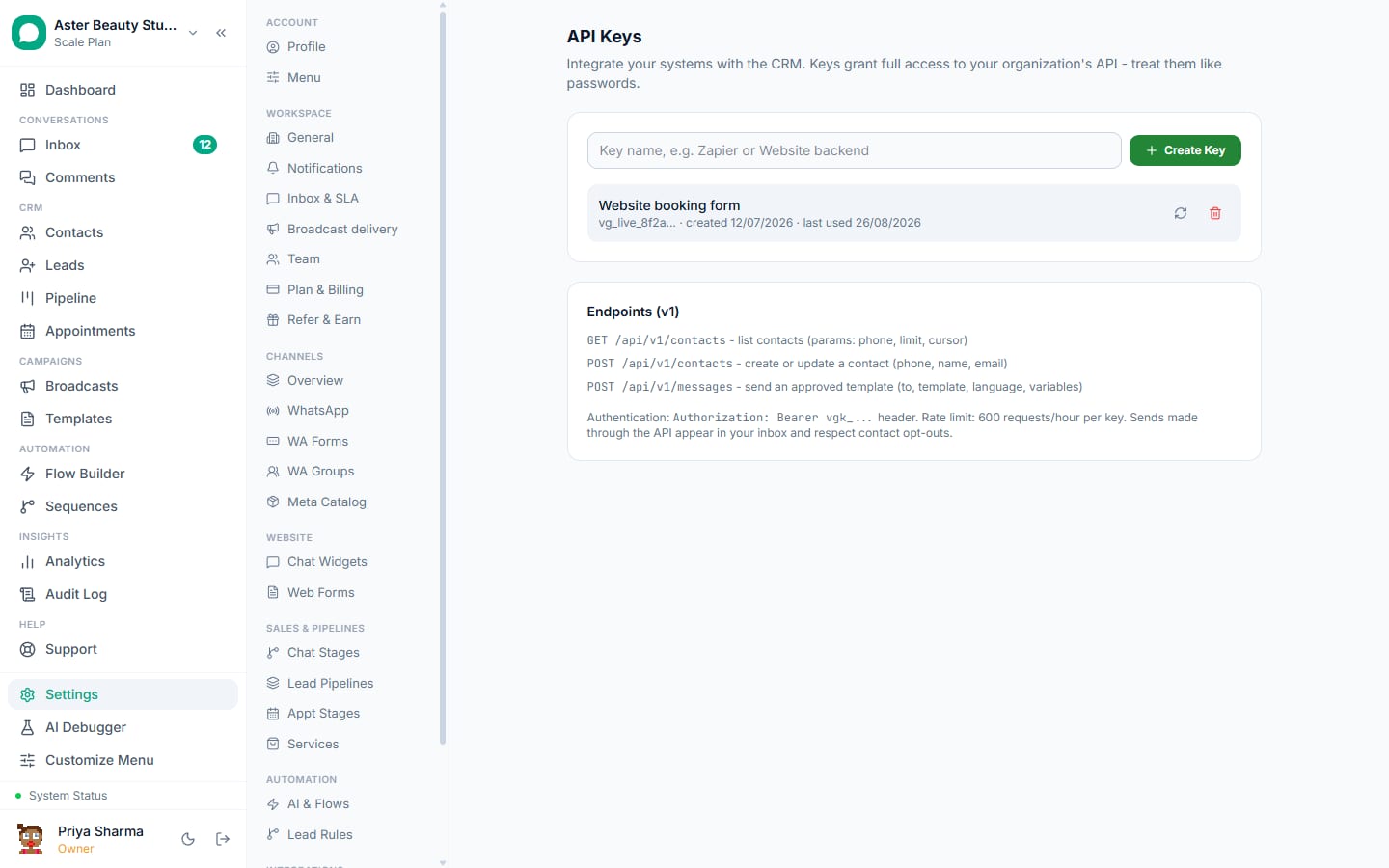
- You need an API key. Generating one is restricted to the organisation owner or a platform super admin. See creating and rotating API keys if you do not already have one.
- You need a Zapier account (a free Zapier plan is enough to build and test single-step Zaps; multi-step Zaps and shorter update intervals need a paid Zapier plan, a Zapier limit, not a VGraple CRM one).
- Know roughly what you want to automate before you start; Zapier asks you to pick a trigger app and event first, so having a specific outcome in mind ("new lead goes to a spreadsheet," "a HubSpot contact gets a WhatsApp message") makes the setup faster.
Steps
- Generate an API key in VGraple CRM, if you do not have one. Go to Settings > API Keys, name it "Zapier," and copy the secret shown once. See creating and rotating API keys for the full walkthrough.
In Zapier, create a new Zap and search for "VGraple CRM." Choose it as either the trigger app or the action app, depending on which direction your automation runs.
Connect your account. When prompted, paste the API key into the field labelled API Key. Zapier calls
GET /api/v1/meto test the connection; a successful test shows your organisation's name as the connection label.Pick a trigger or an action, and configure its fields. Dynamic dropdowns, like which template to send or which pipeline a lead should land in, populate live from your own VGraple CRM data (
GET /api/v1/templatesandGET /api/v1/pipelines).Map fields from the previous step, or type static values. A typical Zap pulls data from one app (a new order, a new form response) and maps it into VGraple CRM's fields, or pulls data out of VGraple CRM and maps it into another app.
Test the step, then turn the Zap on. Zapier's built-in test runs the step once against real or sample data. Turning the Zap on for a trigger step calls
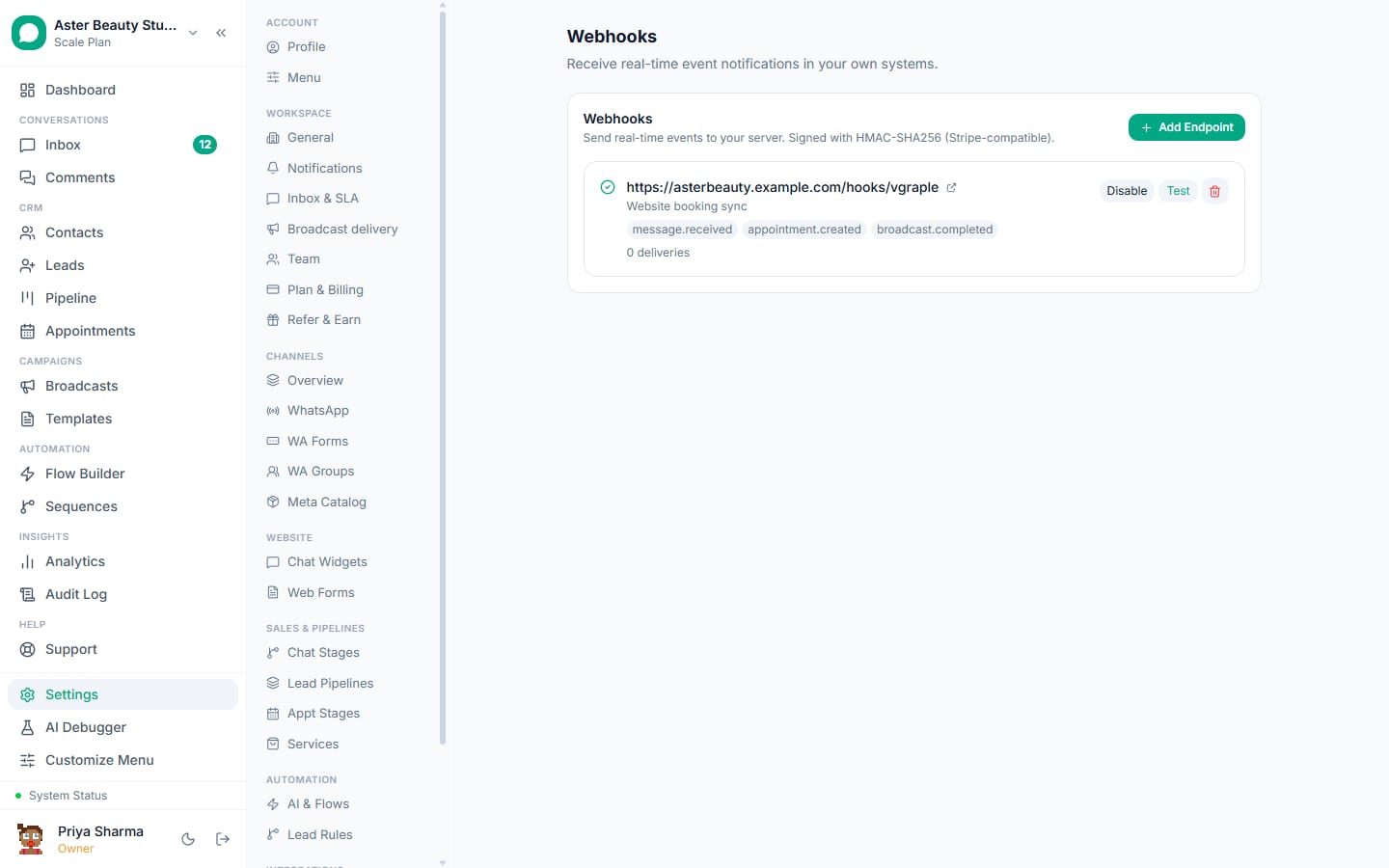
POST /api/v1/hooksbehind the scenes, creating a subscription that shows up with a "Zapier" badge in Settings > Webhooks in VGraple CRM.Watch it run. Once live, an instant trigger fires within moments of the real event happening, not on a polling delay, since it rides the same signed webhook system described in outbound webhooks.
What you will see
Once connected, "VGraple CRM" appears as a connected account under your Zapier account settings, labelled with your organisation's name. In VGraple CRM's Settings > Webhooks page, every trigger you have turned on shows as an endpoint with a "Zapier" badge, its subscribed event, and a running delivery count, exactly like an endpoint you created by hand.
What are the six triggers and three actions, exactly?
| Type | Name | What it does |
|---|---|---|
| Trigger | New Inbound Message | Fires on message.received, any customer message landing in the shared inbox |
| Trigger | New Contact | Fires on contact.created from any real source |
| Trigger | New Lead | Fires on lead.created from any of the six lead sources |
| Trigger | Lead Stage Changed | Fires on lead.stage_changed, a Kanban drag or a stage edit |
| Trigger | New Form Submission | Fires on form.submitted, a VGraple web form |
| Trigger | Contact Opted Out | Fires on contact.opted_out |
| Action | Send Template Message | Sends an approved WhatsApp template with a dynamic template dropdown and body variables as line items |
| Action | Create or Update Contact | Upserts a contact by phone number |
| Action | Create Lead | Creates a lead with a dynamic pipeline dropdown, running the standard post-create automations |
| Search | Find Contact by phone | Looks up an existing contact for use later in the same Zap |
Settings and options
| Setting or field | What it does | Default |
|---|---|---|
| API Key | Authenticates the Zapier connection | Required; generated in Settings > API Keys |
| Connection label | The name Zapier shows for a connected account | Your organisation's name, from the GET /api/v1/me test call |
| Trigger delivery | How fast a trigger fires after the real event | Instant (REST hook), not a polling interval |
| Action send path | How a Zap's action reaches VGraple CRM | The public REST API v1, the same one available directly |
| Rate limit | Requests allowed per API key per hour | 600, rolling window |
Troubleshooting
| Symptom | Likely cause | Fix |
|---|---|---|
| "Invalid API key" when connecting | The key was typed incorrectly, or has been rotated or revoked since | Recopy the key directly from Settings > API Keys, or generate a fresh one |
| A trigger never fires even though the event clearly happened | The Zap was never actually turned on, or its underlying endpoint was deleted from Settings > Webhooks | Check Settings > Webhooks for an active endpoint with a "Zapier" badge and the right event; if missing, turn the Zap off and back on |
| Send Template Message fails with a template error | The template picked is not currently approved, or was disabled after the Zap was built | Reselect the template in the Zap's action step; Zapier's dropdown reflects your current approved templates |
| Create Lead lands leads in the wrong pipeline | No pipeline was selected in the action step, so it used your default pipeline | Explicitly pick the intended pipeline in the Zap's action configuration |
| Deleting a webhook endpoint in Settings broke a working Zap | The endpoint had the "Zapier" badge, meaning that Zap created it | This is expected; reconnect or rebuild the Zap's trigger step, which creates a fresh subscription |
| Zap runs but VGraple CRM never sends the WhatsApp message | The template requires a media header or a variable the Zap did not supply, or the recipient number is not on WhatsApp | Check the Zap's run history for the exact error VGraple CRM's API returned; it names the specific problem |
Example
A D2C store builds a Zap: New Lead in VGraple CRM triggers a row in a Google Sheet the founder checks every morning, with no manual export step. See Zapier and Google Sheets for that exact recipe.
What can I not do through Zapier that the API allows directly?
Everything Zapier's app surface exposes is a thin layer over the REST API, so there is nothing the API can do that Zapier fundamentally cannot reach, only things Zapier has not built a dedicated step for yet, like listing recent messages or creating a broadcast. For those, call the API directly with the same key, either from your own code or from Zapier's own "Webhooks by Zapier" built-in app as an intermediate step inside a Zap that also uses VGraple CRM's dedicated steps.
Once connected, see Zapier and Google Sheets and syncing with HubSpot via Zapier for two common recipes, or the REST API quickstart if you outgrow Zapier's no-code steps for a specific case.