On this page
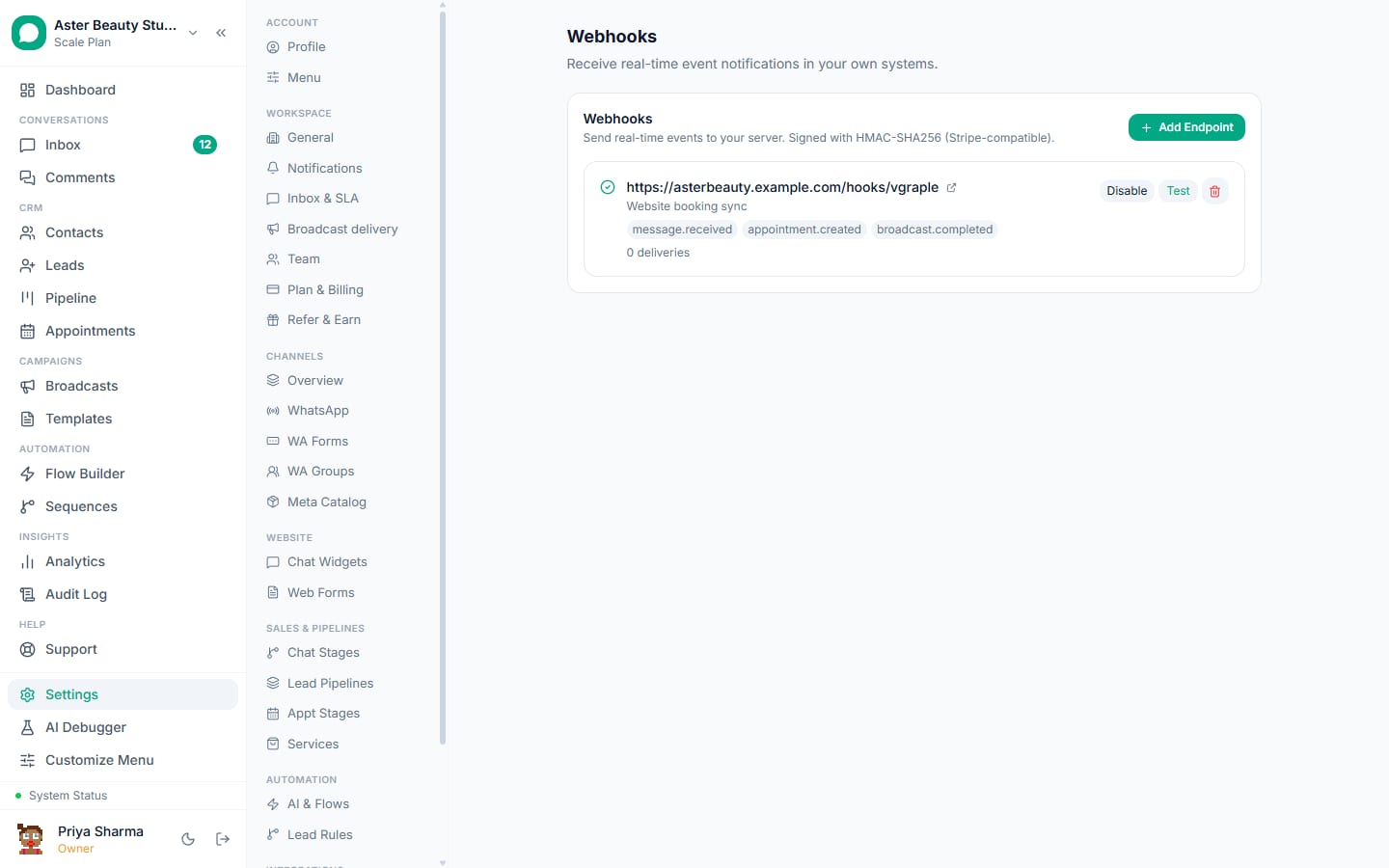
Configuring an outbound webhook means adding a URL under Settings > Webhooks, choosing which events it should receive, and copying the signing secret shown once, after which VGraple CRM POSTs a signed JSON payload to that URL the moment a chosen event happens. This walkthrough covers adding your first endpoint, testing it, and reading the delivery log when something goes wrong.
Webhooks: first 5 of 8 steps
- 1Open Settings and go to Webhooks
- 2Click Add Endpoint
- 3Enter your endpoint URL
- 4Add a description
- 5Choose your events
Before you start
- You need the organisation settings permission, included in Owner and Admin roles by default, or a custom role granted access to it.
- Have a receiving URL ready: a server endpoint under your control that can accept an HTTP POST and return a 2xx status, or a webhook-catching step in a tool like Make, Pabbly Connect or n8n.
- Decide which events you actually need before creating the endpoint; subscribing to everything is allowed but sends more traffic than most integrations use.
Steps
- Open Settings and go to Webhooks. From the sidebar, click Settings, then Webhooks. The page lists every endpoint your organisation has created, its subscribed events, whether it is active, and its delivery count. Endpoints created by a Zap turning on show a "Zapier" badge here.
Click Add Endpoint. A form opens for the URL, an optional description, and a checklist of events.
Enter your endpoint URL. For example
https://your-server.com/webhook. It is validated as soon as you save: it must usehttporhttps, must not embed a username or password, and must not resolve tolocalhost, a private range (10.x,172.16-31.x,192.168.x), or a link-local or cloud-metadata address.Add a description (optional). A short label like "Production server" or "Make.com scenario" helps you tell endpoints apart once you have more than one.
Choose your events. Tick any of the eleven checkboxes: message received, message sent, contact created, contact opted out, lead created, lead stage changed, broadcast completed, conversation assigned, resolved or reopened, and form submitted. At least one is required.
Click Create Endpoint, and copy the secret immediately. A panel appears above the list with the signing secret, formatted
whsec_..., shown exactly once. Copy it into your receiver's configuration; you will use it to verify theX-Signature-256header on every incoming request. See verifying webhook signatures for the exact check.Send a test event. Click Test on the new endpoint's row. VGraple CRM fires a synthetic
message.receivedpayload (marked_test: true) at your URL immediately, so you can confirm your receiver accepts it before waiting for a real event.Watch real deliveries arrive. The next time a subscribed event happens, for example a new contact is created, the payload is sent within moments. Open the endpoint to see its delivery log: every attempt, its response status, and the first 500 characters of the response body.
What you will see
The endpoint list shows a green check for active endpoints and a grey cross for disabled ones, the URL, any description, its subscribed events as small pills, and a running delivery count. Opening an endpoint's delivery log shows every attempt with a timestamp, a status (delivered, pending, or failed), and the response your server sent back, useful for confirming a receiver actually returned 200 rather than an error page that happened to load.
Settings and options
| Setting or field | What it does | Default |
|---|---|---|
| Endpoint URL | Where the signed payload is POSTed | Required, validated at save and again at every delivery |
| Description | A label to tell endpoints apart | Optional |
| Subscribed events | Which of the 11 listed events this endpoint receives | At least one required |
Signing secret (whsec_...) | Used to verify X-Signature-256 on your side | Shown once at creation |
| Enable/Disable | Pauses or resumes deliveries without losing configuration | Enabled on creation |
| Test | Sends a synthetic message.received event immediately | Available on any endpoint |
| Retry schedule | When a failed delivery is retried | 1 minute, 5 minutes, 30 minutes after the first failure, then stops |
| API-created subscriptions cap | Endpoints created via the API (Zapier's mechanism) | Up to 50 per organisation |
Troubleshooting
| Symptom | Likely cause | Fix |
|---|---|---|
| "Webhook URLs must point to a public host" when saving | The URL resolves to localhost, a private IP range, or a similar internal address | Point the endpoint at a public URL; for local development, use a tunnelling tool that exposes a public HTTPS address |
| An endpoint stopped receiving deliveries after working fine for weeks | The URL's DNS record started resolving to a private address (DNS rebinding), or your receiver started returning non-2xx responses | Check the delivery log for the exact response; confirm the hostname still resolves publicly |
| The Test button sends an event but nothing arrives | Your receiver is down, behind a firewall, or the URL itself is wrong | Check the delivery log's response status and body for this specific test delivery; a network error shows there directly |
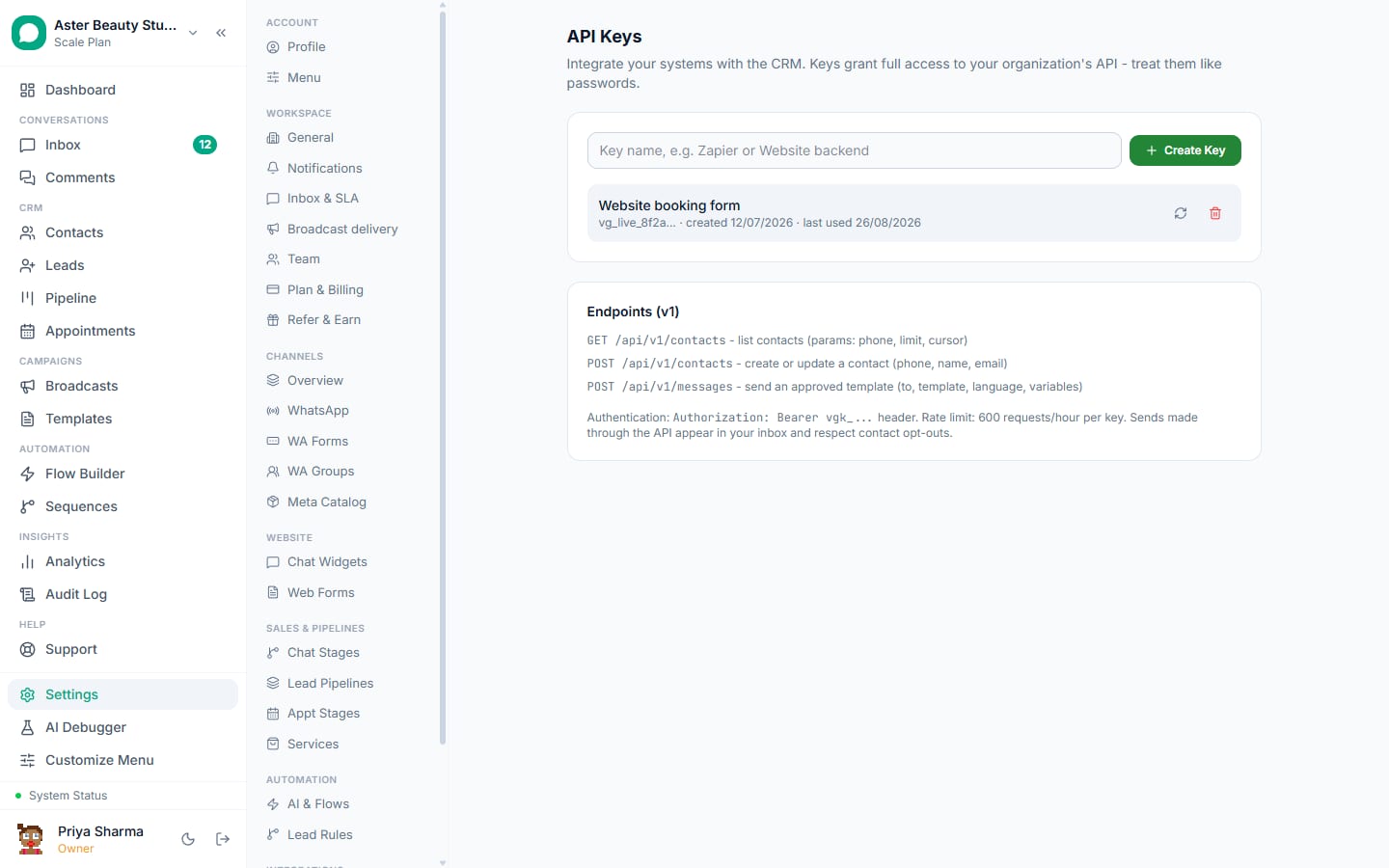
I need broadcast.started, broadcast.paused, broadcast.failed or broadcast.reply, but they are not in the checkbox list | The Settings > Webhooks form currently exposes 11 of the platform's 15 catalog events | Subscribe to these four directly with POST /api/v1/hooks using your API key; see the webhook payload reference |
| A delivery shows "failed" with no response body | A network-level failure (timeout, connection refused) rather than an HTTP error response | Confirm your server is reachable from the public internet and responds within a reasonable time; VGraple CRM's request timeout is 10 seconds |
| Deleting an endpoint broke a Zap | The endpoint had the "Zapier" badge, meaning a Zap created it | Reconnect or recreate the Zap; a Zapier-managed endpoint and a Settings-created one are the same object, so deleting one always breaks the other's side |
Why is my endpoint blocked even though the URL looks fine?
VGraple CRM's server makes the actual HTTP request to whatever URL you register, so an endpoint pointing at your own internal network, a cloud metadata service, or localhost would let a webhook configuration reach infrastructure that was never meant to be internet-facing. The check runs twice: once when you save the URL, and again through a DNS lookup at the exact moment of every delivery, because a hostname can resolve to a public address when you save it and a private one later. If your receiver later moves behind a VPN or a private load balancer, deliveries will start failing with this message until the hostname resolves publicly again.
Tip
If you are testing locally, expose your local server through a public HTTPS tunnel first (any tunnelling tool that gives you a public URL works), then paste that public URL into the endpoint field. A localhost or 127.0.0.1 URL is rejected outright, even for testing.
Once your endpoint is receiving events, the payload reference documents the exact JSON shape for every event type, and signature verification shows how to confirm a payload genuinely came from VGraple CRM in Node, Python and PHP.