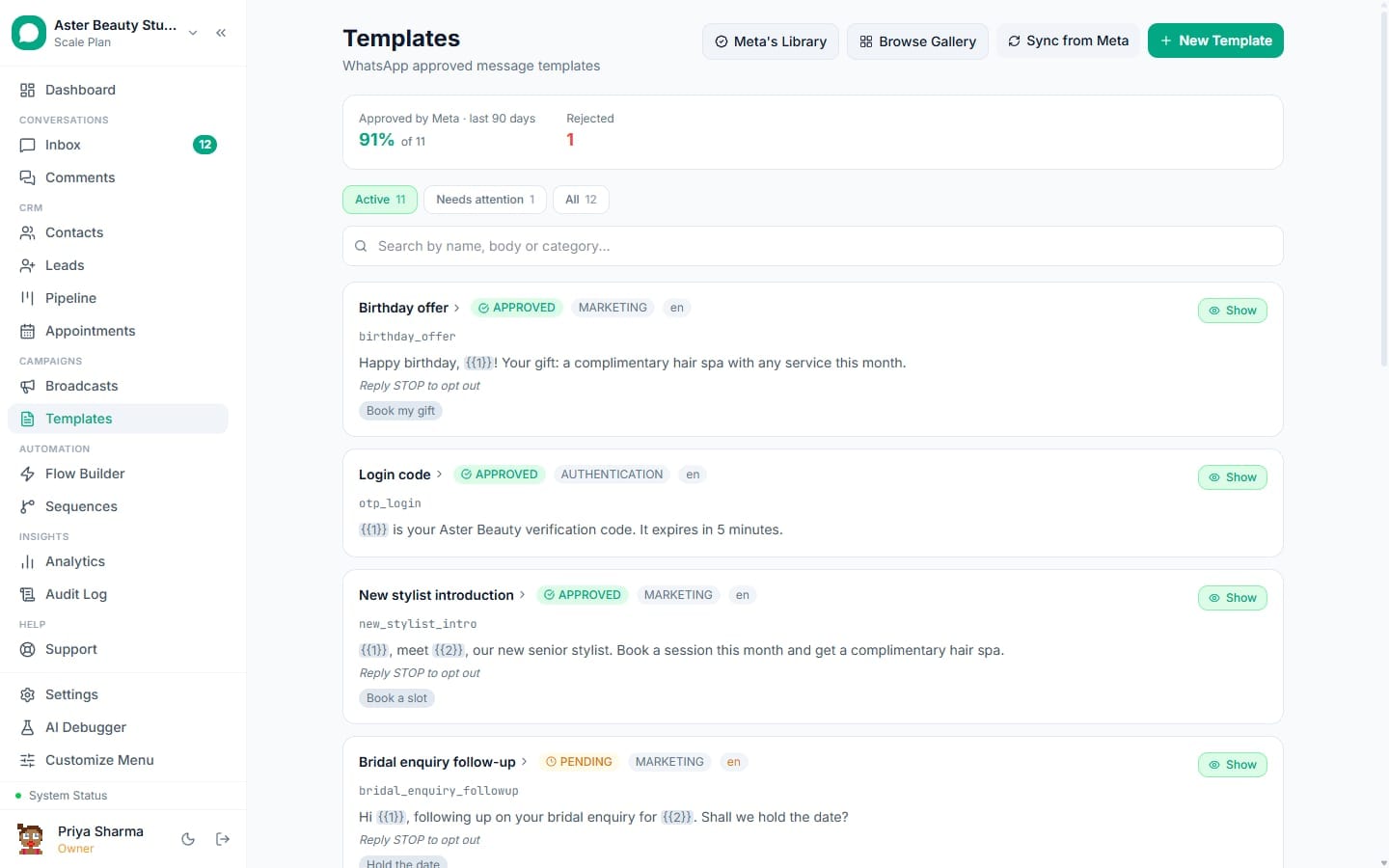
The Templates screen in VGraple CRM is where every WhatsApp message template lives: created here, built with the gallery or from a blank form, checked before submission, tracked through Meta's review, and monitored afterward. This article tours the screen itself, not the builder form covered in creating your first template.
Templates overview: first 5 of 6 steps
- 1Open Templates
- 2Filter with the tabs
- 3Search
- 4Start a new one, or reuse Meta's
- 5Open a template for detail
Before you start
- You need the "View templates" permission to see this screen at all; Owner, Admin and Supervisor roles have it by default, and it can be granted to a custom role.
- Creating, editing or deleting a template needs "Submit templates to Meta" (create/edit) or the delete permission specifically; Supervisor can view and toggle templates but not create, edit or delete them by default.
- A connected WhatsApp Business Account is required to submit a template for review, though you can build and save a draft without one.
- Nothing on this screen is plan-gated. The builder, validator, gallery, Meta's own library, sync and analytics are all available on the Free plan.
Steps
- Open Templates. Click Templates in the main navigation. The list shows every template for your workspace, newest first, with its name, category, status badge and a quick toggle to enable or disable it from sending.
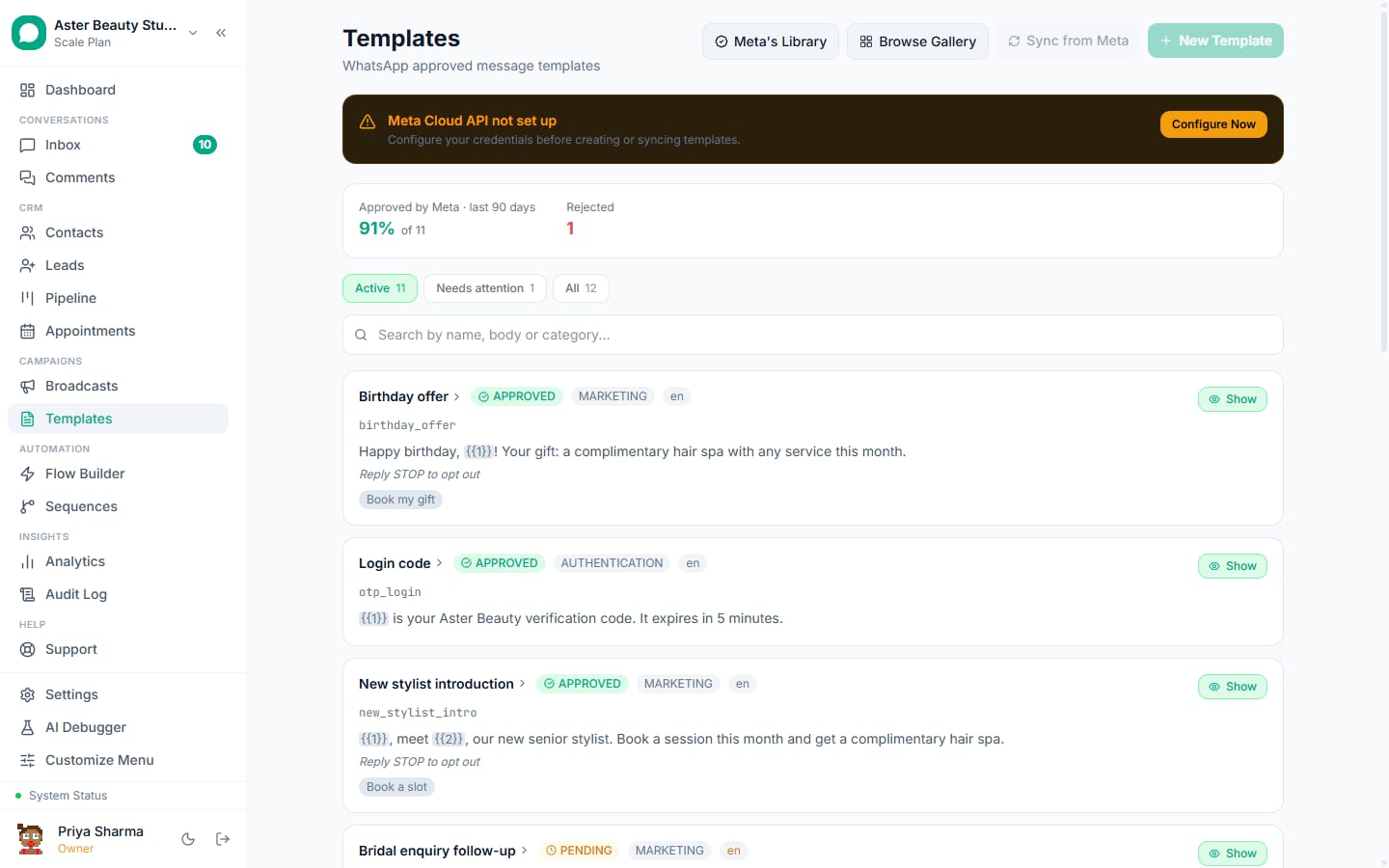
Filter with the tabs. Four tabs sit above the list: Active (enabled, non-deleted templates, the default view), Hidden (templates you have disabled), Needs attention (only templates Meta has rejected, paused or disabled), and All (everything). Needs attention is the fastest way to find what is actually broken without scanning past approved templates.
Search. The search box filters by name, body text or category as you type, useful once you have more than a handful of templates.
Start a new one, or reuse Meta's own. Four buttons sit at the top right: Meta's Library opens Meta's own pre-vetted catalogue, which reviews fastest because Meta is not reviewing wording it did not write. Browse Gallery opens VGraple CRM's own 75-template industry gallery. Sync from Meta pulls the latest status and content for every template on your WhatsApp Business Account. New Template opens a blank builder form.
Open a template for detail. Click any row to see its full body, header, footer, buttons, current status, rejection reason if any, and (once it has sent messages) a 30-day performance chart. From here you can Edit, Duplicate, Add a language, or Delete, and a rejected template gets an Ask Meta to review again button.
Watch the approval summary. Once your workspace has at least three decided submissions in the last 90 days, a summary bar appears above the list showing your approval rate and how often the pre-submission validator called a template safe that Meta rejected anyway. This is shown even when it is unflattering, so you can judge how much to trust the validator's own risk score.
What you will see
Each row shows the template's display name, its category (Marketing, Utility or Authentication), a coloured status badge (green for Approved, amber for Pending or Paused, red for Rejected or Disabled), and the enabled/disabled toggle. A row for a template with multiple language variants groups them together, with each language's own status visible when you open it. A rejected template shows its reason inline in the list as well as on its own page.
Settings and options
| Setting or field | What it does | Default |
|---|---|---|
| Active / Hidden / Needs attention / All tabs | Filters the list by enabled state and Meta review status | Active |
| Search box | Filters visible templates by name, body or category | Empty |
| Enabled toggle | Whether a template can currently be picked when sending, without deleting it | Enabled once approved |
| Sync from Meta | Pulls the latest status, category, language and components for every template on the connected WhatsApp Business Account | Manual, on demand |
| Edit budget | Roughly 10 accepted edits per template per month, one per day once approved | Resets on the 1st of each month |
Troubleshooting
| Symptom | Likely cause | Fix |
|---|---|---|
| New Template button is greyed out | Meta API setup is not complete for this workspace | Finish connecting your WhatsApp number, then return to Templates |
| A template I see in WhatsApp Manager is missing here | It was created outside VGraple CRM, or the list has not synced recently | Click Sync from Meta to pull every template on the connected WhatsApp Business Account |
| Edit button is missing on a template | The template's status is not Approved, Rejected or Paused, or you lack the edit permission | Templates can only be edited once Meta has finished reviewing them; check your role's permissions under Settings, Team |
| "This template has used all of its edits this month" | Meta's roughly 10-edit monthly allowance for this template has been used | Wait for the allowance to reset on the 1st, or submit the change as a new template via Duplicate |
| Delete button does nothing / shows a warning list | The template is still referenced by a scheduled or sending broadcast, an A/B test variant, an automation rule or a flow | Resolve or reassign each listed blocker first; the delete is refused until nothing live still needs the template |
| Template disappeared from the picker in broadcasts or flows | It was disabled with the enabled toggle, or Meta paused or disabled it | Check its status on the Templates page; re-enable it, or fix and resubmit if Meta paused or disabled it |
Once you know your way around this screen, the next steps are usually building the header, body, footer and buttons, reading what the pre-submission validator's messages mean, or browsing the industry gallery to start from a ready-made message instead of a blank page.