On this page
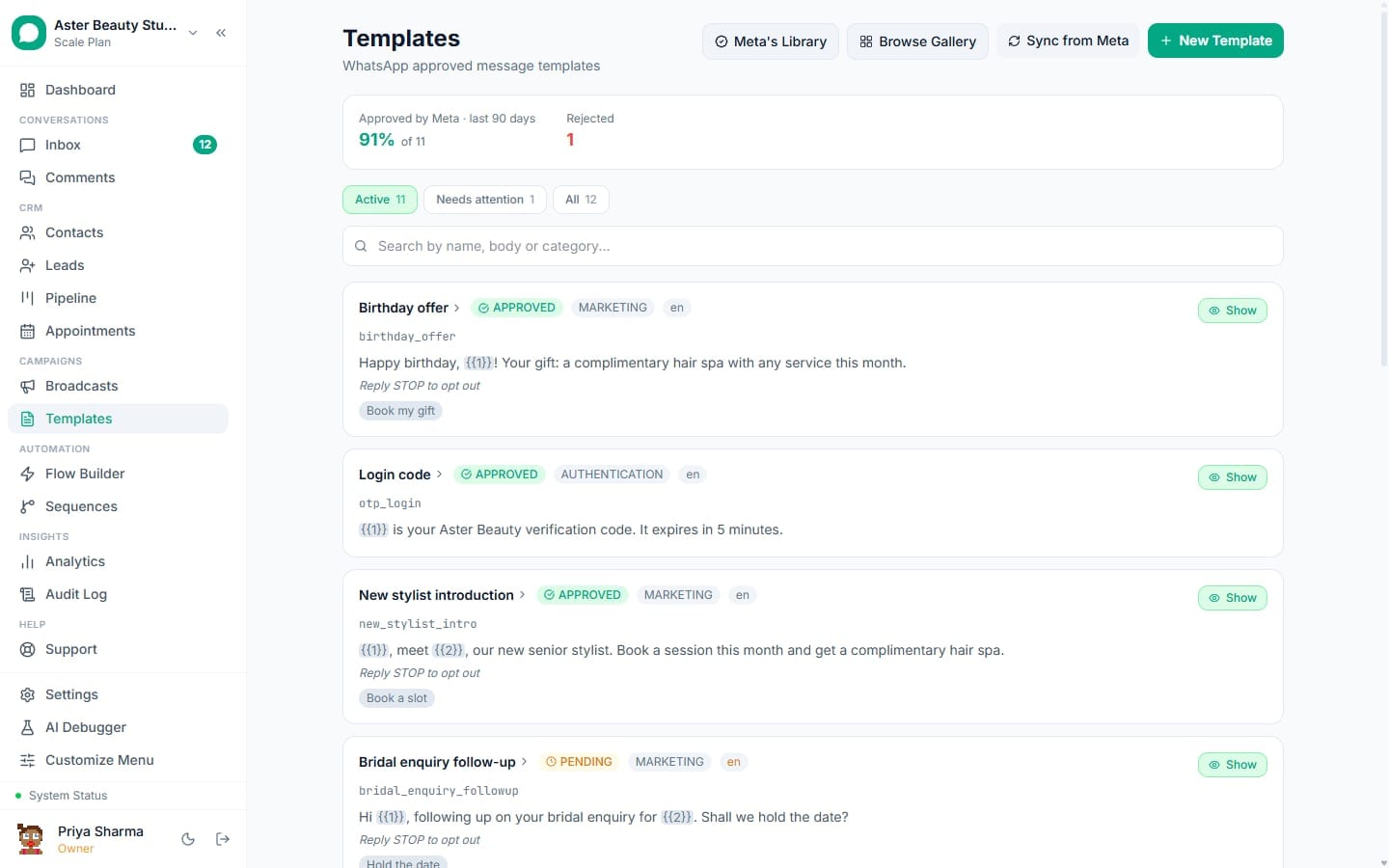
VGraple CRM's template gallery is a set of 75 ready-to-submit WhatsApp templates grouped by industry, each with real body copy, sample variable values, and a category already set correctly. Selecting one pre-fills the builder with your business name in place of a placeholder, so a first template can be submitted in minutes instead of drafted from a blank page.
Template gallery: first 5 of 7 steps
- 1Open the gallery
- 2Browse or search by use case
- 3Use a single template
- 4Or submit a whole industry at once
- 5Enter your business name once
Before you start
- You need the "Submit templates to Meta" permission to use the gallery or bulk submit; viewing it only requires "View templates."
- A connected WhatsApp Business Account is required to actually submit; the gallery itself is browsable without one.
- Nothing here is plan-gated; the gallery, the builder and Meta submission are on every plan, including Free.
Steps
- Open the gallery. From Templates, click Browse Gallery. Templates are grouped by industry: Salon & Spa, Tattoo & Piercing Studio, Cosmetic Store, Dental Clinic and Real Estate.
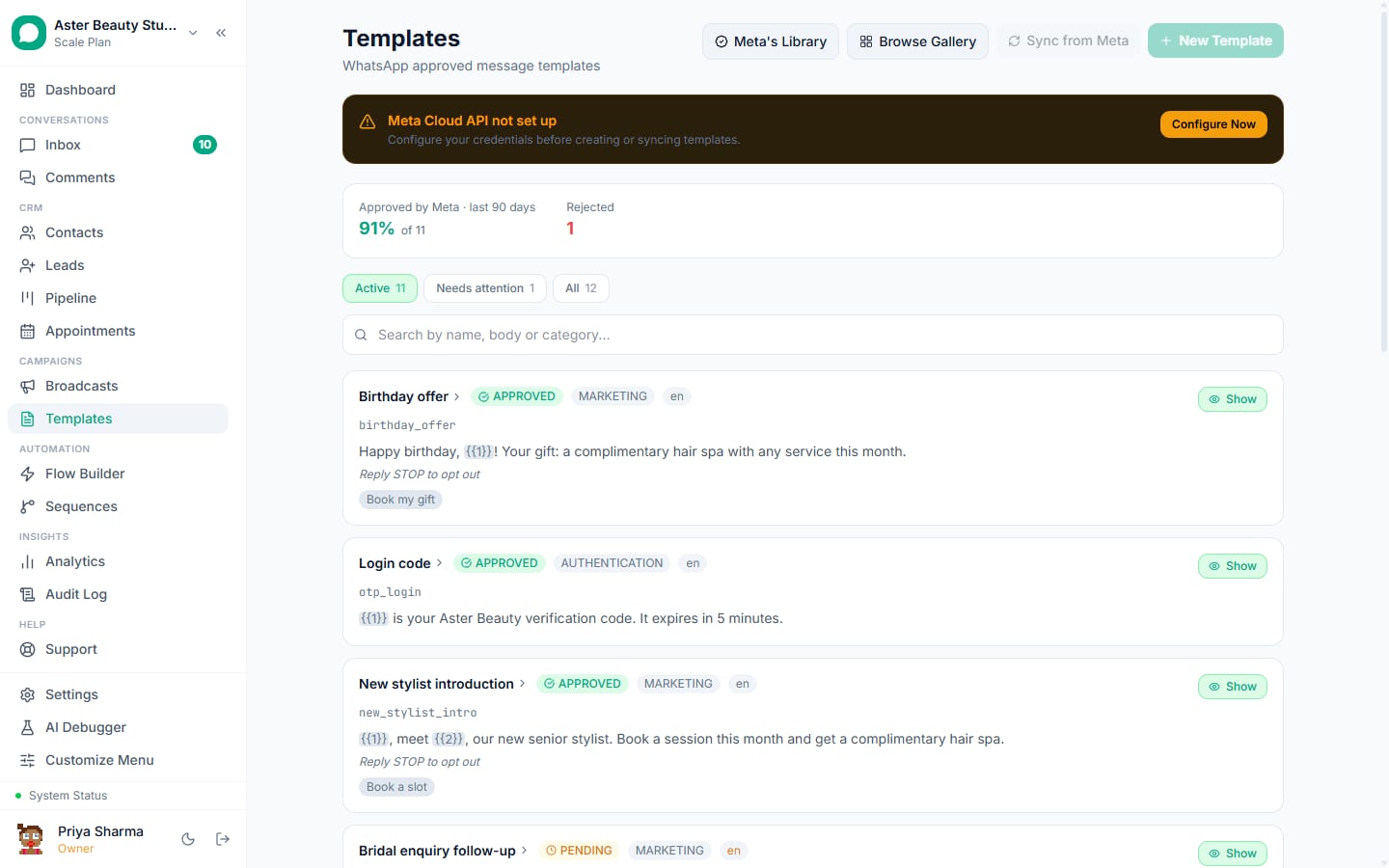
Browse or search by use case. Filter by industry, or search for a use case like "appointment reminder," "abandoned cart" or "site visit." Each card shows the category, the number of variables, and a sample of the message.
Use a single template. Click Use this template on any card to open the builder with the body, footer, category and sample variable values already filled in, and the business-name placeholder swapped for your workspace's actual name. Review, edit if you want, and submit like any other template.
Or submit a whole industry at once with bulk submit. Click Submit [Industry] Templates to open the bulk submit dialog. It shows how many templates will be submitted, for example 15 for Salon & Spa, and notes that Utility templates are usually approved within minutes.
Enter your business name once. This single field replaces the business-name placeholder across every template in the batch before submission.
Watch the results stream in. Bulk submit reports each template's outcome as it lands, Submitted, Skipped or Errors, rather than leaving the dialog looking stuck for the minute or so a full industry batch takes.
Review the summary. Once finished, a three-number summary shows how many templates were submitted, skipped (usually because a template with that name already exists) and errored.
What you will see
Newly submitted templates from the gallery appear in your Templates list with status Pending, exactly like a template built by hand. Once Meta reviews and approves them, they are immediately available from the inbox, broadcasts, flows, sequences and automation rules.
Settings and options
| Setting or field | What it does | Default |
|---|---|---|
| Industry filter | Narrows the gallery to one of five industries | All industries shown |
| Search box | Filters by use case, for example "reminder" or "offer" | Empty |
| Business name field (bulk submit) | Replaces the placeholder in every template in the selected industry | Pre-filled with your workspace name |
| Bulk submit progress | Streams each template's result (Submitted, Skipped, Errors) as it completes | Shown live during a bulk run |
What is in the gallery
| Industry | Templates | Typical use cases |
|---|---|---|
| Salon & Spa | 15 | Appointment reminders (24h and 1h), booking confirmation and cancellation, reschedule, deposit confirmation, post-visit offer, review request, win-back, birthday offer, referral, new service launch, welcome, seasonal promotion |
| Tattoo & Piercing Studio | 15 | Booking confirmation and cancellation, reminders, deposit confirmation, reschedule, tattoo and piercing aftercare, review request, win-back, touch-up reminder, consultation confirmed, artwork ready, referral, flash day event |
| Cosmetic Store | 15 | Order confirmation, shipping and delivery updates, delay notice, back-in-stock alert, loyalty reward, welcome, review request, abandoned cart, win-back, birthday offer, referral, flash sale, new product launch, replenishment reminder |
| Dental Clinic | 15 | Appointment reminders (24h and 2h), booking confirmation and cancellation, reschedule, post-treatment care, 6-month recall, payment reminder, results ready, review request, win-back, welcome, insurance documents reminder, referral, emergency follow-up |
| Real Estate | 15 | Lead inquiry response, viewing confirmation and reminder, document checklist, and more, including an EMI special offer template for financing-driven decisions |
Troubleshooting
| Symptom | Likely cause | Fix |
|---|---|---|
| "Business name is required" in bulk submit | The business name field was left empty | Enter your business name before starting the batch |
| Bulk submit reports several templates as "Skipped" | A template with the same generated name already exists in this workspace | This is expected if the industry was submitted before; skipped templates are not re-created or overwritten |
| Bulk submit reports "Errors" for some templates | Usually a WhatsApp Business Account connection issue mid-batch, or a Meta-side rejection for that specific template | Open each errored template's row for the specific reason; retry it individually from the gallery if the underlying issue is fixed |
| Gallery template rejected after submission despite using the pre-written body | Editing the pre-filled content before submitting introduced an issue the original gallery wording did not have | Run the pre-submission validator on your edited version, or see what each validator message means |
| Can't find a template for my industry | The gallery currently covers five industries only | Use the closest match as a starting point and edit the wording; the builder and validator work identically on a gallery template and one built from scratch |
Related reading
For Meta's own separate catalogue of pre-vetted templates, open Meta's Library from the Templates page, which reviews fastest since Meta is not reviewing wording it did not write. To understand what each template category costs before you bulk submit, see template categories and pricing.