On this page
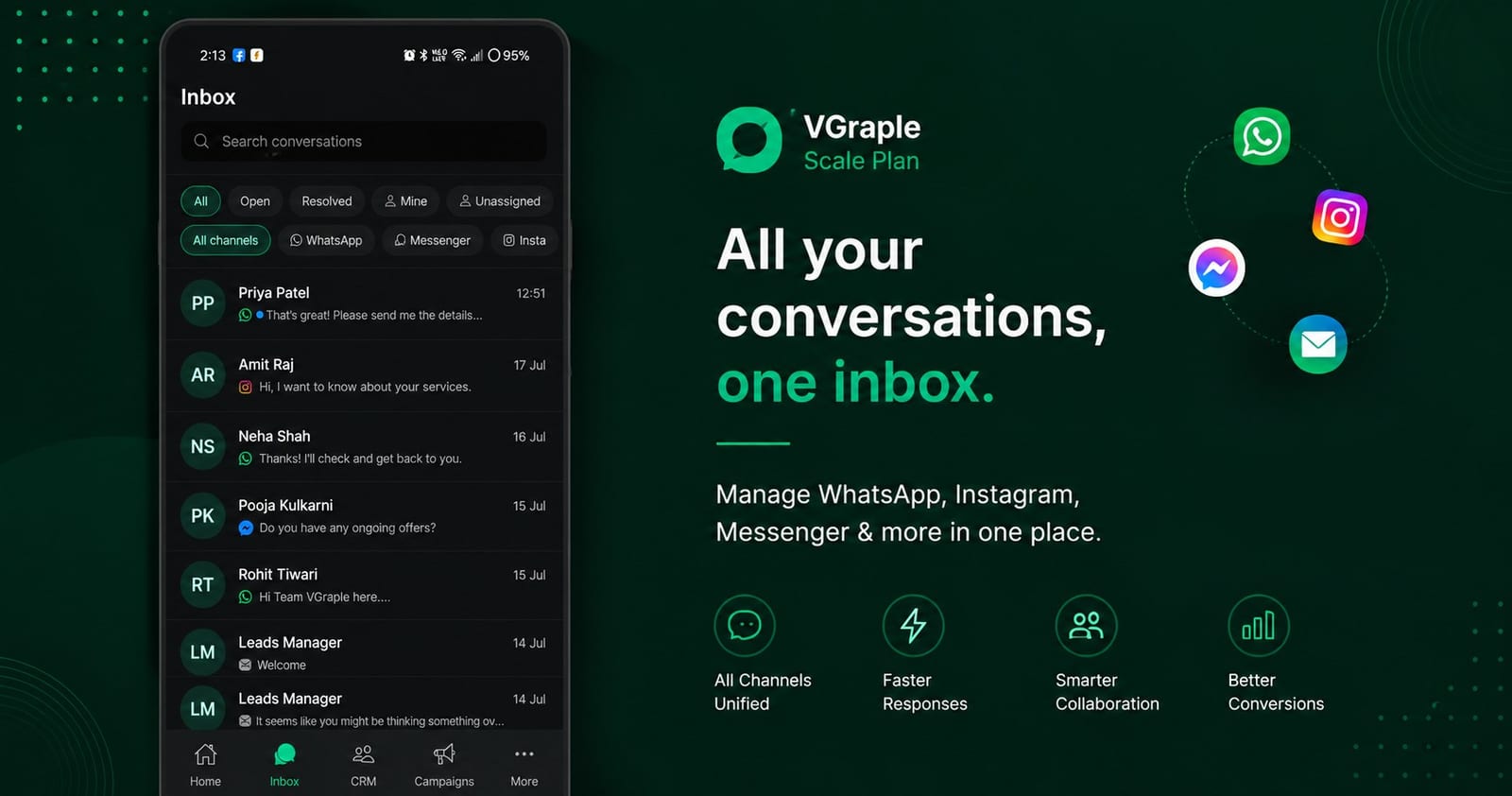
The VGraple CRM Android app puts the shared inbox in every teammate's pocket: WhatsApp, Instagram, Messenger, comments and website chats arrive as push notifications, replies go out with templates and media, and the CRM (leads, contacts, appointments) travels with you. This overview maps the app so you know what to expect before installing it and what still needs the web app.
Before you start
- An Android phone on Android 8 or later with the Play Store.
- A VGraple CRM account (any plan). Teammates need to have been invited from the web app or the app's Team settings.
- Notification permission when prompted; the app cannot alert you without it.
The five tabs
| Tab | What is there |
|---|---|
| Home | Today's numbers, unassigned and waiting conversations, quick links |
| Inbox | Every conversation across channels with tabs, filters, search, assignment and the composer |
| CRM | Contacts and leads, with lead detail, pipeline stage changes and contact notes |
| Campaigns | Broadcast list and a New broadcast form (template, audience, send from, optimised delivery) |
| More | Appointments, Comments, Flows (pause and view), Automations, Forms, Catalog, Insights, Audit trail, WhatsApp Groups, Settings, Switch Organisation, Help and support, Sign out |
Native versus web view
The inbox, contacts, leads, appointments, broadcasts, comments, insights and audit trail are native screens built for the phone. Builders (flows, templates, forms, WA Flows), chat widget configuration, billing changes, integrations and most settings pages open inside an in-app web view of the web app, signed in automatically, so nothing is out of reach but the editing experience is the desktop one. The mobile feature scope lists the split.
Sign-in options
The welcome screen offers Sign up with email, Continue with Google and I already have an account. Email sign-in asks for your work email and password, then a verification code or your 2FA code where applicable. Google sign-in uses the Google account on the phone; if that email belongs to no organisation yet, the app offers to create one rather than failing.
What the Home tab shows
Home opens with the day's numbers (new conversations, replies sent, response time), the counts of unassigned and waiting conversations with one-tap links into the inbox, and shortcuts to the actions you use most. Supervisors see the whole workspace; agents see their own queue. The tab is designed for a glance between customers rather than analysis; the Insights page under More holds the charts.
The CRM and Campaigns tabs in brief
CRM lists contacts and leads with search and filters; a contact shows fields, tags, consent, notes and every conversation across channels, and a lead shows pipeline, stage, value, source and the linked conversation with stage changes that run the same automation as the web. Campaigns lists broadcasts with live counts and holds the New broadcast form. Both are covered in their own guides: leads and appointments on mobile and broadcasts on mobile.
What More contains
More is the app's menu for everything else: Appointments (today's schedule), Comments (reply to Facebook and Instagram comments), Flows (view and pause chatbots), Automations (pause or resume lead rules), Forms (submissions), Catalog (services, products and packages), Insights (performance, agents and revenue), Audit trail, WhatsApp Groups (invite links), Settings (business profile, notifications, team, channels, profile), Switch Organisation, Help and support (a chat with the team), Plan and billing, and Sign out.
Notifications
Two Android notification channels are created: Messages for customer messages, with Reply and Mark Read actions straight from the notification, and System Alerts for channel health, broadcast and assignment alerts. The notification settings guide covers tuning them.
Working offline
Conversations you opened recently are cached. A reply sent while offline is queued in the outbox, shown in the thread as pending, and retried automatically up to three times when the connection returns; after that it shows "No connection. Tap to retry." Nothing is sent twice.
Organisations
If you belong to several organisations (an agency, a multi-brand business), Switch Organisation under More moves between them without signing out; notifications arrive for all of them.
Settings and options
| Setting | What it does | Where |
|---|---|---|
| Notification channels | Sound, vibration and priority per channel | Android system settings for the app |
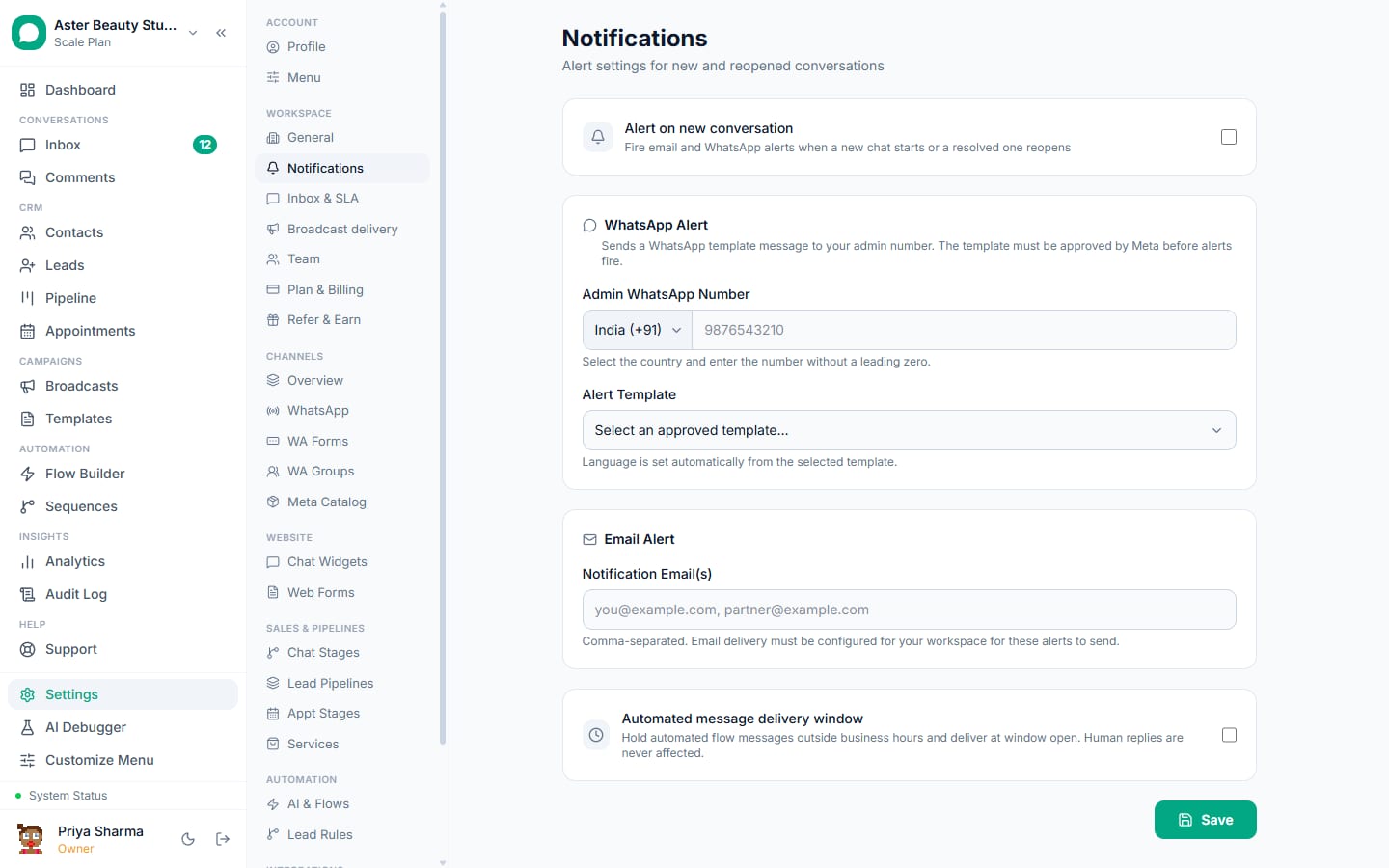
| Alert on new conversation, quiet hours | Workspace-level alert rules | More, Settings, Notifications |
| Profile | Name, phone, 2FA status | More, Settings, Profile |
| Team | Invite and manage members | More, Settings, Team |
| Channels | View channel status; connect opens the web flow | More, Settings, Channels |
Troubleshooting
| Symptom | Likely cause | Fix |
|---|---|---|
| No notifications | Permission denied, battery optimisation, or the channel muted | See notifications not arriving |
| A page says "open on the web" | Web-only feature | Tap through; it opens in the in-app browser |
| Signed out unexpectedly | Session expired after 24 hours idle or was revoked | Sign in again |
| Messages out of order or missing | Sync interrupted | Pull to refresh; the app recovers gaps automatically |
The installation guide walks through the first sign-in; the mobile troubleshooting page covers the rest.
The app is updated frequently, with fixes shipped as over-the-air updates between Play Store releases; keep automatic updates on in the Play Store and restart the app after a fix is announced so both kinds of update apply.