On this page
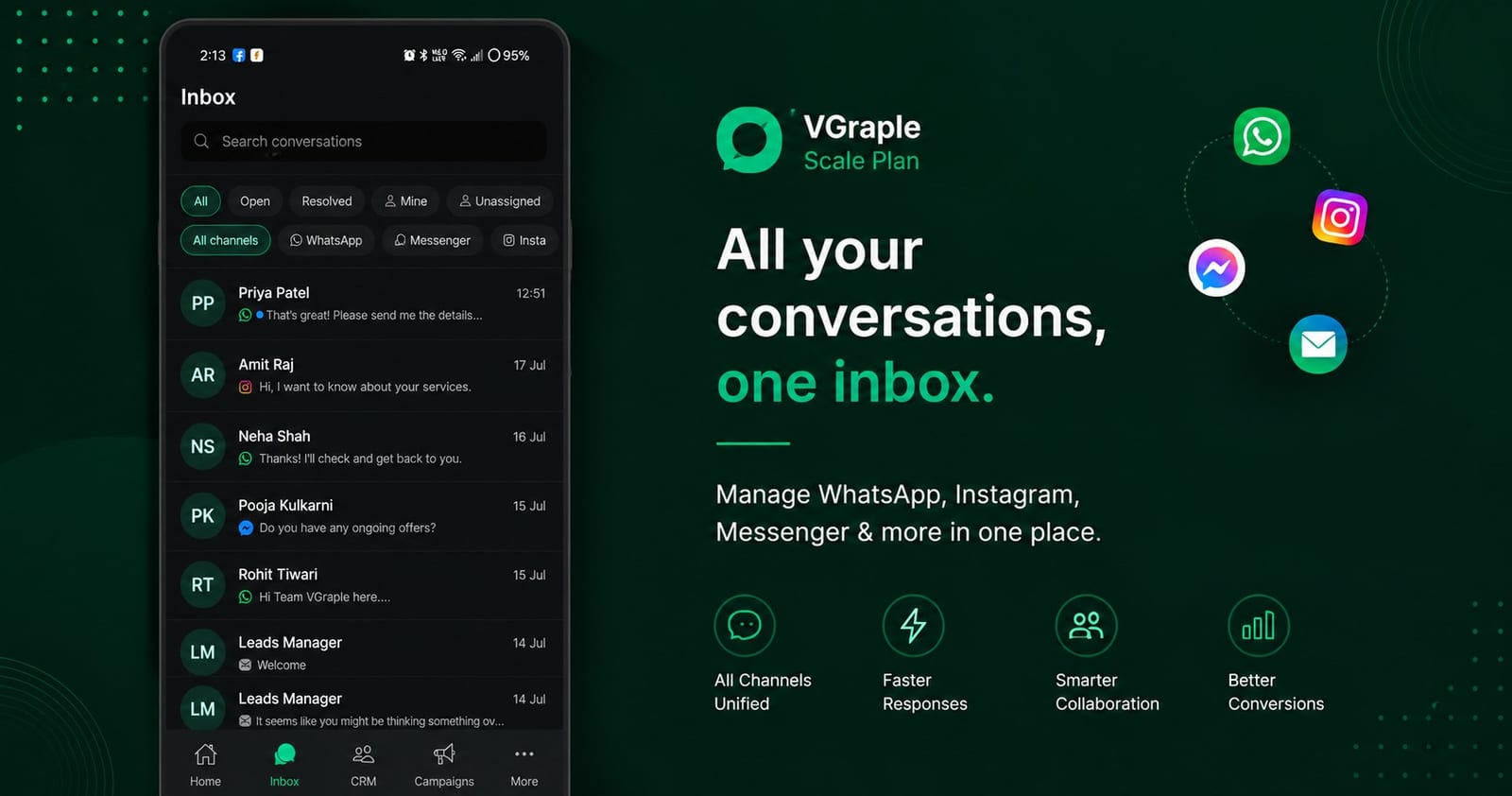
Notifications are the reason to install the app: a customer message reaches the right person's phone within seconds, and a tap opens the conversation or replies from the notification itself. This guide explains the two notification channels, the actions on them, the workspace-level alert rules, and the Android settings that must be allowed.
Before you start
- Grant notification permission when the app asks after sign-in (the Enable notifications screen). It can be granted later from Android settings.
- Exempt the app from battery optimisation on phones that kill background apps (Xiaomi, Oppo, Vivo, OnePlus, Realme, Samsung); the notifications not arriving guide lists the exact paths.
The two channels
| Channel | What arrives | Actions |
|---|---|---|
| Messages | Customer messages on every channel in your inbox scope | Reply inline, Mark Read, open the conversation |
| System Alerts | Assignments, mentions, SLA breaches, broadcast completed or paused, channel needs attention, sign-in alerts | Open the relevant screen |
Both channels are created at high importance so they show as heads-up notifications. Change sound, vibration and pop-up behaviour per channel in Android's notification settings for the app.
Reply from the notification
Tap Reply on a message notification, type, and send: the reply goes through the same outbox as the composer, so it works with a weak connection and retries if needed. Mark Read clears the unread state for everyone on the team. Tapping the notification body opens the conversation; the notification for the conversation you are already viewing is suppressed.
How delivery works
Notifications are delivered through Google's push service as data messages and rendered by the app, which is what makes the Reply and Mark Read actions possible and lets the app decide not to show a notification for the conversation you have open. The phone must allow the app to run in the background for this to work; on phones that aggressively stop background apps, the notification arrives only when the app is next opened, which looks like "no notifications" but is the battery setting.
Testing your setup
After granting permission, ask a teammate to message the business number or send a message from another phone. The notification should arrive within a few seconds with the sender's name and the message. Tap Reply, send a word, and check it appears in the thread. If nothing arrives, follow the notifications not arriving guide in order: permission, battery, background data, channel.
Workspace alert rules
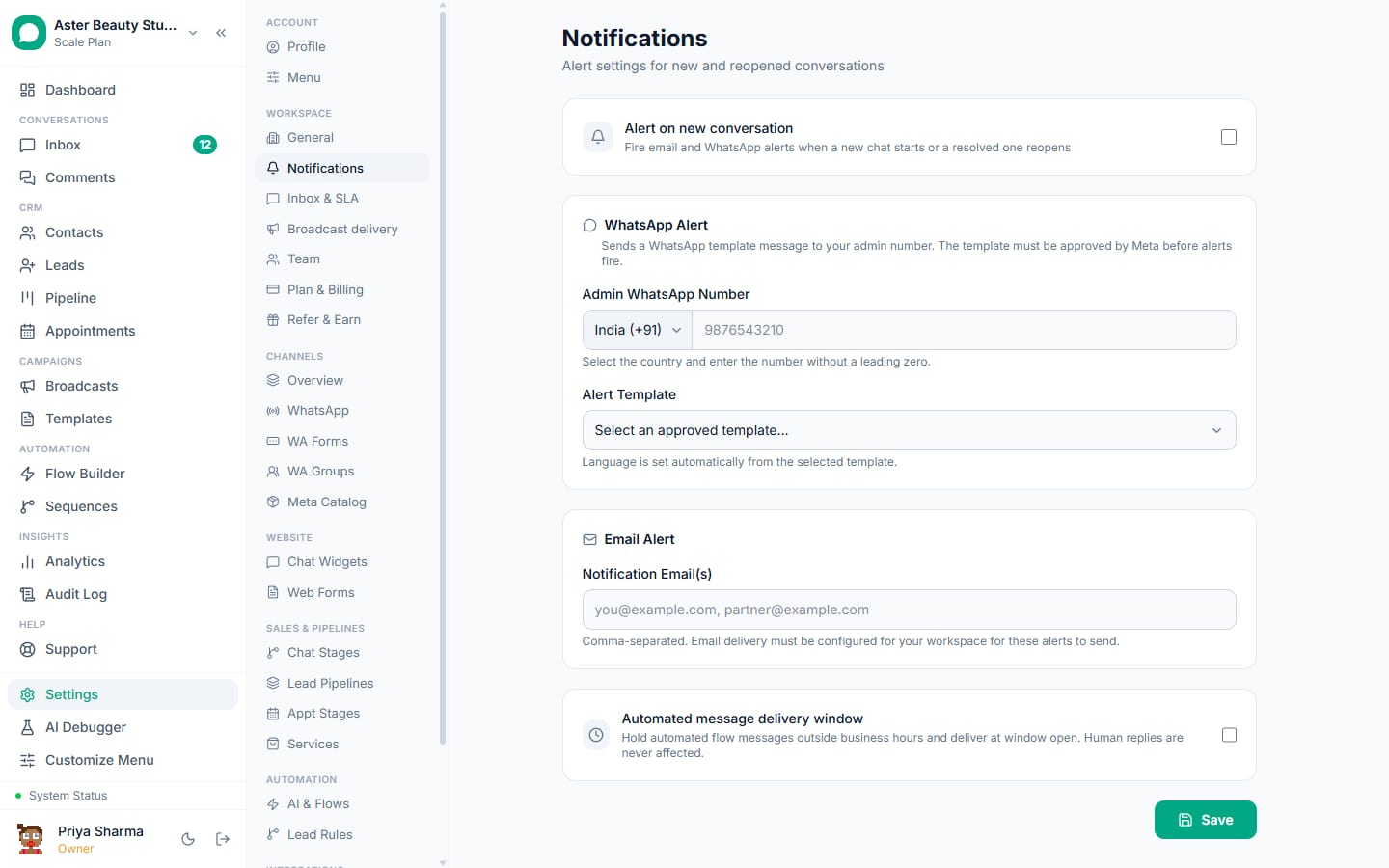
Under More, then Settings, then Notifications (also on the web under Settings, Notifications):
| Setting | What it does |
|---|---|
| Alert on new conversation | Sends a WhatsApp and or email alert when a new chat starts or a resolved one reopens |
| Alert WhatsApp number and Alert email | Where those alerts go |
| Alert template name and Template language | The approved utility template used for the WhatsApp alert |
| Restrict sending hours, Start time, End time, Timezone | Holds automated outbound alerts outside the window |
These rules are per workspace and complement the per-device push notifications.
What each role receives
| Role | Message notifications | Alerts |
|---|---|---|
| Agent | Assigned and unassigned conversations | Own assignments, mentions, SLA on own conversations |
| Supervisor, Admin, Owner | All conversations (can be reduced with the mute options) | All alerts, including channel health and broadcasts |
| Viewer | None | None |
Mentions and internal notes
A teammate can mention you in an internal note with @ followed by your name; that raises a System Alert notification that opens the conversation at the note. Mentions are the quiet way to hand a question to a colleague without reassigning the conversation, and they work across the web and the app. If you receive too many, ask colleagues to assign rather than mention, since assignment alerts are the ones that carry ownership.
Sound and priority choices
Both channels ship at high importance so messages pop over other apps. Teams that find this too loud usually keep Messages at high importance but silent sound, and leave System Alerts audible so a channel outage or a paused broadcast is never missed. Android's per-channel settings allow exactly that split.
Settings and options
| Setting | Where | Default |
|---|---|---|
| Notification permission | Android app permissions | Asked at first sign-in |
| Messages channel importance | Android notification settings for the app | High |
| System Alerts channel importance | Android notification settings for the app | High |
| Battery optimisation | Android battery settings | Must be set to unrestricted on aggressive OEMs |
| Workspace alert rules | More, Settings, Notifications | Off |
Troubleshooting
| Symptom | Likely cause | Fix |
|---|---|---|
| Nothing arrives until the app is opened | Battery optimisation killed the background service | Set the app to unrestricted battery use |
| Notifications arrive late | Data saver or Wi-Fi sleep policy | Allow background data; disable Wi-Fi sleep |
| No sound | Channel set to silent, or Do Not Disturb | Check the channel in Android settings |
| Reply from notification fails | Offline | It is queued and retried; open the app to confirm |
| Getting alerts for every team | Supervisor or above sees everything | Mute the Messages channel and rely on assignment alerts, or use teams |
The notifications not arriving guide has per-manufacturer steps.
If you manage several organisations, notifications arrive for all of them and each notification names the organisation, so a tap opens the right workspace directly.