On this page
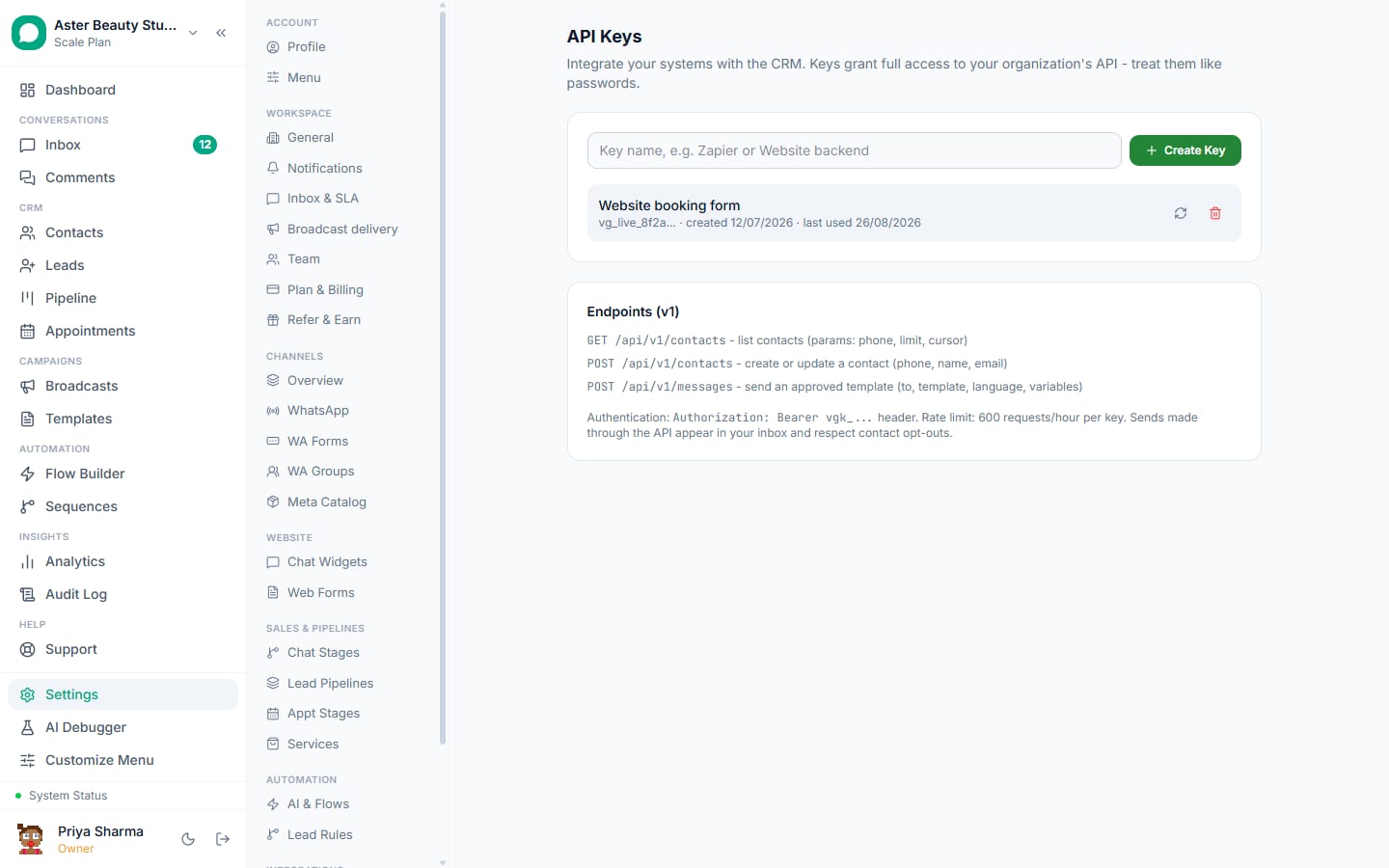
This integration runs through Zapier, not a one-click connector: you connect the VGraple CRM app in Zapier with an API key, connect HubSpot with its own Zapier app, and build Zaps that move data between them. VGraple CRM's six instant triggers (New Inbound Message, New Contact, New Lead, Lead Stage Changed, New Form Submission, Contact Opted Out), three actions (Send Template Message, Create or Update Contact, Create Lead) and Find Contact search are the building blocks.
What syncs
| Data | Direction | Timing |
|---|---|---|
| HubSpot new contact or form submission | HubSpot to VGraple CRM (Create or Update Contact, Create Lead, Send Template Message) | HubSpot trigger (instant or polling per HubSpot's Zapier app) |
| HubSpot deal stage changed | HubSpot to VGraple CRM (template send, lead stage via API) | Same |
| VGraple CRM new lead, stage change, inbound message, opt-out | VGraple CRM to HubSpot (contact, deal, note, property) | Instant |
Setup
- In VGraple CRM go to Settings, then API Keys, create a key named "Zapier" and copy it (Owner only).
- In Zapier, create a Zap. Search for VGraple CRM as the trigger or action app and connect it by pasting the API key; Zapier tests it with
GET /api/v1/meand labels the connection with your organisation. - Connect HubSpot in the other step with its own Zapier authentication.
- Map the fields (the recipes below list the usual ones), test each step with real data, and turn the Zap on. A VGraple CRM trigger creates a webhook subscription that shows a "Zapier" badge under Settings, then Webhooks.
- Watch the first few runs in Zapier's history; errors from VGraple CRM name the exact field or Meta error.
Three recipes
- HubSpot New Contact (lifecycle = MQL) -> Create or Update Contact -> Send Template Message. A WhatsApp welcome goes out with a utility template as soon as HubSpot qualifies the contact.
- VGraple CRM New Lead -> HubSpot Create or Update Contact -> Create Deal. WhatsApp-originated leads appear in the HubSpot pipeline with the source and campaign.
- VGraple CRM New Inbound Message -> HubSpot Create Note on Contact. Sales reps in HubSpot see the customer's WhatsApp messages on the timeline.
Keeping two CRMs in step
Decide which system owns the sales stage. Most teams keep HubSpot as the deal system and use VGraple CRM for conversation, appointments and WhatsApp automation; then only three Zaps are needed: HubSpot contact to VGraple contact, VGraple lead to HubSpot deal, and VGraple inbound message to HubSpot note. Map HubSpot's owner to VGraple CRM's assignment by tagging the contact and letting an assignment rule act on the tag.
How the connection works
VGraple CRM's Zapier app is a thin layer over the public REST API. When you turn on a Zap that starts with a VGraple CRM trigger, Zapier calls POST /api/v1/hooks with its callback URL and the event name, which creates a signed webhook subscription in your workspace; the event is delivered the moment it happens, not on a polling schedule. When a Zap ends with a VGraple CRM action, Zapier calls the matching endpoint (POST /api/v1/contacts, POST /api/v1/leads or POST /api/v1/messages) with your API key, and the result, including any Meta error on a template send, is returned to the Zap's run history in plain words. Dynamic dropdowns for templates and pipelines load live from GET /api/v1/templates and GET /api/v1/pipelines, so a Zap always offers your current approved templates. Because the subscription lives in the same table as Settings, Webhooks, it shows there with a "Zapier" badge and a delivery count, and it is removed cleanly when the Zap is turned off.
Testing before going live
Build the Zap against a test contact (your own number) first: run the trigger with real data, check the mapped fields in Zapier's test output, send the template to yourself and read it on a handset. For HubSpot-to-VGraple Zaps, confirm the phone reaches VGraple CRM in international format with no spaces or leading zero; for VGraple-to-HubSpot Zaps, confirm the record created in HubSpot carries the VGraple CRM ID so later updates can find it. Turn the Zap on only after both directions behave, and watch the first day's runs in Zapier's history.
Limits and gotchas
- Sends from Zapier must use an approved template; free-form messages are not available outside the inbox and flows. Consent, messaging limits, the US marketing pause and delivery protection apply exactly as in the app.
- API keys are Owner-only secrets. Deleting the "Zapier" endpoint in Settings breaks the Zap until it is turned off and on.
- The rate limit is 600 requests per key per hour; bulk backfills should run in batches.
- Multi-step Zaps, filters and paths need a paid Zapier plan (a Zapier limit, not ours).
- Phone numbers must be in international format for Create or Update Contact and Send Template Message; use Zapier's Formatter to strip spaces and leading zeros.
The Zapier help article documents every trigger and action field; the REST API quickstart covers anything Zapier has no step for yet.