On this page
A WhatsApp broadcast in VGraple CRM moves through four steps: Audience, Message, Schedule, and Review & Send, one form with a single submit at the end. This article walks through every step in order, with the exact labels you will see and what each setting actually does, so you can run a full campaign from a blank Broadcasts page to a completed send.
Before you start
- You need a connected WhatsApp number and at least one approved template. See connecting your WhatsApp number and creating your first template.
- Your account needs the "Send broadcasts" permission (
broadcasts:send) to actually launch a campaign; "Create broadcasts" (broadcasts:create) is enough to build and save a draft. Both are included in Owner and Admin roles by default. - Have contacts already in VGraple CRM, tagged or grouped the way you plan to target them. See building an audience from segments, tags and CSV if you have not set this up yet.
- Know your plan's monthly conversation limit before a large send: Free includes unlimited conversations, Starter 2,000, Growth 10,000, and Scale is unlimited. Broadcasts count against this limit like any other business-initiated conversation.
Steps
- Open Broadcasts and start a new campaign. From the main navigation, click Broadcasts, then New Broadcast. The composer opens on the Audience step with a step rail across the top showing all four steps: Audience, Message, Schedule, Review & Send. You can click back to any step you have already completed, but not skip ahead.
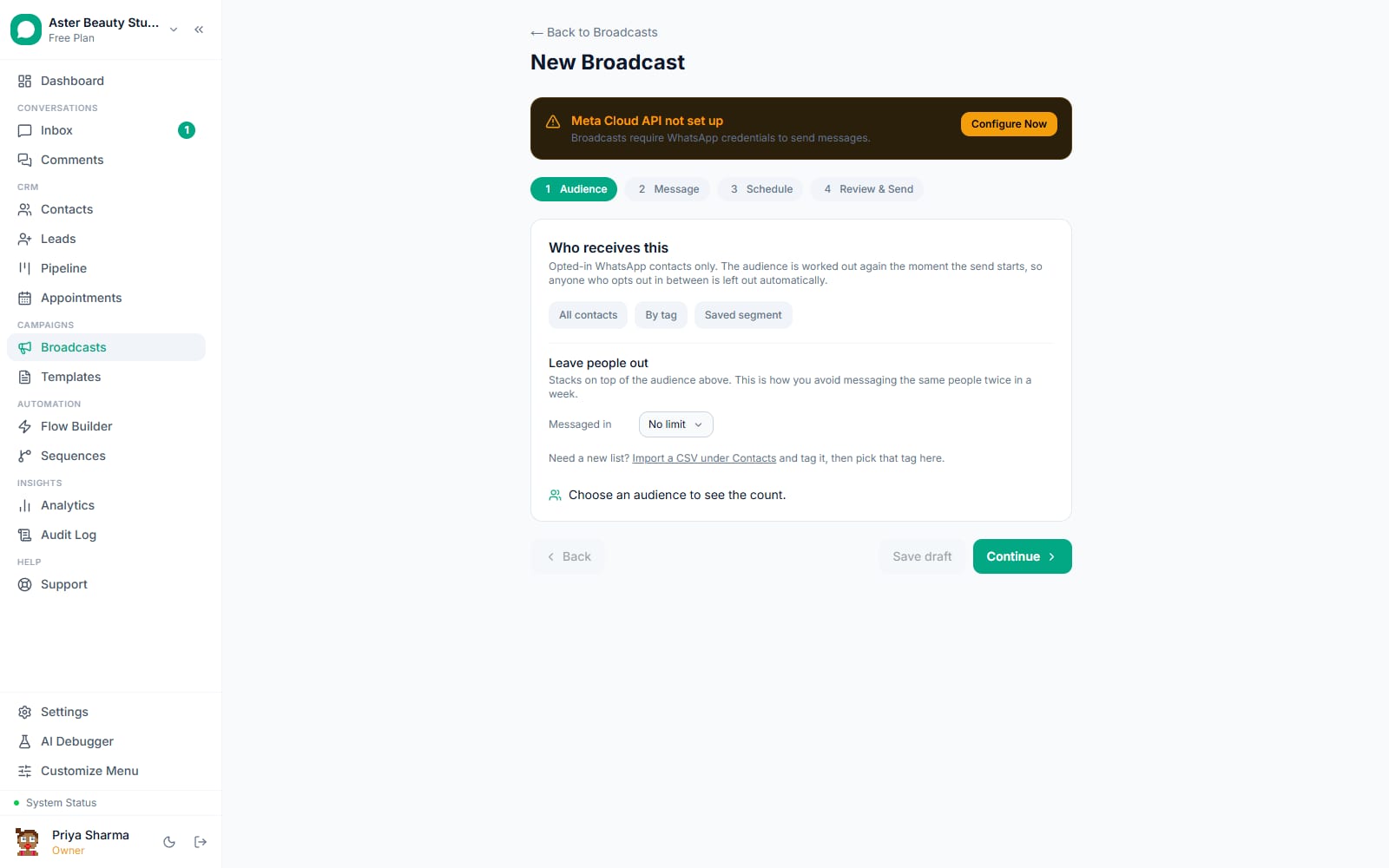
Choose who receives this. Pick All contacts, By tag, or Saved segment. Selecting a tag or segment shows its options as pill buttons; select as many as you need. Whatever you pick is always combined with the platform's own safety guards (opted in, not blocked, a real WhatsApp contact), so your selection can only narrow the audience, never widen it past those checks.
- Under Leave people out, exclude by tag, by "recipients of" a recent campaign, or by "messaged in" the last 1, 3, 7 or 30 days. This is how you avoid messaging the same people twice in one week, something most WhatsApp tools have no answer for.
- The recipient count at the bottom updates live as you narrow the audience: "N contacts will receive this."
Name the campaign and pick a template. Move to the Message step. Give the campaign a name (for your own reference; contacts never see it), and choose an approved template from the dropdown, which shows each template's category in parentheses, for example "Diwali Offer (MARKETING)." If your number is connected to more than one WhatsApp channel, a Send from dropdown appears to choose which one sends this campaign.
Fill in anything the template needs. A template with an image, video or document header shows a field for that asset's public link; a template with an offer code shows a field for it; a template with a location header asks for latitude, longitude, a name and an address, since a pin with no name renders as bare coordinates. See mapping template variables and fallbacks for how the personalization rows work.
Turn on optional extras. Toggle Optimized delivery (Marketing Messages API) if your account is onboarded to Meta's Marketing Messages API. Add a Track clicks to URL if the template has a variable link and you want to see who followed it. Turn on Test two versions to A/B test this campaign; see A/B testing a broadcast.
Send a test message to yourself. Use the Test send button to message your own number or a colleague's before committing to the real audience, so you can confirm the header, body and buttons render as expected.
Set when it goes out. Move to the Schedule step and choose Send immediately, Schedule once, or Repeat. A repeating campaign asks for an interval (every N days, weeks or months) and an optional end date. Set Pace to spread a large campaign over 1, 4, 8 or 24 hours instead of sending as fast as the number allows.
Choose the delivery-safety options for this campaign. Leave Hold sends during quiet hours on unless you have a specific reason not to; it respects the org-wide quiet window set in Settings, Broadcasts. Optionally turn on Use each recipient's local time and Send at each contact's best hour. Set an automatic follow-up cohort and, if this campaign should have a control group for measuring its real effect, a holdout percentage.
Review the real numbers, then send. The Review & Send step states the exact recipient count, the estimated cost, how much of your daily messaging headroom the send will use, and what is skipped automatically. Below that, a live preview shows exactly how the message arrives for your first recipient, with the header, body, footer and buttons rendered as WhatsApp will show them, plus a scrollable list of how it looks for a handful of others.
Confirm and send. Tick the box confirming these contacts opted in and this content matches what they agreed to, then click Send (or Schedule). You can still click Save draft at any point before this if you are not ready.
What you will see
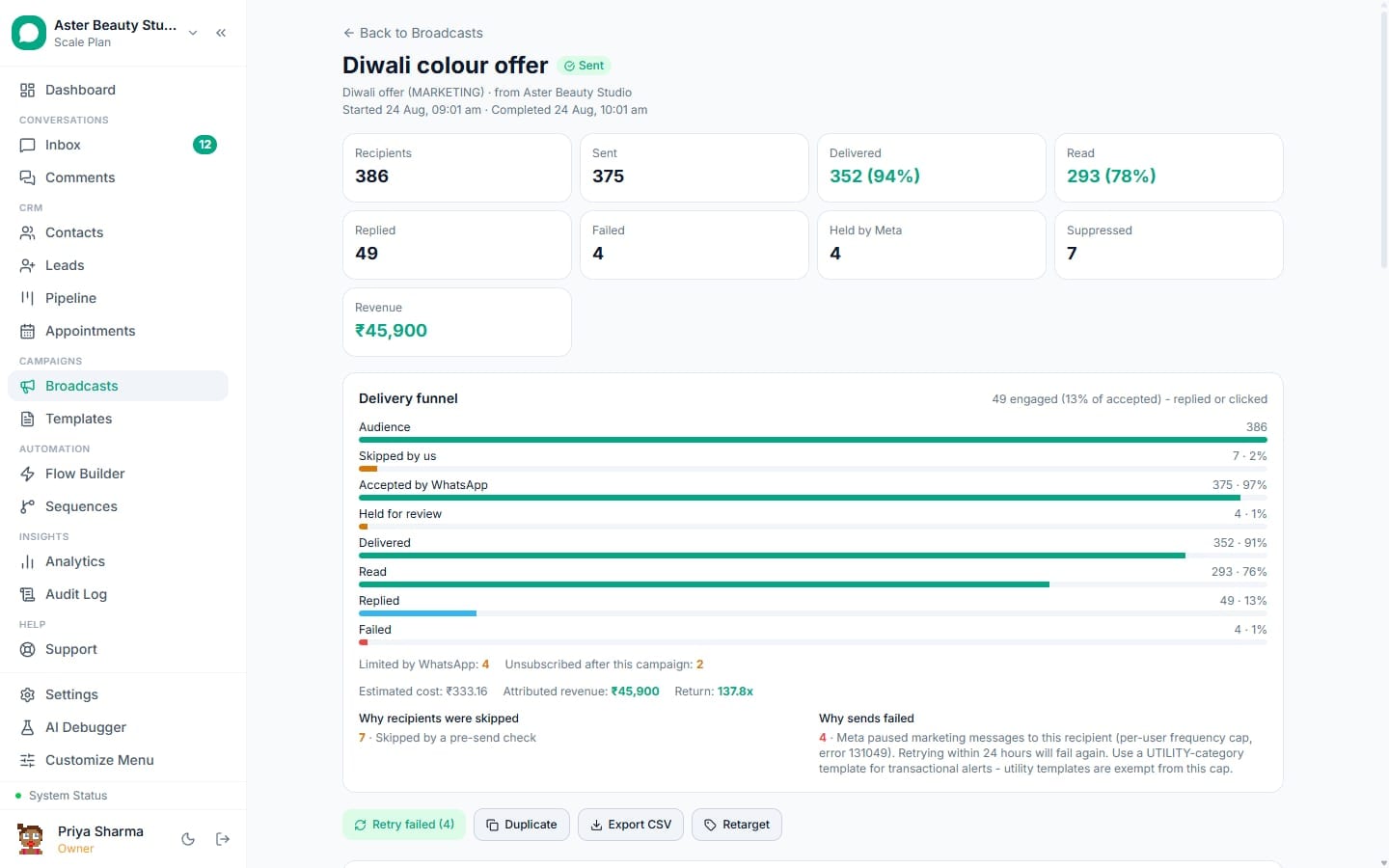
A new entry appears in the Broadcasts list with a status of Sending, Scheduled, or Sent, and a live recipient count. Opening the campaign shows the detail page: stat tiles for Recipients, Sent, Delivered, Read, Replied and Failed (plus Held and Suppressed when relevant), a delivery funnel breaking down every stage, and a per-recipient table you can filter by status or search by name and phone. Any pause reason, if the campaign stopped itself, appears in plain language at the top of the page. Replies from recipients land in the shared Inbox automatically tagged with the campaign's name.
Settings and options
| Step | Setting | What it does | Default |
|---|---|---|---|
| Audience | All contacts / By tag / Saved segment | Selects the base audience before exclusions and safety guards apply | None selected until you choose |
| Audience | Leave people out | Excludes by tag, by prior campaign, or by "messaged within" N days | No exclusions |
| Message | Template | The approved template this campaign sends | Required for a broadcast beyond the 24-hour window |
| Message | Optimized delivery (Marketing Messages API) | Routes MARKETING sends through Meta's delivery-time-optimized endpoint when your account is onboarded | On, if your account is onboarded |
| Message | Track clicks to | Wraps a mapped URL variable in a per-recipient signed tracking link | Off |
| Message | Test two versions (A/B) | Splits a sample of the audience between two templates and picks a winner | Off |
| Schedule | Send mode | Send immediately, schedule once, or repeat on an interval | Send immediately |
| Schedule | Pace | Spreads sending over 1, 4, 8 or 24 hours instead of full speed | As fast as the number allows |
| Schedule | Hold sends during quiet hours | Delays sends that would otherwise fall inside the org's quiet window | On |
| Schedule | Continue tomorrow if the daily limit runs out | Auto-resumes when the messaging window reopens instead of skipping the remainder | On |
| Schedule | Hold back a control group | Deliberately withholds 0, 5, 10 or 20% of the audience for measurement | 0% (send to everyone) |
Troubleshooting
| Symptom | Likely cause | Fix |
|---|---|---|
| Continue button stays disabled on the Audience step | No audience mode has been chosen yet, or the selected tag/segment has zero matching contacts | Pick All contacts, a tag or a segment; check the live count before continuing |
| No templates appear in the Message step | No template has been approved yet, or every approved template needs components the broadcast sender does not build (carousels with per-card variables, some rich header types) | Finish creating your first template; check which templates are filtered out and why on the Templates page |
| Send button never unlocks on Review & Send | The confirmation checkbox has not been ticked | Tick "These contacts opted in..." at the bottom of the review step |
| Campaign shows as Draft after you clicked Send | A validation error was returned by the server (for example a missing fallback value) | The composer shows the error inline against the step that caused it; fix it and resubmit. The campaign is never lost, it stays saved as a draft |
| Recipient count on Review is lower than the Audience step showed | Safety guards and exclusions are re-applied at review time, which can be more current than the earlier count | Expected behavior; open the exclusions note on the review card to see what changed |
Related reading
Once you understand the full flow, go deeper on building precise audiences, mapping variables correctly, and reading the cost estimate before you send.